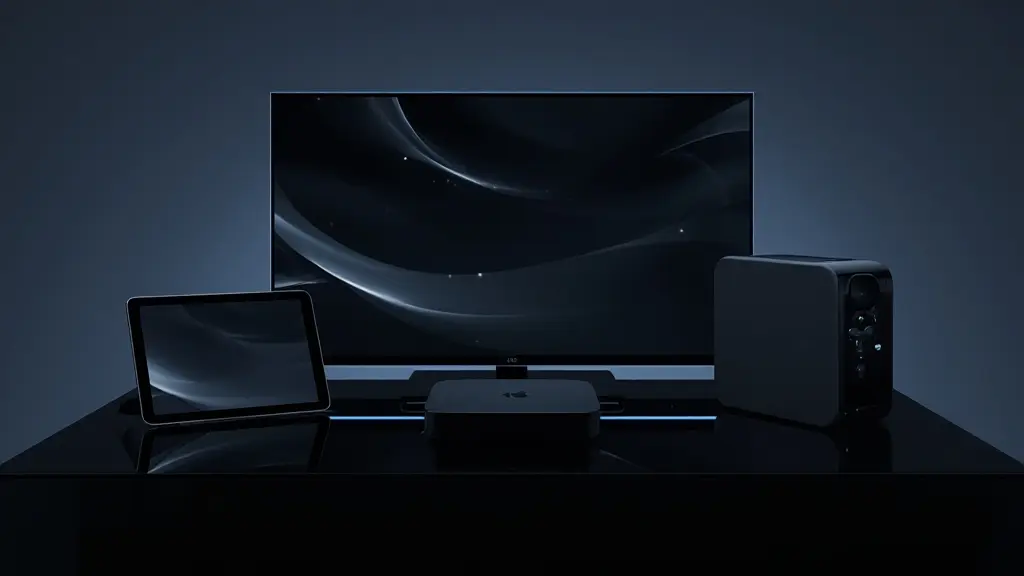
Picking an IPTV box is the step that turns a subscription into something you actually watch from the couch. It is also the step where most people overthink. Many Canadian homes already own a device that can do the job, whether that is a recent smart TV, a streaming stick in a drawer, an iPad or an old laptop. This hub gathers everything we know about the hardware side of IPTV Canada: which device families work, how to choose between them for each room, what to plug in where, how to install a player safely, and where to find the detailed guide for your exact device.
We wrote it for real households, from a one-bedroom condo in Halifax to a split-level in Saskatoon with a TV on every floor. You will not find model recommendations or prices here, because hardware changes constantly and your home matters more than any spec sheet. You will find plain criteria, honest rules about screens, and a support team that answers 7 days a week by e-mail and WhatsApp, in English and French, if you get stuck along the way.
Your IPTV box guides, device by device
Start with the guide that matches the device you own or plan to use. Each one covers the official store on that device, the players to look for, the exact menus to visit, the settings that matter and the fixes for the problems people meet most often. If you are still choosing, open the buying guide first.
The device guides sit next to two other sections you will probably need. The IPTV apps hub compares the players themselves, and the IPTV setup hub explains the login formats, the TV guide and multi-screen rules in detail. The hardware, the player and the login are three separate layers. Once you see them that way, almost every setup question becomes easy to answer.
What an IPTV box does between your router and your screen
Think of an IPTV box as a translator. Your provider sends video over the internet as a stream of data. Your router passes that data to the box. The player app on the box reads your login, asks for the channel or movie you picked, decodes the video and sends picture and sound to the TV over HDMI. The TV simply displays what it receives. If any link in that chain is weak, the picture suffers, and that is why the same subscription can look superb in one room and stutter in another.
Two consequences follow. First, the box contains nothing you are buying content-wise. A device sold as “loaded” or “preconfigured” adds nothing to a legitimate subscription and often adds risk, because it usually means software installed outside the official store. Second, the box is replaceable. Your credentials belong to your subscription, not to the hardware, so a new device simply needs the player installed again and the same details typed in.
A word on the legal side, kept neutral: the technology itself is legal, and whether a given service is legal depends on the broadcasting rights it holds, so check before subscribing. Our explainer on whether IPTV is legal in Canada lists the questions worth asking any provider, us included. For the basics of how the technology works, see what IPTV is.
The device families that run IPTV Canada
In everyday conversation “box” covers several kinds of hardware. Some sit under the TV, some hide behind it in an HDMI port, and some are not separate devices at all. Here is the full family, with the one sentence that sums up each.
Android TV and Google TV boxes
The widest choice of players in Google Play, and many models have an Ethernet port for a rock-steady stream.
Fire TV Stick
Pocket-sized and easy to move between rooms. Players come from the Amazon Appstore, where the list varies by region.
Apple TV
A polished interface and smooth playback, with App Store players and natural pairing with iPhone and iPad.
Samsung and LG smart TVs
No extra hardware or remote. Players live in the TV’s own store, and some activate with the TV’s MAC address.
Phones and tablets
iPhone, iPad and Android devices make a handy second screen in the kitchen, the yard or a bedroom.
PC
A practical choice for a home office or a student room, using a player from your system’s official store where available.
None of these families is “the IPTV device”. Each one is good at something. A box rewards people who like settings. A stick rewards people who move it around. An Apple TV rewards households already on iPhone. A smart TV app rewards anyone who hates extra remotes. The buying guide on the best IPTV box in Canada scores these differences in detail, so here we keep to what you need for a first decision.
IPTV box compatibility at a glance
This table lists where the player comes from on each device, which players to search for, and what to know before you start. App availability can change by model, region and over time, so always open the store on your own device and search before you buy anything new.
| Device | Official store | Players to search for | Ethernet | Watch out for |
|---|---|---|---|---|
| Android TV or Google TV box | Google Play | TiviMate, IPTV Smarters Pro, XCIPTV, IBO Player | On many models | Low-storage boxes slow down with large catalogues |
| Fire TV Stick | Amazon Appstore | IPTV Smarters Pro, XCIPTV | With an adapter | Player list varies by region; use the supplied power adapter |
| Apple TV | App Store | IPTV Smarters Pro, GSE Smart IPTV, IBO Player | On some models | Some players exist on iPhone but not on Apple TV |
| Samsung or LG smart TV | The TV’s own store | Smart IPTV, IBO Player, IPTV Smarters Pro | On most TVs | MAC-address activation on some players |
| iPhone and iPad | App Store | IPTV Smarters Pro, GSE Smart IPTV | No | Cellular data use; keep to home Wi-Fi |
| Android phone or tablet | Google Play | IPTV Smarters Pro, XCIPTV | No | Battery and data use on long sessions |
| PC | System store, where available | IPTV Smarters Pro | On most desktops | Player availability depends on your system |
Notice what does not change from row to row. Every device uses the same login details, every device follows the same 1-connection rule, and every device needs the same speed per screen. The device changes comfort, not access. If one row looks unfamiliar, the matching guide explains it step by step: Android box IPTV, IPTV on Firestick, IPTV on Apple TV and IPTV on smart TVs.
Before you shop: take the remote of the TV you want to use, open its app store and search for IBO Player, Smart IPTV or IPTV Smarters Pro. If one appears, you may not need a box at all. If nothing appears, write the TV’s brand and approximate age down before you visit a store.
Do you need a separate IPTV box at all
The honest answer is “often not”. Smart TVs sold in Canada over the past several model generations frequently list a supported player in their store, and a phone or tablet can cover a second room. A dedicated box earns its place in specific situations: when the TV has no compatible app, when its built-in software has become slow, when you want a wired connection the TV lacks, or when you want a particular player that only exists on another platform. These scenarios cover most of the questions we receive.
Install it, enter your details and use it for a few evenings before spending anything on hardware.
Then: add a box only if menus feel slowA stick or a box gives it a modern interface and a player from an official store.
Then: compare sticks and boxes in the buying guideLook at players built around a channel guide, which are mostly found in Google Play.
Then: read the TiviMate guide before buyingAn Apple TV keeps the same account, the same store and AirPlay from every phone in the house.
Then: check which players exist on tvOSPick a device with an Ethernet port or an adapter, or plan a mesh point near the TV.
Then: run a speed test in that roomNo box is needed. Install a player from the App Store or Google Play and stay on home Wi-Fi.
Then: cast or AirPlay when you want the big screenIf you land in two scenarios at once, follow the one that involves the connection. A great player on a weak link will always disappoint, while a modest device on a steady cable usually surprises people. For the TiviMate route, our TiviMate guide describes the guide grid and how it handles large channel lists.
Planning an IPTV box for each room of the house
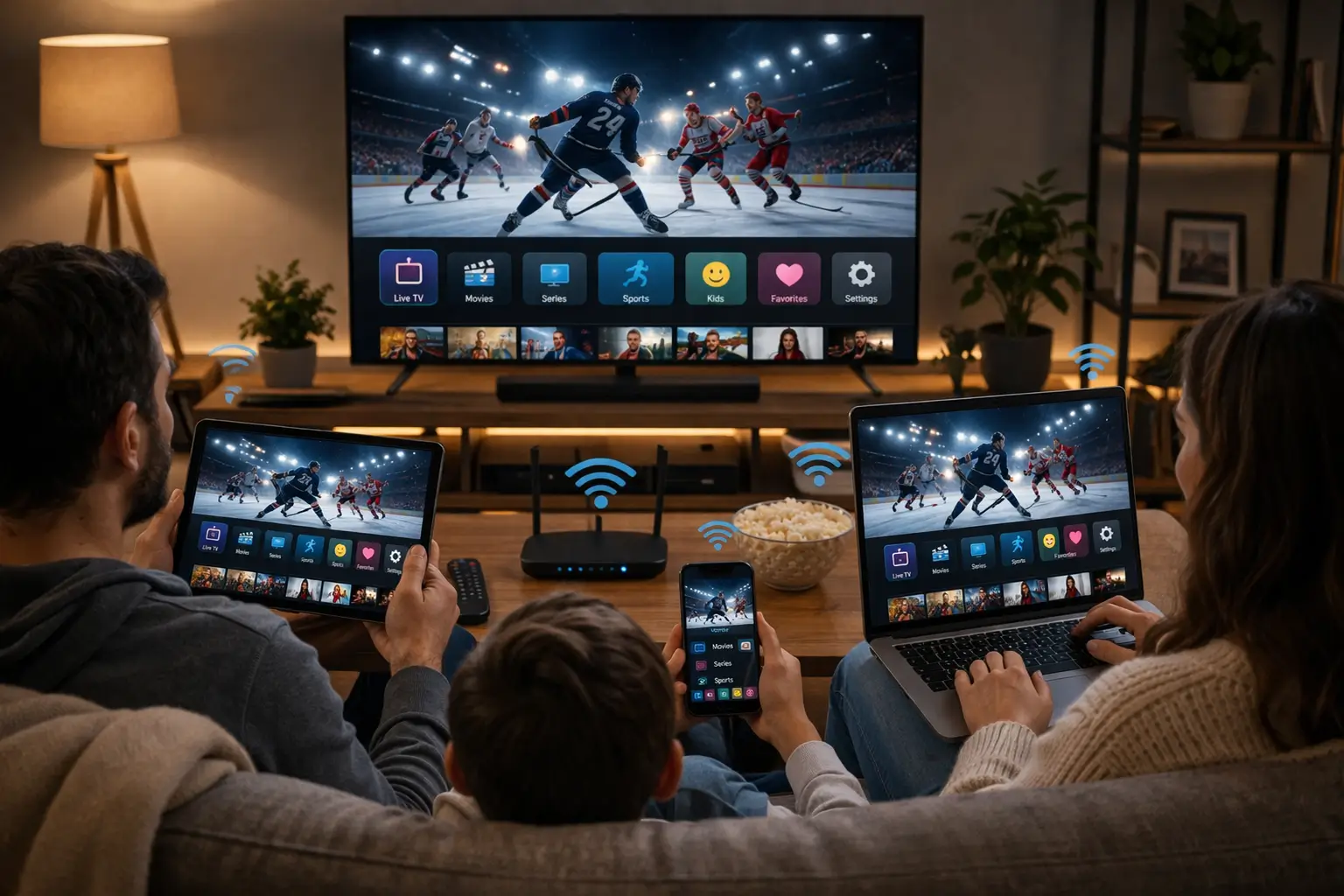
Canadian homes rarely have just one TV. There is the main set in the living room, often a second one in a finished basement, sometimes a small screen in a bedroom or kitchen, and in summer perhaps a TV at the cottage. Each room has a different distance to the router, a different audience and a different idea of what “easy” means. Planning per room avoids buying the wrong device for the wrong spot.
Match the device to the room, not the other way round
The living room deserves the most capable device and, ideally, a cable to the router. A basement often has the weakest Wi-Fi in the house, so a device with Ethernet or a mesh access point nearby pays off there. Bedrooms suit something small and quiet with a simple remote. A kitchen counter rarely needs more than a tablet.
- Living room: 4K-capable box or Apple TV, wired if possible
- Basement: device with Ethernet, or Wi-Fi from a nearby access point
- Bedroom: compact stick or the smart TV’s own app
- Kitchen or office: tablet, phone or PC
- Cottage: whatever device travels best, plus a speed check on arrival
Keep in mind that more devices does not mean more simultaneous viewing. Every pack includes 1 simultaneous connection, so installing on four screens means four places where you can watch, one at a time. Households where two people often want to watch at once should read our page on IPTV on multiple screens and then ask support about extra screens, who give the conditions and the price on request.
A practical trick for multi-room homes is to name each profile after its room when you enter your details. “Living room”, “Basement” and “Kids” make it obvious which device is still playing when another screen refuses to start. For the regional side of planning, such as cottage connections in Ontario or bilingual menus in Québec, the IPTV across Canada section has city and province guides.
Xtream Codes or M3U on any IPTV box
Whichever device you choose, you enter your subscription in one of two formats. Both arrive in the same e-mail within minutes of your order, and both work on every device family above. The difference is how much the player can do on its own.
| Format | What you type | What loads automatically | Best for |
|---|---|---|---|
| Xtream Codes | Server URL, username, password | Live channels, movies, series and the TV guide | Almost everyone, on almost every device |
| M3U link | One playlist address | Channel list; some players need a separate guide address | Players that only accept a playlist, or activation through a publisher’s site |
The fields look much the same on a box, a stick, an Apple TV or a smart TV player.
On devices with a remote and an on-screen keyboard, typing is the slowest part of the whole setup. Three habits save time: copy the server address character by character including the port, remember that usernames and passwords are case-sensitive, and check for a stray space at the end of each field. The Xtream Codes setup guide shows the fields player by player, and the M3U playlist guide covers the playlist route and the separate guide address some players need.
Installing a player safely from the official store
This is the one rule we never bend: install players only from your device’s official app store. That means Google Play on Android TV and Google TV, the Amazon Appstore on Fire TV, the App Store on Apple devices and the built-in store on Samsung and LG TVs. Apps from the official store are checked, update themselves and can be removed cleanly. Anything installed from a link, a file or a website skips all of that.
Important: if a supported player is not listed in your store, do not look for it elsewhere. Try another supported player in the same store, or use a different device where one is listed. We are independent from app publishers. Some players ask for a licence or sell premium features: check the current price on the app’s official website.
- Open the store on the device itself. Search from the TV, box or stick you will actually use, because availability differs between devices.
- Search for a supported player by name. Try IPTV Smarters Pro first, then TiviMate, XCIPTV, IBO Player, Smart IPTV or GSE Smart IPTV depending on the platform.
- Check the listing carefully. Compare the app name, the publisher and the description with the player you expect. Copycat listings exist.
- Install and open it. Accept only the permissions the player needs for network and storage.
- Add your login. Choose Xtream Codes where offered and enter the details from your e-mail.
- Wait for the first load. Large catalogues take a moment to import the first time. Leave the remote alone until the lists appear.
If you want to compare the players before installing one, the IPTV Smarters Pro guide walks through the most common player screen by screen, and the XCIPTV guide covers a lighter option that suits modest devices.
Your first evening with a new IPTV box
People often expect setup to be long and technical. In practice it follows the same short sequence on every device, and most of the effort goes into typing the login carefully. Here is what a typical first evening looks like, from unboxing to the first channel.
- Step 1
Plug in and power up
Connect HDMI to the TV, power from the supplied adapter, and Ethernet if the device has a port. Pick the right HDMI input on the TV.
- Step 2
Finish the device setup
Choose language, connect to the network and sign in to the store account the device asks for. Let any system update finish.
- Step 3
Order and read the e-mail
Choose a pack and duration on the plans page. Your access e-mail arrives within minutes with Xtream Codes or an M3U link.
- Step 4
Install the player
Search the official store, check the publisher, install, open.
- Step 5
Enter your details
Type the server URL, username and password, or paste the M3U link. Give the profile a room name.
- Step 6
Tidy the lists
Add favourites, hide groups you never watch, set a parental PIN and check that the TV guide shows your local time.
The last step is the one people skip, and it is the one that makes the device feel fast. A channel list trimmed to what your home actually watches scrolls quicker on any hardware. If the guide grid stays empty or shows the wrong hour, the IPTV EPG guide explains how to refresh it and set the time offset for your province.
Your device is ready. Now pick the pack.
Three packs, four durations, one payment in Canadian dollars with no contract and nothing that renews on its own.
Connection planning for your IPTV box
A device can only show what the connection delivers. Our recommended speeds apply per screen and are the same on every device: 10 Mbps for HD, 15 Mbps for Full HD and 25 Mbps for 4K. These figures are what the stream needs while it plays. Everything else on the network, from video calls to game updates, shares the same connection at the same time.
Recommended speed per screen

Wired beats wireless, and 5 GHz beats 2.4 GHz
An Ethernet cable is the single most effective upgrade for any IPTV box. When a cable is impossible, use the 5 GHz band, which is faster but has a shorter reach, and keep the router out of cabinets. The 2.4 GHz band travels further through walls and floors but is slower and more crowded, especially in apartment buildings.
- Run a speed test on the device itself, in the room where it lives
- Test in the evening, when the household and the neighbourhood are online
- Prefer Ethernet, then 5 GHz, then 2.4 GHz
- Restart router and device after any firmware update
If support arranges extra simultaneous screens for your household, add the figures together: a 4K screen and a Full HD screen at the same time need 25 plus 15, so 40 Mbps of headroom just for TV. Our IPTV buffering guide goes through the network checks in order, and the 4K IPTV guide explains every link in the chain for the sharpest picture.
One connection, every device in the home
Every IPTV Canada pack includes 1 simultaneous connection. That rule is the same whether you own one stick or six devices. You can install the same credentials on the living-room box, the bedroom TV, a tablet and a laptop. What you cannot do is play on two of them at the same moment: when a second device starts, one of the streams stops.
How households live with one connection
Most homes settle into a simple habit: the person who starts watching on another screen closes the player on the first one. Families with teenagers sometimes agree on a main screen for evenings. When two people regularly want to watch at the same time, the right answer is to ask support about extra simultaneous screens. Support explains the conditions and gives the price for your situation. Credentials are for one household only; sharing them with another home creates conflicts and puts the access at risk.
When a stream stops for no clear reason, the first question to ask is whether another device in the house is still playing. A tablet left on a channel in a child’s room is the classic culprit. Our troubleshooting page for when an IPTV app can’t connect lists the error messages that usually point to this situation.
Matching packs to your IPTV box
All three packs work on every supported device. What changes is the size of the catalogue the device has to load and how much 4K you want. A larger catalogue means a longer list of channels and a heavier TV guide, so devices with more memory and storage handle the bigger packs more comfortably. On a modest stick, hiding unused groups keeps any pack responsive.
Premium Pack
- 20,000+ channels
- 24,000+ series
- 100,000+ movies
- HD, Full HD and 4K
- Comfortable on any supported device
VIP Premium Pack
- 27,000+ channels
- 61,000+ series
- 155,000+ movies
- HD, Full HD and 4K
- Best on a box or Apple TV with room to spare
Ultimate 4K Pack
- 57,000+ 4K channels
- 47,000+ series
- 179,000+ movies
- 20 servers in Europe
- For a 4K TV, a 4K device and 25 Mbps
Every pack comes in durations of 1, 3, 6 or 12 months, with a one-time payment in Canadian dollars by card or PayPal, no automatic renewal and no contract. See current prices on the plans page. If you are unsure which length suits you, the monthly IPTV subscription page explains how a short plan lets you check the service on your own devices first.
Keeping your device healthy over time
A device that felt fast on day one can feel sluggish a few months later. The cause is rarely the hardware wearing out. It is usually storage filling up with app data, a player cache that has grown large, a system update waiting in the background, or a router that has not been restarted in a long time. A short routine keeps things smooth.
- Let system and player updates install through the official store
- Clear the player’s cache from the device’s app settings when menus slow down
- Uninstall apps nobody in the house uses any more
- Restart the device and the router after updates, or when the picture feels off
- Keep vents clear: boxes and sticks behind a TV run warm
- Use the supplied power adapter rather than a TV’s USB port
- Refresh the TV guide in the player if program times look wrong
Heat deserves a special mention. Sticks tucked directly behind a wall-mounted TV and boxes shut inside a closed cabinet can throttle themselves when they get warm, which shows up as stutter after a long evening. An HDMI extension cable that moves a stick away from the TV’s back panel often helps both the temperature and the Wi-Fi signal. If you still see the picture lock up, the IPTV freezing guide walks through a step-by-step diagnosis.
Changing devices without changing your plan
Because your access is tied to the subscription and not the hardware, upgrading is painless. You can move from a smart TV app to a box, from a stick to an Apple TV, or from one player to another without contacting us and without losing anything. The only thing that moves is the login: you install a player on the new device and enter the same details.
Good reasons to switch device
- The TV’s built-in player has become slow after updates
- You want Ethernet and the current device has none
- You bought a 4K TV and the old device outputs Full HD only
- You want a player that only exists on another platform
- The remote frustrates older members of the household
Reasons that rarely justify a new device
- Buffering that starts at the router or the Wi-Fi band
- An empty TV guide, which is a player setting
- A login error, which is usually a typing slip
- A stream stopping because another screen is playing
- A “preloaded” box offered as an upgrade
When you retire an old device, sign out of the player or uninstall it, especially if the device leaves the household. That keeps your credentials within your home, as they should be. If you are not sure whether your problem is the device or something else, describe it to support: we answer every day and can usually tell from the symptoms where to look first.
Making the TV easy for everyone at home
The best device on paper is the wrong one if half the household cannot use it. Grandparents, young children and bilingual families each need something slightly different from the same screen. Most of it comes from small settings rather than from the hardware.
Older viewers
Set the device to open the player at start-up where available, keep a short favourites list and teach one button for the TV guide.
Young children
Turn on the player’s parental PIN for sensitive categories and create a separate profile with only the groups they watch.
Bilingual homes
Build separate favourites for English and French content and set menu, audio and subtitle preferences per profile where the player allows.
Shift workers
Use catch-up and on-demand sections, and make sure the guide matches your time zone so recordings and reminders line up.
Québec households and bilingual families elsewhere often ask whether the device decides the language. It does not: menus come from the device and the player, while audio and subtitle tracks come from the content. Our IPTV Quebec page explains how to set French menus and audio on each platform, and support can help in French every day of the week.
Words you will meet when shopping for a device
Store shelves and product listings use a lot of jargon. These are the terms that actually matter for IPTV, in plain English.
- HDMI
- The cable and port that carry picture and sound from the device to the TV. For 4K, use a port and cable that support HDMI 2.0 or later.
- HDR
- High dynamic range, a picture format with brighter highlights and deeper shadows. The TV, the device and the content must all support it.
- Ethernet
- A wired network connection. The most stable way to feed an IPTV box.
- 5 GHz / 2.4 GHz
- The two common Wi-Fi bands. 5 GHz is faster with shorter reach; 2.4 GHz reaches further but is slower and busier.
- Storage
- The space for apps and their data. Large catalogues and guide data use more of it.
- MAC address
- A unique identifier of a device’s network card. Some smart TV players use it to activate a playlist.
- Official app store
- The store built into your device: Google Play, Amazon Appstore, App Store or the TV’s own store. The only place we recommend installing players.
- Simultaneous connection
- A stream playing at a given moment. Each pack includes 1, whatever the number of devices you install it on.
If a listing uses a term not on this list, it probably does not affect IPTV much. Focus on 4K output if you have a 4K TV, a wired or 5 GHz connection, enough storage and a supported player in the store. Everything else is comfort.
Common device mistakes we see every week
Most support conversations about devices come down to a handful of avoidable slips. None of them needs a new purchase to fix.
Some TVs do not supply enough power, which causes random restarts and slow menus.
Then: use the adapter that came in the boxWood and metal doors weaken the 5 GHz signal before it even leaves the room.
Then: move it into the open, up highA tablet or bedroom TV still on a channel blocks the main screen.
Then: close the player when you leave a roomThe device and TV negotiate badly and you may see a black screen.
Then: let the device detect the TV’s resolutionA black screen right after a settings change is almost always a resolution or HDR mismatch rather than a fault. The IPTV black screen guide lists the five usual causes, quickest fixes first.
Where to go next with your IPTV box
You now know what each device family does, how to plan per room and which rules apply everywhere. The next step depends on where you are in the process.
Not sure your device is compatible
Tell us the brand, the approximate age and the room it is in. Support answers 7 days a week, in English and French.
FAQ
Do I need to buy an IPTV box to watch IPTV Canada?
Not always. If your Samsung or LG smart TV lists a supported player in its store, you can watch without extra hardware. A box or stick becomes useful when the TV is older, slow or has no compatible app, or when you want Ethernet.
Which IPTV box is best for 4K?
Any 4K-capable device connected to a 4K TV can play 4K: a recent Android TV box, a 4K Fire TV Stick or a 4K Apple TV. You also need around 25 Mbps for that screen, and the Ultimate 4K Pack gives the widest 4K selection.
Can I use the same subscription on my TV and my phone?
Yes. Install the same credentials on as many devices in your home as you like and watch on one at a time. Each pack includes 1 simultaneous connection; for more screens at once, contact support for the conditions and price.
Where do I get the player app?
Always from your device’s official app store: Google Play, the Amazon Appstore, the App Store or your smart TV’s store. Availability varies by device and region, so search on the device itself before buying hardware.
Do I have to pay for the player app?
Some players ask for a licence or sell premium features. We are independent from app publishers, so check the current price on the app’s official website.
Should I buy a box that comes preloaded with IPTV?
We advise against it. A legitimate subscription needs nothing preinstalled, and preloaded boxes usually carry software installed outside the official store. Buy a standard device and install a player yourself.
Does the device change the picture quality?
The device sets the maximum it can output, such as Full HD or 4K, and the connection decides whether the stream can sustain it. On the same connection, two capable devices look very similar.
Can I move my IPTV box to another room or a cottage?
Yes. Your access is not tied to a location in your home. In a new spot, check the Wi-Fi or Ethernet speed in that room before an important evening, and remember the 1-connection rule.
What happens to my access if I replace my device?
Nothing changes. Install a supported player on the new device and enter the same details from your access e-mail. Sign out of the old device if it leaves your household.
What if my device is not listed on this page?
Contact our support team with the brand and approximate age. We answer 7 days a week by e-mail and WhatsApp, in English and French, and can tell you whether it can run a supported player.