An IPTV not connecting error tends to appear at the worst moment: friends are on the couch, the game is about to start, and the player answers with a grey box instead of a channel list. The good news is that a refused connection is one of the most predictable problems in streaming. There are only a handful of reasons a player cannot log in, and each one leaves a recognisable trace on the screen. This guide teaches you to read those traces, then walks through the fixes in the order that solves the most cases in the least time.
It applies to every supported player, from IPTV Smarters Pro and TiviMate to Smart IPTV, IBO Player, XCIPTV and GSE Smart IPTV, and to every supported device: Samsung and LG smart TVs, Android TV and Google TV boxes, the Fire TV Stick, Apple TV, iPhone and iPad, Android phones and tablets, and PCs. It sits inside our IPTV troubleshooting section, next to the guides for buffering, freezing and black screens, because a connection problem is a different animal: the stream never starts at all.
IPTV not connecting: decode the message on your screen
Players rarely agree on wording, but they all report the same small set of situations. Before you restart, reinstall or retype anything, write down or photograph the message exactly as it appears. That photo is the single most useful thing you can bring to the rest of this guide, and to support if you need us later.
| What the player says | What is really happening | First thing to try | Section below |
|---|---|---|---|
| Invalid login, wrong credentials, authentication failed | The server answered, but rejected the username or password | Compare both fields with your e-mail, character by character | Login typos |
| Server not found, host unreachable, network error, timeout | The player never reached the server | Check the server URL, then your network | Server URL, router |
| Too many connections, max connections reached, connection limit | The login is already streaming on another screen | Stop playback on every other device | One-screen rule |
| Account expired, disabled, inactive | The access period you paid for has ended | Check your end date in the account screen | Expired access |
| Endless spinner, empty categories, zero channels | Partial login, wrong format or a blocked request | Delete the profile and add it again | Stale profiles |
| Works on mobile data, fails on home Wi-Fi | Something on the home network blocks the player | Router restart, DNS back to automatic | Home network |
Two patterns are worth spotting straight away. If the error mentions credentials, the server is reachable and your network is almost certainly working, so leave the router alone. If the error mentions the server, the network or a timeout, your username and password have not even been checked yet, so retyping them will not help until the address and the connection work. Splitting problems this way saves a lot of guesswork, and it is exactly how our support team reads a screenshot when you send one.
Good habit: when a message disappears too fast to read, trigger it again and take a photo with your phone the moment it appears. Many players also keep a short log or an account information screen that repeats the last status.
The five layers every connection passes through
A player that connects successfully has quietly cleared five checkpoints in a row. When one of them fails, everything after it fails too, which is why the same symptom can have very different causes. Picturing the chain helps you test the right layer instead of resetting things at random.
Read it from left to right. A device with the wrong date can fail secure connections before your login is ever sent. A home network that blocks the player stops everything at the second box. A player holding an old, broken profile never sends your real details. A login with one wrong character reaches the server and is turned away. And a perfectly typed login can still be refused if the access period has ended or another screen is already using the single connection included in your pack.
The trick is to find the first box that fails. Mobile data tests the network box. A second player tests the app box. Your access e-mail tests the login box. The account information screen, where your player has one, tests the last box. Each test takes a minute or two, and together they point at the cause with very little doubt.
Find the first link in the chain that breaks. Everything after it is just a consequence.
A quick triage before you change any setting
Most people start by uninstalling the app, which is the slowest fix and rarely the right one. Run this short triage first. It does not change any setting, so it cannot make things worse, and it usually tells you which section of this page to jump to.
- Check 1
Look at the other screens
Walk through the house. Is a tablet, phone, bedroom TV or laptop playing anything with the same login? If yes, stop it and wait a minute.
- Check 2
Try a second device
Open the player on another device at home. If it connects, the problem lives on the first device. If it fails the same way, look at the login, the access or the network.
- Check 3
Switch to mobile data
On a phone with a player installed, turn off Wi-Fi and try again. Success on mobile data and failure on Wi-Fi points straight at the home network.
- Check 4
Open the access e-mail
Put it side by side with the login screen of the player. Check that the right details are in the right fields and that the format matches.
- Check 5
Look at the end date
If the player shows an expiry date, read it. If it does not, think back: when did you order, and for 1, 3, 6 or 12 months.
These five checks map neatly onto the rest of this page. Another screen playing sends you to the one-connection section. One device failing while another works sends you to the device and player sections. Mobile data working sends you to the home network section. A mismatch with the e-mail sends you to the login and server URL sections. A past end date sends you to the plans page. If all five checks come back clean, keep reading: there are still a few less obvious causes to rule out before you contact us.
Your login and access both work. Focus on that device: its clock, its app version and the saved profile.
Then: delete and re-add the profileThe cause is shared: the login details, the access period or the home network.
Then: compare with the e-mail and check the end dateYour account works. Something between the router and the internet is in the way.
Then: restart the router and reset DNSLogin typos: the most common reason a player says no
Your access arrives by e-mail within minutes of your order, either as Xtream Codes details (a server URL, a username and a password) or as an M3U link. Those details are long strings of letters and numbers, and on a TV you type them one character at a time with arrow keys. It is no surprise that a single slip is the cause of most refused logins. The fix is methodical comparison, not frustration.
- Put the e-mail where you can read it. Open it on a phone or laptop and keep it next to the TV, not in your memory.
- Check the username first. Go through it in small groups of three or four characters, reading the e-mail, then the screen.
- Respect upper and lower case. Usernames and passwords are case-sensitive. A capital letter typed as small, or the reverse, is enough to be refused.
- Watch the look-alike characters. The digit 0 and the capital O, the digit 1, the small l and the capital I, and the digit 5 and the capital S are the usual suspects.
- Hunt for invisible spaces. Some on-screen keyboards add a space after a word or keep one at the start of a field. Move the cursor to the very end of each field to check.
- Make the password visible. If the player offers an eye icon or a show password option, turn it on while you compare.
- Save, close the app fully and reopen it. Some players only try the new details after a clean restart.
Three fields to check, plus a profile name that tells you which room this device is in.
Whenever your player allows it, avoid typing on the TV altogether. Some players accept details from a companion page or a phone, and Android TV boxes often accept a paired keyboard or a phone keyboard app from the official store. Copying and pasting from the e-mail removes almost every typo in one go. Our Xtream Codes setup guide shows where each field sits in the main players, which helps when the labels are unfamiliar.
Getting the server URL exactly right
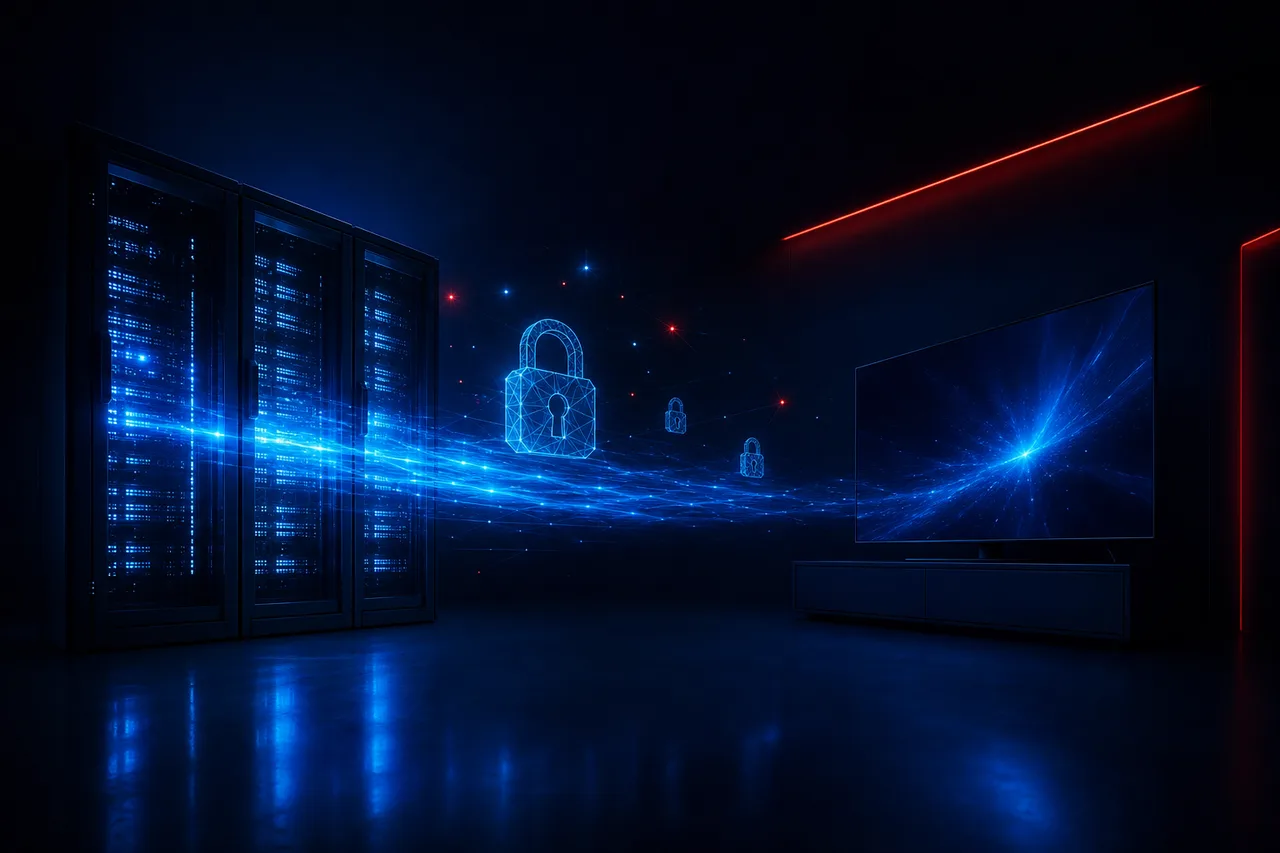
The server URL tells the player where to knock. If the address is wrong, nothing else matters, because your username and password never reach anyone who can check them. That is why a server problem shows up as “not found”, “unreachable” or a long timeout rather than as a login refusal. The address has several parts, and each one has to be present and in the right order.
Read the address in parts
Think of the server URL as a prefix, a name and sometimes a port after a colon. Players are strict: a missing prefix, a missing port or a stray character at the end can each stop the connection before it starts.
- The prefix at the start is identical to the one in your e-mail.
- The port, if your e-mail shows one after a colon, is included.
- No slash, word or space has been added at the end.
- The address sits in the server field, not in the username field.
- The player’s own format hint, if it shows one, matches what you typed.
A few players add their own prefix automatically, and typing it again creates a doubled prefix that looks right at a glance but cannot work. If your player shows a greyed hint inside the server field before you type, read it: it often tells you whether to include the prefix or leave it out. When in doubt, try exactly what the e-mail says first, then the variation without the prefix, and stop there.
One more trap: autocorrect. Phones and some TV keyboards like to capitalise the first letter or turn a sequence into a known word. Server addresses are usually written in small letters, so check that the first character has not been capitalised behind your back. The same goes for an automatic full stop added after a double space.
Read it aloud
Before typing the server URL on the TV, read it aloud from your phone in groups of three or four characters. Then type one group, look back at the e-mail and move on. It feels slow, but it is much quicker than guessing afterwards which of thirty characters went wrong.
M3U links and players that ask for a playlist
Not every player uses the three-field Xtream Codes form. Some ask for a single playlist address, the M3U link, and a few activate through the publisher’s own page using your TV’s identifier. Mixing the two formats is a classic cause of an empty or refused login: an M3U link pasted into a server field, or Xtream Codes details squeezed into a playlist box, will not connect.
| Situation | Xtream Codes | M3U link |
|---|---|---|
| What you enter | Server URL, username, password in three fields | One long address in a single playlist field |
| Typical error when wrong | Invalid login or server not found | Playlist failed to load, empty list |
| TV guide loads by itself | Yes, in most players | Not always, some need a guide address |
| Easy to type on a remote | Yes, three short fields | No, one very long string |
| Best way to enter it | Carefully, field by field | Copy and paste from a phone or computer |
With an M3U link, the most common failure is truncation: the address is long, and a TV text box or a messaging app quietly cuts the end off. Make sure the last characters in the player match the last characters in the e-mail. If the link contains your username and password inside it, a typo anywhere in the string has the same effect as a typo in the login form. Our M3U playlist setup guide explains where to paste the link in each player and how to add the TV guide separately when needed.
If your player supports both formats, choose Xtream Codes. It is shorter to type, it brings the guide and the on-demand sections along automatically, and a refused login is easier to diagnose because each field can be checked on its own.
When the player holds on to old details
Here is a situation support sees every week: the details on screen now match the e-mail perfectly, and the player still refuses. The reason is often a stale profile. Many players save a profile the first time you log in, along with cached server information. Editing that profile does not always clear what the player remembered, so it keeps trying the old, broken version in the background.
- Open the list of profiles or playlists. In most players it appears on the first screen or under a users or playlists menu.
- Delete the failing profile completely. Do not just edit it. Remove it from the list.
- Close the player fully. On a TV or box, use the device’s app manager to stop it, or restart the device.
- Add a brand-new profile. Give it a new name, such as the room it sits in, and enter the details from the e-mail.
- Wait for the first load. A large catalogue takes a moment to import. Leave the remote alone until categories appear.
Deep dive: cache, data and when to reinstall
Device settings usually offer two buttons for an app: clear cache and clear data. Clearing the cache removes temporary files such as logos and guide pieces, and keeps your profiles. Clearing data resets the player as if it had just been installed, profiles included, so you will need your e-mail to log in again. Try deleting the profile first, then clearing the cache, and only then clearing data. Reinstalling from your device’s official app store is the last step, and it is rarely needed for a connection problem.
An outdated player can also refuse a connection the server now expects to handle differently. Open your device’s official app store, search for your player and install any update it offers. We are independent from the publishers of these apps, so we do not control their updates or their licences. If a player asks for a licence or an activation, check the current price on the app’s official website.
Too many connections: the one-screen rule explained
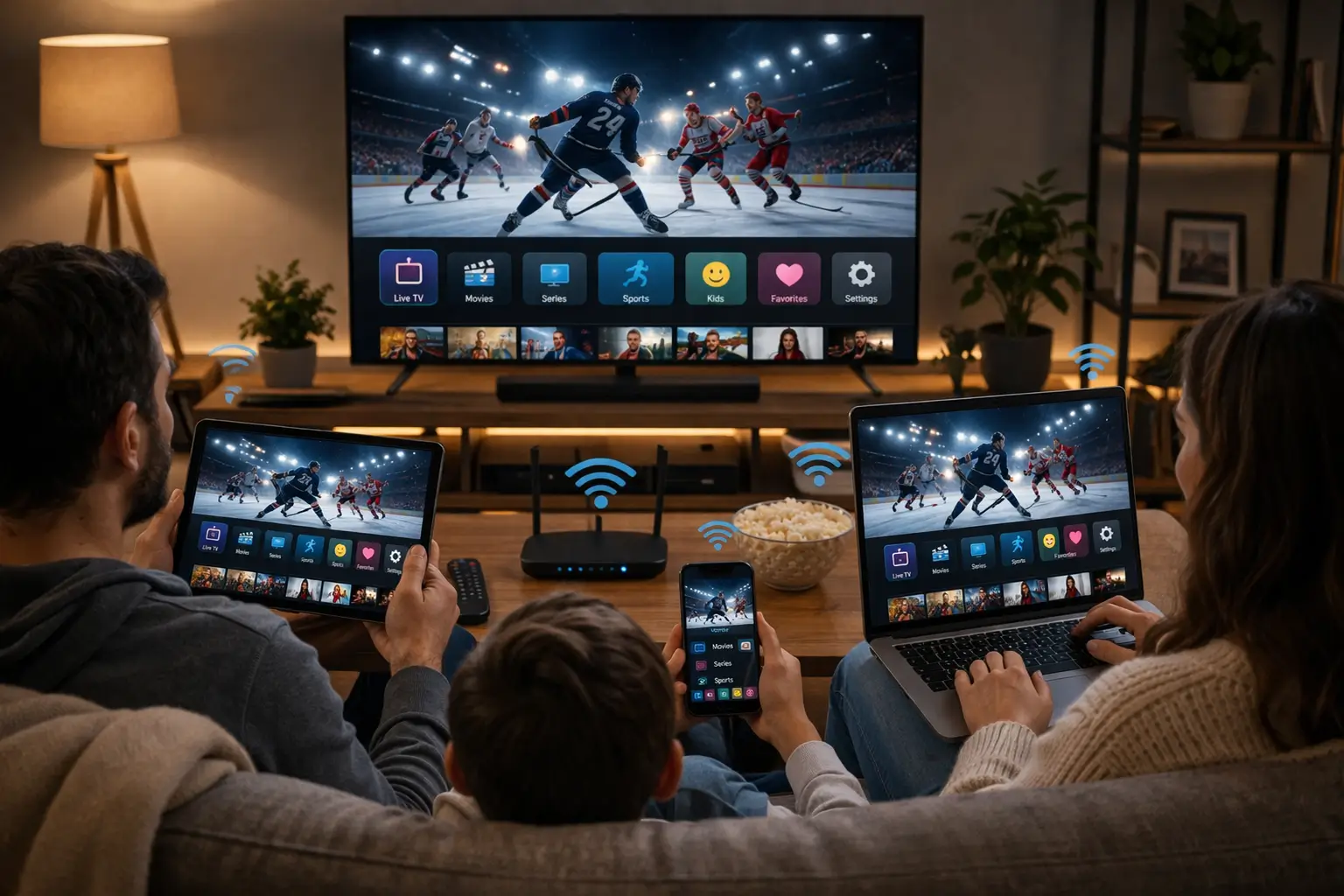
This is the cause people find hardest to believe, because nothing looks broken. Each pack includes 1 simultaneous connection. You can install your login on as many of your own devices as you like, but only one of them can stream at any moment. When a second screen tries to play while the first is still active, the server refuses it, and the player shows a connection limit message or simply fails to log in.
Where a hidden stream hides
The screen holding your connection is often not obvious. A TV switched off with the remote may still have the player running on a box behind it. A phone in a backpack may still be playing with the sound off. A tablet in a child’s room may have been left on a channel at bedtime.
- Stop the player on every other device, do not just pause it.
- Turn off boxes and sticks, not only the TV in front of them.
- Wait a minute or two before trying again, so the server releases the slot.
- Name each profile after its room to see quickly which one is active.
If your household regularly needs two people watching at the same time, the rule will keep biting. That is a planning question rather than a fault, and there is an answer: additional simultaneous screens are available on request. Write to us through the contact page and support will explain the conditions and the price for your home. Our page on IPTV on multiple screens describes how households usually organise devices, profiles and viewing times.
Watch out: your login belongs to your household. When it is used in another home, two places fight over one connection, and both keep seeing errors. Shared logins can also lead to the access being suspended, which turns a nuisance into a real outage.
Someone has a routine: a teenager’s show, a partner’s phone on the bus home.
Then: agree on who watches when, or ask about extra screensThe previous device has not released the connection yet.
Then: stop playback there and give it a minuteA device may still be streaming in the background, or the login may be used outside your home.
Then: turn off every device and contact supportExpired access and end dates
When every device in the house lost the connection on the same day, and the message mentions the account rather than the login, look at the calendar before anything else. Packs run for a period you chose at checkout and stop at the end of it. Nothing renews automatically and there is no contract, which is good for your budget but means the end date is easy to forget.
Many players show the expiry date on an account information or user info screen. If yours does not, check the date of your order e-mail and count forward by the duration you chose. If the date has passed, the fix is simply a new order. You will find the durations and the current prices on the IPTV subscription plans page, and you can pay once in Canadian dollars by card or PayPal. Your new access details arrive by e-mail within minutes.
Renewing is also a good moment to reconsider the pack. The Premium Pack covers 20,000+ channels, 24,000+ series and 100,000+ movies in HD, Full HD and 4K. The VIP Premium Pack raises that to 27,000+ channels, 61,000+ series and 155,000+ movies for households that watch a lot on demand. If your new e-mail contains new details, delete the old profile in each player and add the new one, rather than editing the old entry.
Access ended on every screen
Pick a pack and a duration, pay once and receive fresh details by e-mail within minutes.
IPTV not connecting on any device: start at the router
When your details are correct, your access is active, nobody else is watching, and still no device in the home can connect, the cause is almost certainly between your router and the internet. The mobile data test from the triage confirms it: if a phone connects the moment Wi-Fi is off, the service and your login are working, and the home network is the layer to fix.
- Test ordinary browsing. Open a web page on the same device. If nothing loads at all, the internet line itself is down and your internet provider is the one to call.
- Restart the router properly. Unplug it, count to thirty, plug it back in and wait until every light is steady before you touch the TV.
- Restart the TV or box after the router. Devices sometimes keep an old network address that no longer works after a router restart.
- Forget and rejoin the Wi-Fi network. On the TV or box, remove the saved network and connect again with the password.
- Try a cable if you can. Connect the box or TV to the router with Ethernet for one test. A connection that works wired and fails on Wi-Fi points to signal or band settings.
Pay attention to which network the device actually joined. Many homes now have a main network, a guest network and sometimes a separate network from a mesh system or an extender. Guest networks are often isolated or restricted on purpose, and some block streaming apps or unusual ports. Put the TV or box on the main network, the same one your laptop uses for everyday browsing.
Quick test: install the same player on a phone, log in with the same details over home Wi-Fi, then over mobile data. Same failure on both means the login or access. Failure on Wi-Fi only means the home network. Failure on the TV only means the TV.
Network settings that quietly block a player
Some homes have a router that works perfectly for browsing, video calls and games, yet stops a streaming player from connecting. The reason is usually a setting someone turned on months ago, often with good intentions. These are the usual suspects, roughly in the order we meet them.
Custom DNS
If you or a technician entered custom DNS addresses on the router or the device, set them back to automatic for a test.
Router security filters
Content filters and threat protection features can block lesser-known addresses. Pause them for a test, then add an exception.
Parental controls
Schedules and category blocks set for the kids may apply to the whole network or to the TV’s network address.
Guest or IoT network
Isolated networks for visitors or smart devices often restrict streaming. Move the TV to the main network.
Wrong device clock
A box with a date far in the past or future can fail secure connections. Turn on automatic date and time.
Security software
On a PC, a firewall or security suite may block a new player. Allow the app in its settings rather than turning protection off.
Change one setting at a time and test after each change. If you switch off three things at once and the player connects, you will not know which one was the culprit, and you may leave the network less protected than it needs to be. Once you find the setting that blocked the player, add a specific exception for the TV or box instead of leaving the whole feature off.
If the router belongs to your internet provider and you have never opened its settings, its label or manual explains how to sign in to it. When the router is managed remotely and you cannot change it yourself, the provider’s support can confirm whether a filter is active on your line. We cannot see or change your router from our side, which is why these checks come before a support request.
Device-by-device checks when only one screen refuses
Sometimes the living room TV connects perfectly while the bedroom stick insists the server cannot be found. That is good news: your login, access and network are proven to work, and the problem is local to one device. Each family of devices has its own common trap.
| Device | Usual cause of a refused connection | What to do |
|---|---|---|
| Samsung or LG smart TV | Player not yet activated with the TV’s MAC address or device key, or details added to the wrong device on the publisher’s page | Check the identifier shown in the player matches the one you registered |
| Android TV or Google TV box | Old player version, full storage, saved profile with stale details | Update from Google Play, clear space by removing unused apps, re-add the profile |
| Fire TV Stick | Weak Wi-Fi behind the TV, low power from a USB port on the TV | Use the supplied power adapter and move the stick with an HDMI extender |
| Apple TV, iPhone, iPad | Network permission refused for the app, or details typed with autocorrect | Check the app’s network permissions in settings and retype without autocorrect |
| Android phone or tablet | Battery saver limiting background data, or Wi-Fi switching to mobile | Turn off data saving for the player and stay on one network |
| PC | Firewall or security suite blocking the player | Allow the player in the security settings |
Smart TVs deserve a special word. Players that activate through the TV’s MAC address and a device key, such as IBO Player and some others, tie your playlist to one specific screen. If you registered the bedroom TV’s identifier and then opened the player on the living room TV, the living room TV has nothing to load. Our smart TV setup guide and the IBO Player guide show where to find the identifier and how to check it.
It connects, then fails: when the problem is something else
A login that succeeds and then misbehaves is not a connection problem in the strict sense, and treating it as one wastes time. Once the channel list appears, your details, access and network have all passed. What happens next belongs to a different family of fixes, each with its own guide on this site.
The connection works, but the speed reaching that screen is too low or too unsteady for the chosen quality.
Then: read the buffering guide and measure speed on the deviceShort network drops, a full cache or a tired device are the usual causes.
Then: follow the freezing diagnosis step by stepThe stream arrived, but the device or player is struggling to display it.
Then: work through the black screen causesThe login worked. The guide data has not loaded or the time setting is off.
Then: refresh the EPG and check the time zoneUse these links as a next step rather than a detour: the IPTV buffering guide for pauses and loading circles, the IPTV freezing guide for pictures that lock, the IPTV black screen guide for sound without picture, and the TV guide setup page for an empty or shifted programme grid. If you are unsure which family your problem belongs to, the IPTV troubleshooting hub sorts symptoms into the right guide.
Speed matters for those follow-on problems, not for the login itself. As a reference, plan 10 Mbps per screen for HD, 15 Mbps for Full HD and 25 Mbps for 4K, measured on the device where you watch, not on a phone next to the router.
Recommended speed per screen, once connected
Habits that make IPTV not connecting worse
When a login fails, it is tempting to try everything at once. Some of those reflexes help, and some turn a small problem into a long evening. This comparison comes from the patterns we see in support messages: the left column shortens the fix, the right column usually lengthens it.
Habits that help
- Photographing the exact error message
- Copying details from the e-mail rather than retyping from memory
- Deleting a failing profile and adding a fresh one
- Changing one router setting at a time, then testing
- Stopping playback on every other device before retrying
- Checking the end date when all screens fail together
Habits that hurt
- Retrying the login dozens of times in a row
- Reinstalling the player before reading the error
- Switching off every security feature on the router at once
- Installing a player from a link instead of the official store
- Lending the login to another household to test it
- Resetting the router to factory settings without its setup details
Two of these deserve a word of explanation. Repeated failed attempts in a short time can make some systems wait before accepting the next attempt, so pause for a few minutes after three or four refusals and use that time to compare the details calmly. And installing a player from anywhere other than your device’s official app store is never a fix: it adds security risks and removes automatic updates. If a supported player is missing from your store, use another supported player that is listed, and see our IPTV apps hub to compare them.
Before a factory reset: resetting a router erases your Wi-Fi name, password and any settings your provider configured. Only do it if you have the router’s setup details at hand, and try a simple restart first.
Preparing a support request that gets a fast answer
If you have worked through the triage, the login, the server URL, the other screens, the end date and the network, and the player still refuses, it is time to bring us in. Our team can see things you cannot: whether your account is active, whether a connection is currently in use, and whether the details saved in your player match the ones we issued. We answer 7 days a week by e-mail and WhatsApp, in English and in French.

What to include in your first message
Support moves fastest when the first message already answers the questions we would otherwise ask one by one. Put everything in one message rather than several short ones.
- Your username, never your password
- The device and the player app you use
- A photo of the exact error message
- Whether other devices at home connect or not
- Whether mobile data works where Wi-Fi does not
- The steps from this page you have already tried
Keep your password private. Our team never needs it to look at your account, and it should never appear in a public post, a group chat or a screenshot shared outside your household. If you need to send a screenshot of the login screen, hide the password field first. When you are ready, reach us from the contact page, or browse the support hub for the other ways to get help.
What we usually reply
In most cases our answer names the exact field to correct, confirms that another screen was holding the connection, or confirms the end date. Rarely, the cause is on our side, and we tell you so plainly and keep you informed until it is resolved.
Connection terms in plain English
Error messages and player menus use a small vocabulary that is rarely explained. Knowing these words makes the messages much less cryptic, and it helps you describe the problem precisely when you write to us.
- Server URL
- The address that tells the player where your subscription lives. It may include a port after a colon.
- Port
- A number at the end of the address that points to a specific door on the server. If your e-mail shows one, it must be typed.
- Xtream Codes
- A login format made of three details: server URL, username and password.
- M3U link
- A single long playlist address that contains everything the player needs.
- Simultaneous connection
- One active stream at a time. Each pack includes one, whatever the number of devices you install it on.
- Profile or playlist
- The saved entry in a player that stores your details. Deleting and re-adding it clears hidden errors.
- DNS
- The service that turns an address into a location on the internet. Custom settings can block some players.
- MAC address and device key
- Identifiers some smart TV players use to tie your playlist to one specific screen.
Related guides for login and setup problems
A refused login often goes hand in hand with a setup question. These pages cover the topics closest to this one, from the login formats to the rules about screens and the choice of player.
If you are setting up a brand-new device at the same time, the IPTV setup hub is the best starting point, and the IPTV devices hub explains which players are available on each type of screen.
Still refused after every check
Send us your username, device, player and a photo of the error. We reply 7 days a week in English or French.
FAQ
Why does my app say too many connections when nobody is watching?
Another device is probably still streaming in the background, such as a box behind a switched-off TV or a phone with the sound off. Stop the player on every device, wait a minute or two and try again. If it continues, contact support.
Can I install my login on several devices?
Yes. You can install it on all the devices in your household and use them one at a time. Each pack includes 1 simultaneous connection, and more screens at once are available on request through the contact page.
My login worked yesterday. Why not today?
Check your end date first, since nothing renews automatically. If your access is active, look for another screen using the connection, then restart the router and test on mobile data.
What is the difference between Xtream Codes and an M3U link?
Xtream Codes uses three details: server URL, username and password. An M3U link is one long playlist address containing everything. Use the format your player asks for, and prefer Xtream Codes when both are offered.
Does my server URL need the part after the colon?
Yes, if your access e-mail shows one. That part is the port, and leaving it out sends the player to the wrong place, which usually produces a server not found or timeout error.
How quickly do I receive my login details?
Your access is sent by e-mail within minutes of your order. If it has not arrived, check your spam and promotions folders, then contact support with the e-mail address used at checkout.
Should I reinstall the app when it cannot connect?
Usually not. Delete the failing profile and add it again, clear the cache and update the player first. Reinstall from your device’s official app store only if the app itself crashes.
Why does it connect on my phone but not on my TV?
Your login and access work, so the cause is the TV: a typo in its saved profile, an outdated player, a wrong device clock, or the TV sitting on a guest network. Re-add the profile on the TV first.
Can my router stop the player from connecting?
Yes. Custom DNS settings, security filters, parental controls or a guest network can all block a player. Test one setting at a time, and set DNS back to automatic.
Do I need to send my password to support?
No. Send your username, your device, your player and a photo of the error. Our team never needs your password, and you should keep it out of screenshots and public posts.