Wondering how to set up IPTV in a Canadian home without calling a technician? You are in the right place. There is no dish to mount, no rented box to return and no installer to wait for. You need three things: an internet connection that holds steady, a compatible screen and a player app. Once your order is confirmed, IPTV Canada sends your access by e-mail within minutes, and the rest is a short, calm sequence of choices and a little careful typing.
This hub is the map of the whole journey. It explains what to prepare, how to read your access e-mail, which login format to pick, how to choose a player for each device, what the first launch looks like, how to get the TV guide in step with your province and how to plan for several screens. Each topic links to a detailed guide in this section, so you only go deeper where your own setup needs it. A condo in Toronto, a split-level in Calgary or a bilingual triplex in Montréal: the method does not change.
How to set up IPTV: the whole journey at a glance
Before diving into menus, it helps to see the full path once. Setting up IPTV is not one big task but four small ones, done in a fixed order. Each stage depends on the one before it, which is why skipping ahead is the most common source of trouble. A player cannot load anything until your details are in it, and your details cannot play smoothly if the connection to that screen is weak.
Think of it like moving into a new apartment. The order is the lease, the access e-mail is the set of keys, the player is the front door and the first channel is the moment you sit down on your own couch. You would not try the keys before getting them, and you would not blame the keys if the door frame were crooked. In the same way, most “it doesn’t work” moments come from one stage being incomplete, not from the service itself.
The good news is that each stage takes only minutes once you know what to look for. The sections below follow the same order, so you can read from top to bottom the first time and later jump straight to the part you need when you add a new TV or a tablet.
The four setup guides in this section
This page gives you the overview. When you need the exact field names, menus and fixes for one part of the process, open the matching guide. Each one goes into depth on a single topic and stays focused on it.
If you are brand new to the subject, start with our page on what IPTV is. It explains in plain words how a stream travels from a server to your screen, which makes every setup step easier to understand. If you have not chosen a pack yet, the IPTV subscription plans page compares the three packs and the four durations side by side, with current prices.
Before you start: a five-point readiness check
A setup goes smoothly when the preparation is done first. These five points take a few minutes to check and remove almost every surprise later on. Go through them with the screen you plan to use in front of you, not from memory.
A compatible screen
Samsung or LG smart TV, Android TV or Google TV box, Fire TV Stick, Apple TV, iPhone, iPad, Android phone or tablet, or a PC.
A steady connection
10 Mbps for HD, 15 Mbps for Full HD and 25 Mbps for 4K, measured on that screen, not next to the router.
Your access e-mail
Open on a phone or laptop beside you, so you can read while you type on the TV.
A player app
Installed from the official app store of your device, and opened once to make sure it starts.
The right clock
Date, time and time zone correct in the device settings, with automatic time turned on if offered.
Something to type with
The remote within reach, or a USB or wireless keyboard if your TV or box accepts one.
The clock deserves a special mention. It sounds unrelated to television, yet a device set to the wrong date or zone can refuse secure connections and will shift every programme in the guide. TVs that sat in a box for months, or that lost power during a storm, often wake up on a default date. Fixing it takes seconds in the system settings and spares you a confusing evening.
Wired beats wireless when you can manage it. An Ethernet cable from the router to a TV or box gives the most stable picture. If the router lives in the basement and the TV on the second floor, a mesh Wi-Fi point placed near the television is often the cleanest compromise, and the 5 GHz band is quicker than 2.4 GHz over short distances.
Reading your access e-mail correctly
Your access e-mail is the most important document of the whole setup. It contains everything a player needs, and nothing else is required. Read it calmly once before you touch the TV, so you know which format you received and where each detail sits.

What the message contains
Depending on your order, the e-mail holds Xtream Codes details, an M3U link, or both. Xtream Codes means three separate items: a server URL, a username and a password. An M3U link is one long web address that already carries your login inside it. Both unlock exactly the same channels, series and movies.
- Keep the message in a folder you can find quickly
- Never forward it to another household
- Check spam or promotions if it seems late
Treat the e-mail the way you would treat the code to your garage door. Anyone holding those details can use your single connection, which interrupts your own viewing. Store it somewhere safe, and if you share a computer with others, avoid leaving it open on screen.
If the message has not reached you after a short while, look in your spam, junk and promotions folders, then search your inbox for “IPTV Canada”. Corporate and school e-mail filters sometimes hold messages back. If it still cannot be found, write to support from the contact page with the e-mail address you used to order.
Xtream Codes or M3U: picking your login format
This is the first real decision of the setup, and it is an easy one. When your player offers both options, Xtream Codes is usually the more comfortable choice. M3U remains useful in specific situations, mostly on smart TV apps that only take a playlist address.
| Point | Xtream Codes | M3U link |
|---|---|---|
| What you enter | Server URL, username, password | One long address |
| Typing with a remote | Three short fields, easier | Long line, slower |
| Series and movies | Usually in their own sections | Sometimes mixed with live channels |
| TV guide | Usually loads automatically | May need a separate guide address |
| Accepted by most players | Yes | Yes |
| Best suited to | Most players on most devices | Apps or portals that only take a playlist |
Some smart TV players, such as IBO Player and Smart IPTV, work a little differently. Instead of typing on the TV, you add your playlist through the app’s own portal, using a device ID or MAC address shown on the screen. The details you enter there are the same ones from your e-mail; only the place where you type them changes.
Choose Xtream Codes when
- Your player has an Xtream Codes or Xtream API button
- You type with a remote and want short fields
- You want the guide to fill in by itself
- You like series and movies kept apart from live TV
Choose M3U when
- The app only accepts a playlist address
- You add your list through a web portal from a computer
- You prefer to manage the playlist and the guide separately
- You can paste rather than type
You are never locked into one format. If you started with M3U and the long link proves painful, ask support for the other format and switch. The detailed guides cover each format end to end: Xtream Codes setup and M3U playlist setup.
How to set up IPTV in six steps
Here is the complete sequence, from choosing a pack to pressing play on your first channel. It applies to every device; only the look of the menus changes. Follow it in order the first time, even if you are tempted to jump ahead.
- Choose your pack and duration. Compare Premium, VIP Premium and Ultimate 4K on the plans page, where current prices are shown. Each is offered for 1, 3, 6 or 12 months, paid once in Canadian dollars by card or PayPal, with no automatic renewal and no contract.
- Open your access e-mail. It arrives within minutes. Read it on a second device and note which format you received.
- Install a player. Open your device’s official app store and install IPTV Smarters Pro, TiviMate, XCIPTV, IBO Player, Smart IPTV or GSE Smart IPTV, depending on what the store offers for your device.
- Enter your details. Pick the Xtream Codes option and fill in the three fields exactly as written, or paste your M3U link in the playlist field.
- Let the catalogue load. Wait while the player builds its lists of channels, series and movies. Do not press buttons repeatedly during this step.
- Check the guide and play a channel. Open the TV guide, confirm the times match your clock, then start a channel to check picture and sound.
Careful: IPTV Canada is independent from app publishers. We do not sell players and we never send installation files. Install players only from your device’s official app store, and stay away from websites offering modified versions of an app: they can carry unwanted software and break without warning.
Some players are sold or licensed by their publisher. Before you install one, check the current price on the app’s official website. Several players can be used side by side with the same login, so you can try one, keep it if you like it, or switch later without losing anything from your subscription.
Matching a player to your device
The player is the app that reads your subscription. It holds no channels of its own: it only displays what your details unlock. Several players work with IPTV Canada, and the best choice depends mostly on the device in your living room.
| Device | Players to consider | Detailed guide |
|---|---|---|
| Samsung or LG smart TV | IBO Player, Smart IPTV | IPTV on smart TVs |
| Fire TV Stick | IPTV Smarters Pro, XCIPTV, IBO Player | IPTV on Firestick |
| Android TV or Google TV box | TiviMate, IPTV Smarters Pro, XCIPTV | Android TV box |
| Apple TV | IPTV Smarters Pro, GSE Smart IPTV | Apple TV and iPhone |
| iPhone or iPad | IPTV Smarters Pro, GSE Smart IPTV | IPTV Smarters Pro |
| Android phone or tablet | IPTV Smarters Pro, XCIPTV | XCIPTV |
| PC | IPTV Smarters Pro | IPTV apps |
App catalogues differ from one store to another and change over time. Always look in your device’s official app store first. If a player is not listed there, choose another one from the table rather than searching for it elsewhere. Every player in this list can read the same details, so the decision is about comfort, not about content.
A few quick portraits help with the choice. TiviMate is loved for its clear grid-style guide on Android TV devices. IPTV Smarters Pro is a simple all-rounder found on many platforms. IBO Player is handy on smart TVs where options are fewer. XCIPTV is light and quick on Android devices that have little memory to spare.
Setting up on the screen you actually use
Every type of device has its own small habits. Knowing them in advance avoids the moments where you stare at a menu wondering where the right button went. These notes cover the screens we see most often in Canadian homes.
Smart TVs and streaming boxes
On a Samsung or LG smart TV, the player comes from the TV’s own store, and some apps ask you to add your playlist through their web portal using the device ID shown on screen. On an Android TV or Google TV box and on a Fire TV Stick, the choice of players is wider and typing is easier with a keyboard. Plug boxes into the router by cable when the layout of the room allows it.
- Update the TV software before installing
- Note the device ID if the app shows one
- Keep the box in open air, not in a closed cabinet
On an Apple TV, an iPhone or an iPad, install the player from the App Store and enter your details in the app itself. Typing on an iPhone and then using the same player on Apple TV is often faster than using the Siri Remote for long fields. On Android phones and tablets, pasting from your e-mail into the player is quick, which makes them a comfortable first device for testing your access.
On a PC, the player runs in a window like any other program. It is a practical second screen for a home office or a student room, and also a good place to test your details when the TV is busy. For the strengths and limits of each family of hardware, our IPTV devices hub and the guide to the best IPTV box go into depth.
Typing with a remote without losing patience
The single most frustrating part of setup is entering details with a remote control. Arrow keys, a tiny on-screen keyboard and a long server address make a poor combination. A few practical techniques turn it into a short job.
Techniques that save time
Connect a USB or wireless keyboard if your box or TV accepts one. Use the phone remote app offered by many TV makers, which lets you type on your phone’s keyboard. When a player offers a web portal, enter your details from a computer instead. And when you do type with arrows, read each field aloud in small groups of characters before moving on.
Look-alike characters cause most typing errors: the capital letter O and the number 0, the lowercase l, the capital I and the number 1. Usernames and passwords are case-sensitive, so a capital letter typed by mistake will block the login. Many on-screen keyboards also add a capital to the first letter automatically. Check the first character of each field before you confirm.
Spaces are the hidden trap of copy and paste. When you paste a detail from an e-mail on a phone or tablet, an invisible space can sneak in at the start or the end. The player sees that space as part of the detail and refuses the login. Place the cursor at the end of each field and delete any space you find. Our Xtream Codes guide lists every common slip with the fix for each one.
What the login screen looks like
Most players present a very similar form for an Xtream Codes login. The labels change a little between apps, but the logic stays the same: a name for your own use, then the three details from your e-mail. Here is a typical layout.
A typical Xtream Codes form. Only the profile name is yours to choose; everything else is copied from your access e-mail.
The profile name is just a label. Write the room, the person or simply “IPTV Canada”. It has no effect on the connection. The order of the fields varies: some players ask for the server first, others last. Read each label before typing so that the username does not end up in the password field, a mix-up that happens more often than you would think late in the evening.
With an M3U link, the form is even shorter: a name and one long field for the playlist address. Some players add a second field for a guide address, often labelled EPG or XMLTV. If you are not sure what to put there, leave it empty for now and see the IPTV EPG guide once the channels play.
The first launch: what to expect
Once you confirm your details, the player starts building its library. This first load is slower than every load that follows, because the app is indexing a large catalogue for the first time. Knowing what is normal keeps you from interrupting it.
- Right after you confirm
Connecting
The player contacts the server and checks your details. An error at this point points to a typing slip.
- Next
Building the lists
Categories, channels, series and movies are indexed. With the VIP Premium Pack that is 27,000+ channels, 61,000+ series and 155,000+ movies to sort.
- Then
Loading the guide
The TV guide data arrives. It can take a little longer than the channel list, so the grid may fill in gradually.
- Ready
First channel
Open a category, pick a channel and check picture and sound. From now on the app opens quickly.
During the load, leave the remote alone. Pressing back or home can stop the process halfway, and the player may then show partial lists that look like missing content. If that happens, use the refresh or reload option in the player settings and let it finish this time.
Once the library is built, take a minute to look around. Mark a few favourite channels, hide categories you will never use and check that series and movies open with posters and descriptions. A tidy home screen on day one makes every evening after it more pleasant.
Not subscribed yet
Compare the three packs and the 1, 3, 6 or 12-month durations, then receive your access by e-mail within minutes.
Getting the TV guide in step with your province
The TV guide, or EPG, shows what is on now and next on each channel. With Xtream Codes, most players load it with the channel list. With an M3U link, some players need a separate guide address before the grid fills up.

Six time zones, one setting
Canada spans the Newfoundland, Atlantic, Eastern, Central, Mountain and Pacific zones. If programmes look shifted, the guide data and your device are not using the same reference. The fix is a setting called time offset, time shift or EPG offset in your player, set once per device.
- Check the device clock first
- Then adjust the offset in the player
- Repeat on each device you use
Always start with the device clock. A TV left on the wrong zone after a move between provinces, or a box that reset itself after a power cut, shifts the guide on its own. Adding an offset on top of a wrong clock only makes things more confusing. Newfoundland households have an extra wrinkle, because the half-hour difference calls for a player that accepts offsets in half-hour or minute steps.
An empty grid is usually a loading matter rather than a missing feature. A refresh in the guide settings or a restart of the app solves most cases. The full IPTV EPG guide covers each player, each province and the stubborn cases.
How to set up IPTV for a smooth picture: speed planning
Your internet plan is only part of the story. What counts is the speed that actually reaches the screen you watch. A fast plan can still deliver a weak signal to a TV at the far end of the house, behind two walls and a fridge.
Recommended speed per playing screen
Measure on the device itself with a speed test app from its official store, and measure twice: once in the afternoon and once in the evening, when the neighbourhood is busiest online. Plan around the lower figure. If you watch in 4K and the evening test lands close to 25 Mbps, you have no margin, and small dips will show as pauses.
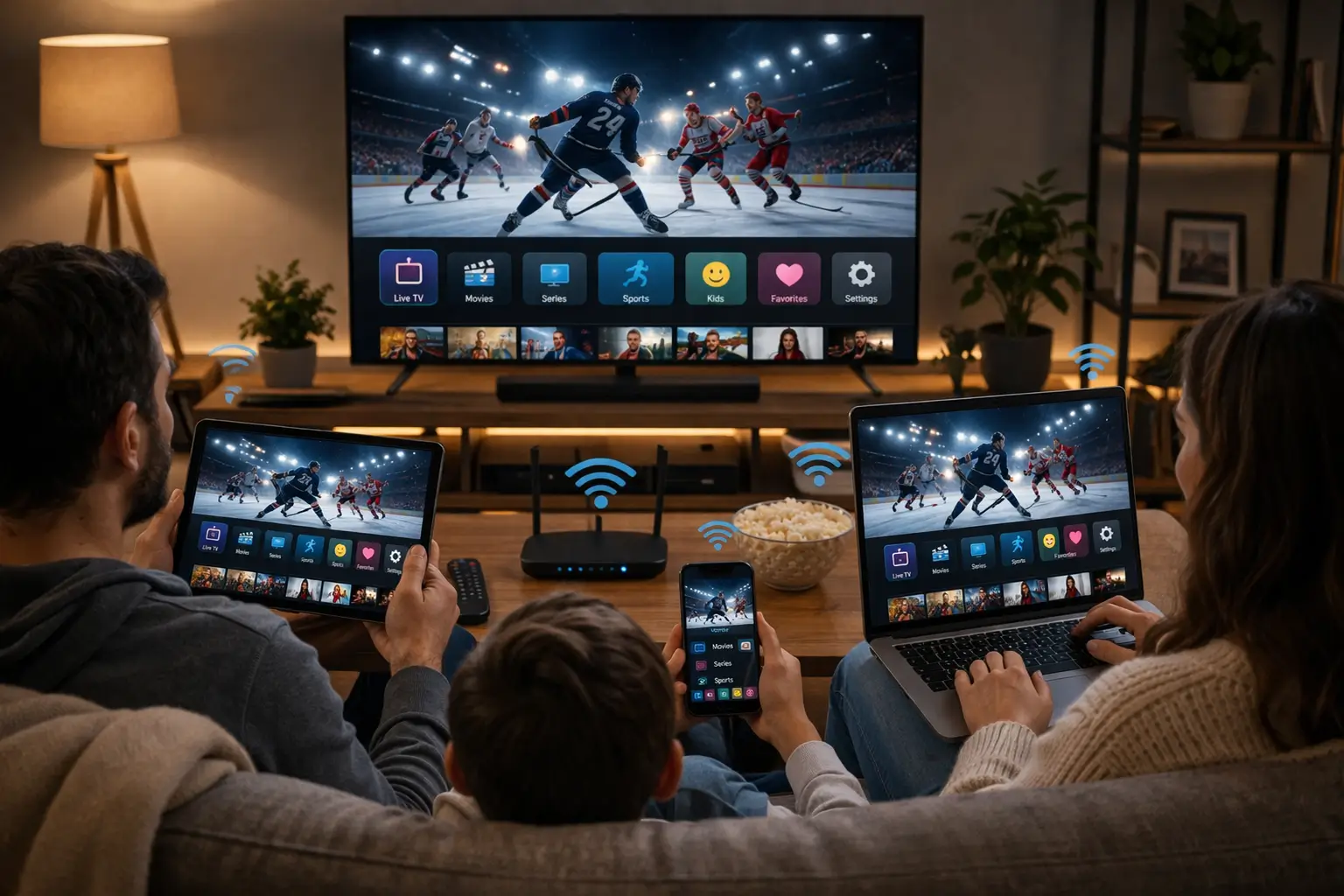
The figures add up when several screens play together. A Full HD stream in the living room and an HD stream in the kitchen need 25 Mbps between them, before video calls, game updates and cloud backups take their share. With the standard single connection, only one stream plays at a time, so you plan for one screen. If you later request extra simultaneous screens, add the figures for each one.
Tip: run your speed test on the screen you will watch, not on your phone sitting beside the router. The difference between the two can be striking, especially in basements, older brick homes and condos crowded with neighbouring networks.
One login, several devices: the rule to know
Every IPTV Canada pack includes 1 simultaneous connection. In practice, you can install the same details on the living room TV, the bedroom box and a tablet, but only one of them plays at any given moment. If a second device starts while the first is still streaming, one of the two stops.
Install it everywhere you like at home, watch on one screen at a time, and ask us when the household needs more.
This suits many homes well: the big screen in the evening, the tablet on a different day, the phone on a business trip within Canada. If your family regularly needs two screens playing at once, contact support through the contact page. They explain the conditions and the price for extra simultaneous screens. Nothing changes on your account until you agree.
Your access is meant for your own household. Sharing it with friends in another home puts you in constant competition for the single connection and interrupts your own viewing. The multiple screens guide explains how to install the same login across your devices and how to keep phones and tablets from holding the connection in the background.
Choosing a pack once your setup is planned
Setup is identical for every pack, so the choice of pack is about what you want to watch, not about how hard it is to install. All three include HD, Full HD and 4K quality, the same players and the same support. They differ in the size of the catalogue.
VIP Premium Pack
- 27,000+ channels
- 61,000+ series
- 155,000+ movies
- HD, Full HD and 4K
A larger catalogue means a longer first load and a longer list to tidy up, which is worth knowing if you use a modest box. On the other hand, every pack lets you hide categories and mark favourites, so even the largest library can be trimmed to the channels your household really watches.
Duration is a separate choice: 1, 3, 6 or 12 months, paid once in Canadian dollars by card or PayPal. Nothing renews automatically. Current prices for each combination are on the plans page and the product pages.
Setup slips we see most often
After helping many households through their first evening, our team sees the same handful of situations again and again. Each one has a clear sign and a quick way out.
A character is wrong: a capital, a look-alike letter, a stray space or a missing port number in the server URL.
Then: re-type each field slowly, comparing it with the e-mailThe first load was interrupted by a press on back or home.
Then: use the reload option and let it finish untouchedThe device clock or the player offset does not match your province.
Then: fix the clock, then set the offsetTwo devices are sharing the single connection at the same moment.
Then: close the player on the screen nobody watchesWhen a problem goes beyond setup, our help section takes over. The can’t connect guide handles login errors in depth, and the IPTV troubleshooting hub sorts every other symptom, from pauses to dark screens, into the right step-by-step page.
Tip: when you write to support, mention the device, the player and its version, and what you see on screen. A photo of the message helps a lot. Never send your password in a public place.
Setup words, explained
Setup screens use a small vocabulary of technical words. Here is what each one means in plain language, so the menus feel familiar the first time you open them.
- Player
- The app that reads your subscription and displays it. It contains no channels on its own.
- Xtream Codes
- A login format made of three details: server URL, username and password. Also shown as Xtream API.
- M3U link
- A single playlist address that carries your login and the list of streams in one line.
- Server URL
- The address of the server your player contacts. Sometimes ends with a colon and a port number that must be kept.
- EPG
- Electronic programme guide: the TV guide grid showing what is on now and next.
- Time offset
- A player setting that moves the whole guide forward or back to match your local time.
- Simultaneous connection
- One active stream. Each pack includes one, whatever the number of devices installed.
- Device ID or MAC address
- An identifier shown by some smart TV players, used to add your playlist through their web portal.
Knowing these words also makes support conversations faster. “My guide is two hours behind in TiviMate on the Android box” tells our team exactly where to look, in both English and French.
Keeping your setup healthy over the months
A setup that works on day one stays smooth with a little routine care. Players and devices update themselves, families add new screens, and routers get moved during renovations. A few habits keep each change from turning into an evening of guesswork.
- Let the player update from the official app store, then glance at its settings in case an option went back to default.
- Restart the box or stick now and then with a full power-off, not only standby.
- Refresh the playlist and the guide from the player settings when lists look out of date.
- Note your access end date: packs run for 1, 3, 6 or 12 months with no automatic renewal.
- Keep the access e-mail in a folder you can reach from your phone.
When you replace a TV or a box, there is nothing to transfer. Install a player on the new device, enter the same details from your e-mail and close the player on the old one if it stays in the house. The library builds itself again on the first launch.
Deep dive: moving to another province
A move from Halifax to Edmonton, or from Winnipeg to Vancouver, changes nothing in your subscription. It does change your time zone. After the move, check the date, time and zone in each device’s settings, then reset the time offset in each player so the guide lines up with your new local time. If you bring a box that was unplugged for the trip, give it a few minutes online so its clock can correct itself before you adjust anything in the player.
Seasonal clock changes deserve a quick look too. Most provinces switch between standard and daylight time twice a year, and a device with automatic time turned off will not follow. If the guide suddenly drifts by an hour in spring or autumn, the device clock is the first suspect.
Where to go next
With your first channel playing, the setup is done. These pages help you go further, whether you want to polish the guide, add a screen, pick a better device or solve a hiccup.
Stuck on a step
Our team answers 7 days a week by e-mail and WhatsApp, in English and French, and walks you through your device.
FAQ
How long does it take to set up IPTV?
Your access arrives by e-mail within minutes of your order. Installing a player and entering your details takes a few minutes more. The first load of the catalogue and guide is the slowest part; after that the app opens quickly.
Do I need a special box to watch IPTV in Canada?
No. A recent Samsung or LG smart TV, an Android TV or Google TV box, a Fire TV Stick, an Apple TV, a phone, a tablet or a PC all work. You need a compatible player from the device’s official app store and a steady connection.
Which is easier, Xtream Codes or an M3U link?
Xtream Codes is usually easier: three short details, and the player loads live TV, series, movies and the guide on its own. An M3U link suits players and portals that only accept a playlist address.
Can I install my subscription on more than one device?
Yes. Install the same details on several devices in your home and use them one at a time, since each pack includes 1 simultaneous connection. For more screens at once, contact support for the conditions and the price.
Do I have to pay for the player app?
Some players are sold or licensed by their publisher. IPTV Canada is independent from app publishers, so check the current price on the app’s official website before installing.
Why does the player refuse my login?
Almost always because of a typing slip: a capital letter, a look-alike character, a space or a missing port number. Re-type each field slowly against your e-mail, or see the can’t connect guide.
Why are the programme times wrong in the guide?
The device clock or the player’s time offset does not match your province. Fix the clock in the system settings first, then set the offset in the player.
Can I change player later without losing anything?
Yes. Your channels, series and movies come from your subscription, not from the app. Install another player, enter the same details and close the first one before you press play.
What speed do I need for 4K?
We recommend 25 Mbps per screen for 4K, 15 Mbps for Full HD and 10 Mbps for HD, measured on the device you watch on.
Is IPTV legal in Canada?
The technology itself is legal. Whether a service is legal depends on the broadcasting rights it holds, so check before subscribing. Our page on whether IPTV is legal in Canada explains what to look for.