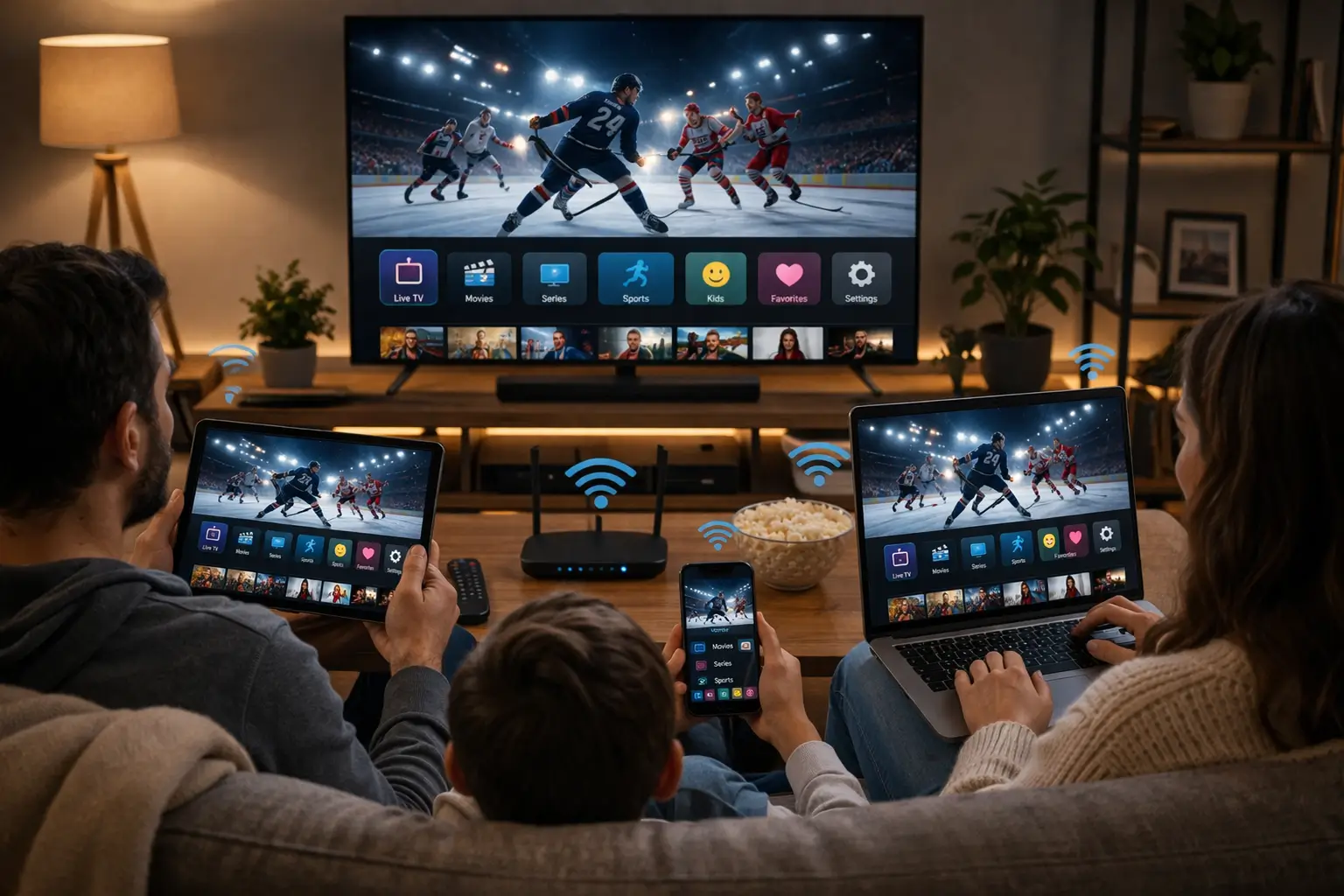
So, what is IPTV, really? Put simply, it is television delivered through the internet connection you already have at home. Instead of a signal coming down a coaxial line, bouncing off a satellite or floating through the air to an antenna, the picture travels as data, the same way a web page or a video call does. You open an app on your TV, box, phone or computer, sign in with the details your provider e-mails you, and a familiar layout appears: channels, a TV guide, and shelves of series and movies.
This guide is written for Canadian households meeting IPTV for the first time. It explains the idea from the ground up, follows a stream from the server to your sofa, shows what each piece of the puzzle does, and ends with a first evening walkthrough. It is part of our IPTV guide, which then takes you through comparing, choosing and setting up.
What is IPTV, in one minute
If you only have a minute, here is the whole picture. A provider runs servers that prepare live channels and on-demand titles as internet streams. You subscribe and receive login details by e-mail. You install a player app on a screen in your home. The app uses your login to ask the servers for whatever you select, and plays it as the data arrives.
That is genuinely all there is to it. Everything else on this page, from buffering to TV guides to picture quality, is a detail of one of those four boxes. Keeping them in mind makes the rest of the subject easy to follow, and it also makes problems easier to solve later, because you can ask which box is misbehaving.
The name, word by word
The three letters in front of “TV” put people off more than the technology itself. They are less mysterious than they sound.
Internet Protocol is the shared rulebook that every connected device follows to send and receive data. Your phone uses it to load a news site, your laptop uses it for e-mail, your smart thermostat uses it to report the temperature. It describes how information is split into small packets, labelled with an address and reassembled at the other end.
Television means what it always has: channels you can tune into and programs you can watch. Put the two together and you get television carried by the internet’s rulebook. Nothing more exotic than that. The “IP” part only tells you which road the picture takes to reach you.
A handy comparison
Cable TV is named after the wire that carries it. Satellite TV is named after the object in orbit. IPTV is named after the internet’s addressing rules. In each case, the name describes the road, not the destination.
This also explains why IPTV is not one company or one app. It is a method. Many very different services use it, from broadcaster replay apps to subscription providers like IPTV Canada. If you have wondered whether the method itself raises questions, our neutral page asking whether IPTV is legal in Canada separates the technology from the services that use it.
What is IPTV doing behind the screen: from server to sofa
You never need to see the machinery to enjoy the show, but following one stream on its journey makes the whole subject click. Imagine you press OK on a channel at eight in the evening. Here is what happens in the moments that follow.
- You press OK
The player sends a request
Your player app contacts the provider’s server using the address and credentials from your access e-mail, and asks for that channel.
- The server checks
Your login is verified
The server confirms your account is active and that no other screen is already using your single connection.
- Data starts flowing
The stream is sent in pieces
Video arrives as a rapid series of small chunks, travelling across the internet to your router and on to your device.
- A small reserve builds
The player fills its buffer
Before showing anything, the app stores a few seconds of video ahead of the picture, to absorb small hiccups.
- Picture appears
Decoding and display
The device decodes the chunks into images and sound and shows them on screen, while new chunks keep arriving behind them.
All of that usually takes a moment or two. When it takes longer, or when the picture pauses later, one of those steps is struggling. A wrong character in the login stops things at the second step. A weak Wi-Fi signal starves the buffer at the fourth. An older device can stumble at the fifth. Our IPTV troubleshooting section is organised around exactly these weak points.
Packets, buffers and why speed matters
Traditional broadcast TV pushes the same signal to everyone at once, whether they are watching or not. IPTV works the other way round: your device asks for a stream, and the stream is sent to you specifically. That is what makes it so flexible, but it also means your connection has to keep up for the entire time you watch.
A web page loads in a burst and then sits still. A live stream never stops arriving. That is why a connection that feels quick for browsing can still struggle with TV in the evening. What matters is not the occasional peak but a steady flow, minute after minute, on the screen where you watch.
Recommended speed per screen, measured on the device
These figures add up if more than one screen in your home plays at the same time, for example on separate subscriptions or with extra screens arranged through support. One Full HD screen plus one 4K screen means planning for 40 Mbps for the streams alone, before video calls, gaming and updates. The buffer, that small reserve the player keeps, smooths over brief dips. It cannot rescue a connection that is simply too slow. If you watch on a large television, our 4K IPTV guide explains the whole chain a 4K picture needs.
Tip: Run your speed test on the TV, box or stick itself, not on your phone next to the router. Then run it again in the evening. The lower of the two numbers is the one to plan around.
HD, Full HD and 4K: what the quality labels mean
Channels and titles on IPTV come in different picture qualities, and the label tells you two things at once: how sharp the image is and how much data it needs every second. Understanding the trade-off helps you pick the right version of a channel on a given evening.
HD usually means 720p, a picture that looks clean on a phone, a tablet or a smaller bedroom TV. It is the most forgiving option on a modest connection. Full HD means 1080p, the comfortable everyday standard for most living room televisions. 4K means 2160p, four times as many pixels as Full HD, which shows its value on large screens viewed from a normal sofa distance.
| Label | Resolution | Speed per screen | Where it looks best |
|---|---|---|---|
| HD | 720p | 10 Mbps | Phones, tablets, smaller TVs, slower lines |
| Full HD | 1080p | 15 Mbps | Most living room TVs |
| 4K | 2160p | 25 Mbps | Large 4K TVs with a 4K-capable device |
A 4K picture needs every link in the chain to cooperate: a 4K television, a device and player that can decode 4K, an HDMI port and cable that carry it, and 25 Mbps reaching the device. If one link is missing, you may see a black screen or constant pauses instead of a sharper image. On a busy evening, switching a channel from 4K to Full HD is often the quickest way to a smooth picture, and the difference on a mid-sized TV is smaller than many people expect.
Tip: Pick the quality for the screen, not for the pack. A phone in the kitchen gains nothing from 4K, while a large basement TV may be the one place where it really shines.
Live channels, the TV guide and the on-demand library
IPTV is not just one way of watching. It puts two very different habits side by side in the same app, and understanding the difference helps you judge which pack matters for your household.
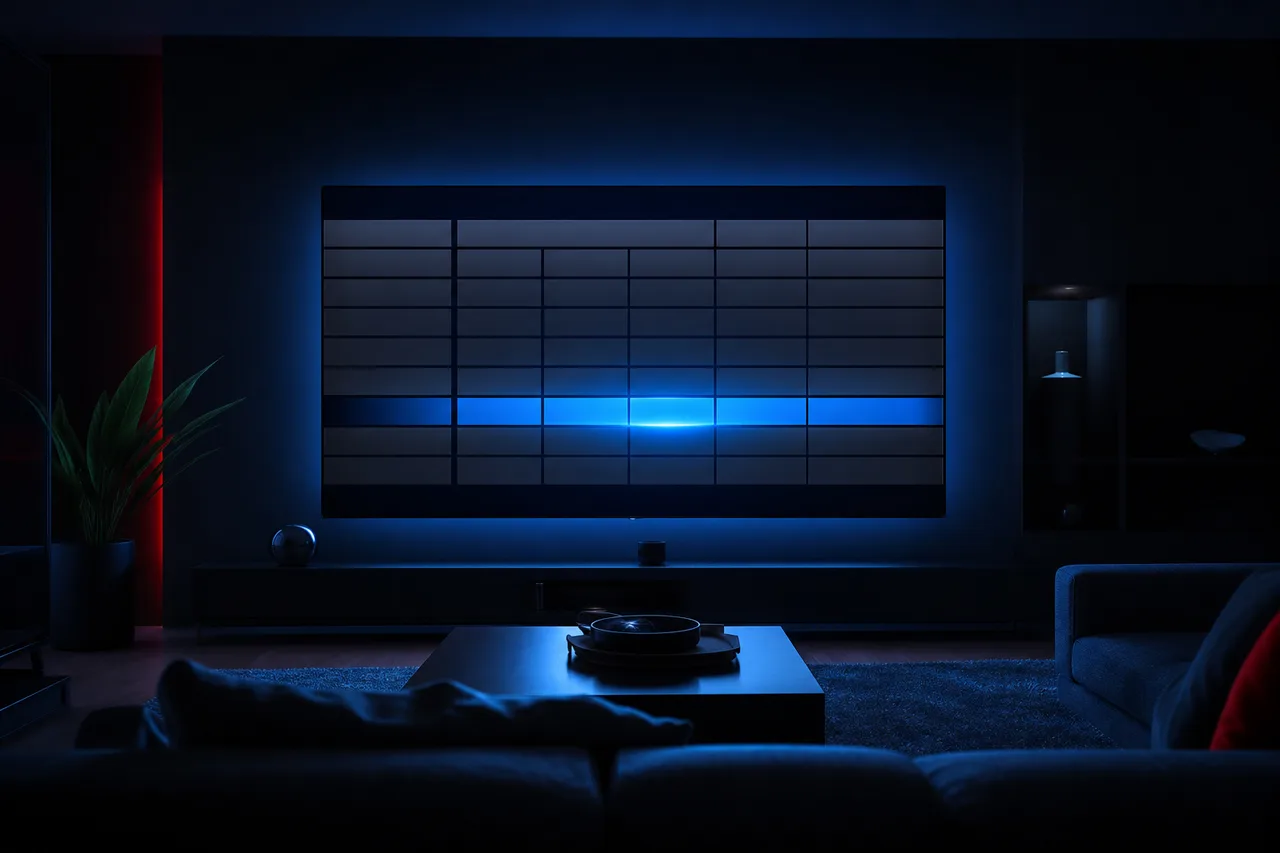
Live TV with a guide
Live channels follow a schedule. You join whatever is airing, just as with any TV. The electronic programme guide, or EPG, fills a grid with programs by time slot, so you can see what is on now, what comes next and plan the evening. Most players let you mark favourite channels and sort them by category, which makes a large list feel manageable. Our page on the IPTV EPG shows how to switch the guide on and line it up with your time zone.
- Channels follow a fixed schedule
- The guide shows now and next
- Favourites keep your shortlist close
On demand is the other half. Series episodes and movies sit in a library, and you start them whenever you like. You can pause for dinner, rewind a scene you missed and pick up tomorrow where you left off. Households that rarely sit down at fixed times often find the library matters more to them than the number of live channels.
Our packs combine both, at different sizes. The Premium Pack includes 20,000+ live channels, 24,000+ series and 100,000+ movies, in HD, Full HD and 4K. The other two packs widen the library or lean further into 4K, as the comparison further down shows.
The two halves also behave differently on your connection. A live channel has to keep pace with the broadcast, so the player has little room to wait if your speed dips. An on-demand title can usually build a slightly larger reserve before it starts, which is why a movie sometimes plays smoothly on a connection where a live channel stutters. If live viewing pauses but the library plays well, that is a strong hint that your connection is close to its limit.
Your login: Xtream Codes or an M3U link
To reach the servers, your player needs to know where to go and who you are. That is the job of your login details, which IPTV Canada sends by e-mail within minutes of your order. They come in one of two formats, and almost every player accepts both.
A typical Xtream Codes screen: three details copied exactly from your e-mail, plus a name you choose.
Xtream Codes split your access into three parts: a server URL, a username and a password. Players that use this format usually load the channel list, the series and movies and the TV guide automatically, in neat categories. An M3U link is a single long address that contains your channel list. You paste it into the player in one go, which is handy on devices where typing is awkward.
| Point | Xtream Codes | M3U link |
|---|---|---|
| What you enter | Server URL, username, password | One address |
| Accepted by most players | Yes | Yes |
| Library sorted into series and movies | Usually automatic | Depends on the player |
| Easiest when typing is slow | Less so | Yes, paste once |
| Where to learn more | Xtream Codes setup | M3U playlist setup |
Whichever format you use, treat the details like a house key. They identify your household’s subscription, so they stay at home.
The player app: the window, not the content
The app on your screen is the part you touch every evening, so it is easy to think of it as “the IPTV”. It is not. A player is an empty frame. It knows how to read your login, build a channel list, draw a TV guide and play video. It contains no channels, series or movies of its own. Remove your login and the menus go blank.
IPTV Smarters Pro
An all-rounder with simple menus and profiles, found on many phones, tablets and boxes.
TiviMate
A cable-style guide grid on Android TV, Google TV and Fire TV.
IBO Player
Popular on smart TVs, with the playlist added from your phone.
XCIPTV
A quick Android and Fire TV player with detailed playback settings.
Smart IPTV
A long-standing option on some smart TV models.
GSE Smart IPTV
A flexible player on Apple and other devices.
Install players only from your device’s official app store. Some publishers charge a licence or sell a premium version; check the current price on the app’s official website. IPTV Canada is independent from every app publisher, and your subscription works the same whichever one you pick. You can even swap players later without losing anything, because the content lives with your subscription, not in the app. Our IPTV apps hub compares them in detail and links to a setup guide for each.
The screens that run IPTV in Canadian homes
Because IPTV only needs an app and a connection, it runs on a wide range of hardware. Most homes already own at least one suitable device. The question is usually which one gives the best experience in the room where you watch most.

Start with what you have
A recent Samsung or LG smart TV can often run a player directly from its own store. If the TV is older, or its store does not list the player you want, an Android TV or Google TV box, a Fire TV Stick or an Apple TV plugged into a spare HDMI port opens up more choice. Phones, tablets and PCs are handy for the kitchen, the bedroom or a quick check before bed.
- Smart TV: fewest extra parts
- Box or stick: widest choice of players
- Phone or tablet: easiest to carry around the home
| Device | Where the player comes from | Best for | Setup guide |
|---|---|---|---|
| Samsung or LG smart TV | The TV’s built-in store | A tidy living room with no extra box | Smart TV |
| Android TV or Google TV box | Google Play | Choice of players and Ethernet | Android box |
| Fire TV Stick | Amazon Appstore | A compact upgrade for any HDMI TV | Firestick |
| Apple TV, iPhone, iPad | App Store | Apple households and AirPlay | Apple TV |
| Android phone or tablet, PC | The device’s official store | Second rooms and travel within the home | All devices |
If you are torn between devices, our guide to the best IPTV box compares them on the criteria that matter: smoothness, Ethernet, remote, player choice and 4K support.
What you need at home before you start
Getting a home ready for IPTV is mostly a matter of checking what is already there. In most Canadian households, nothing needs to be bought at all. Go through this list once and you will know whether the first evening will go smoothly.
- A supported screen: a Samsung or LG smart TV, an Android TV or Google TV box, a Fire TV Stick, an Apple TV, an iPhone or iPad, an Android phone or tablet, or a PC.
- A player app from that device’s official app store.
- At least 10 Mbps for HD, 15 Mbps for Full HD or 25 Mbps for 4K, measured on that screen.
- A solid Wi-Fi signal where the TV sits, or an Ethernet cable from the router.
- An e-mail inbox you can open on a phone or computer, to receive your access.
- A few minutes and the TV remote within reach.
The weak point in most homes is not the internet plan but the last few metres. A router tucked in a basement cupboard, a TV two floors up, a stick hidden behind a metal TV frame: each of these can cost more speed than people imagine. If a cable run is possible, it is almost always worth it for the main TV. If not, the 5 GHz Wi-Fi band and a mesh point near the television are the next best options.
Deep dive: why the 5 GHz band often helps the TV
Most routers broadcast on two bands. The 2.4 GHz band travels further and through more walls, but it is slower and shared with many household gadgets and neighbouring networks. The 5 GHz band carries more data over shorter distances with less interference. A TV in the same room as the router, or one room away, usually does better on 5 GHz. A TV far away through several floors may hold a steadier link on 2.4 GHz or, better still, on a cable or a nearby mesh point.
What is IPTV compared with cable, satellite and antenna
Most Canadian homes have used at least one of the older methods at some point, so comparing them is the quickest way to see where IPTV fits. None of them is perfect for everyone; each makes different trade-offs.
Cable arrives over a line from a TV provider and usually needs the provider’s box, sometimes installed by a technician. Satellite comes from orbit to a dish on your roof or balcony, then into a receiver. An antenna picks up over-the-air signals from nearby transmitters, with a selection that depends on where you live and what the terrain allows. IPTV needs none of that hardware: a device, an app and your existing internet connection.
Where IPTV shines
- No dish, no installer visit, no provider box
- Works on smart TVs, boxes, phones, tablets and PCs
- Live channels and an on-demand library in one app
- Easy to move between rooms, one screen at a time
- Fixed periods with a one-time payment at IPTV Canada
What it depends on
- A steady internet connection on the watching screen
- Good Wi-Fi or, better, an Ethernet cable
- A compatible device and player app
- Following the one-connection rule per pack
The deciding factor is usually your internet connection. A home with a solid connection gets the flexibility without the drawbacks. A home on a weak line may need to improve the network first or settle for HD. For a deeper, neutral comparison of content, equipment, contracts and installation, read our page on IPTV vs cable.
One subscription, many devices, one screen at a time
This is the rule that most surprises newcomers, so it deserves a clear explanation. Each IPTV Canada pack includes 1 simultaneous connection. You can install the same login on as many devices in your home as you like: the living room TV, the basement box, a tablet, a phone. What you cannot do is play on two of them at the same moment.
Stop playback on the TV, then open the player on your tablet. Same login, no extra cost.
Then: close the app properly when you finishA second screen on the same login is refused or stops the first one.
Then: ask support about extra simultaneous screensIt holds your single connection and blocks the TV.
Then: stop the stream on the phone and retryMore simultaneous screens are available on request only. Write to us through the contact page and our team explains the conditions and the price. The page on IPTV on multiple screens describes how households organise themselves around the rule. One firm point: a login belongs to one household and is never shared with another home.
Seen enough to give it a try
Pick a pack and a duration, pay once and receive your access by e-mail within minutes.
A first evening with IPTV, step by step
Theory is useful, but most people understand IPTV best the first time they use it. Here is what a typical first evening looks like, from order to favourites, for a household with a smart TV or a streaming box.
- Check your speed where you watch. Run a speed test on the TV or box, ideally in the evening, and compare it with 10, 15 or 25 Mbps depending on the quality you want.
- Choose a pack and a duration. Pick 1, 3, 6 or 12 months and pay once, in Canadian dollars, by card or PayPal. There is no contract and nothing renews by itself.
- Open your access e-mail. Your Xtream Codes or M3U link arrives within minutes. If it is not in your inbox, look in the spam or promotions folder.
- Install a player. Get a compatible app from your device’s official app store and open it.
- Enter your details. Type or paste the server URL, username and password exactly as written, or paste the M3U link. Give the playlist a name you will recognise.
- Let everything load. The first load of channels, library and TV guide can take a moment. Leave the app open until the categories appear.
- Set your time zone and favourites. Check that the guide matches your local time, then mark the channels you watch most.
That is usually all it takes. If a step does not go as planned, the IPTV setup hub has detailed instructions for each player and device, and our team answers 7 days a week by e-mail and WhatsApp, in English and French.
Keep in mind: A single wrong character, a capital letter in the wrong place or a space at the end of a field is enough to block the login. Copy and paste from your e-mail whenever your device allows it, and check the server URL in full.
Common misunderstandings, cleared up
Because IPTV is new to many households, a few ideas circulate that are not quite right. Clearing them up early saves confusion later.
“The app is the subscription”
The app is only the player. Your subscription is the access we send you. You can change app as often as you like and your subscription stays the same. Paying a publisher for a premium version of a player does not give you any channels.
“Fast internet means no buffering”
A fast plan helps, but what counts is the speed that reaches the screen, steadily, in the evening. A strong plan with weak Wi-Fi in the basement still buffers. Our guide to IPTV buffering shows how to find the weak link.
“IPTV needs a special box”
Not necessarily. Many smart TVs run a player directly. A box or stick is an upgrade for older TVs or for people who want more player choice, not a requirement.
“One login works on every screen at once”
One login works on every screen in your home, but one at a time. Simultaneous viewing on several screens is a separate request handled by support.
Your subscription is what you watch. The app is how you watch it. Your connection decides how smoothly it arrives.
When something does not work the first time
New setups occasionally hit a snag. That is normal, and it rarely means anything is seriously wrong. Because IPTV is built from separate pieces, the trick is to work out which piece is involved, then fix that one. The symptom on your screen is usually a strong clue.
Match the symptom to the piece
A login error points to your details or your single connection being in use elsewhere. A loading circle that comes and goes points to your connection or Wi-Fi. A picture that stays dark, especially in 4K, points to the device, the HDMI link or a player setting. An empty TV guide usually means the guide has not loaded yet or the time zone needs adjusting.
Each of these has a dedicated guide in our troubleshooting section: when the IPTV app can’t connect, IPTV buffering, IPTV black screen and IPTV freezing or cutting out. Start with the simple moves first: restart the router, power the device off completely, close any other screen using your login, then check your details against the e-mail.
If none of that helps, send our team your username, your device, your player, the exact message on screen and the result of a speed test run on the device. With those details, we can usually tell straight away which piece is involved. We answer 7 days a week by e-mail and WhatsApp, in English and French.
Is IPTV right for your household
Knowing what IPTV is does not automatically mean it suits you. It is worth asking how your household actually watches, and whether your home is ready. These quick portraits cover the situations we see most often across Canada.
The one-TV couple
Mostly watches together in the living room. A single connection fits naturally.
The binge-watchers
Rarely tunes in live. The size of the series and movie library matters most.
The big-screen fans
Own a large 4K TV and a fast connection. 4K content and 25 Mbps on that screen are the priorities.
The bilingual home
Switches between English and French. Support in both languages is a real plus.
The rural cottage
Internet can be modest. HD at 10 Mbps per screen is the realistic target.
The busy family
Several people want different screens at once. Ask support about extra simultaneous screens first.
Where you live can also shape the experience, from condo Wi-Fi congestion to TV guide time zones. Our IPTV across Canada section has local guides for cities such as Toronto and Calgary, as well as for whole provinces.
Choosing a pack once you know what IPTV is
With the basics in place, choosing a pack becomes a question of what you watch and on which screen. All three packs work on the same devices and players, include 1 simultaneous connection and come in 1, 3, 6 or 12 months.
VIP Premium Pack
- 27,000+ channels
- 61,000+ series
- 155,000+ movies
- HD, Full HD and 4K
Ultimate 4K Pack
- 57,000+ 4K channels
- 47,000+ series
- 179,000+ movies
- 20 servers in Europe
If you are new to IPTV and want to see how it fits your evenings, a shorter duration lets you judge on your own devices; our 1-month IPTV subscription page explains that format. Households that already know what they want often prefer the 12-month IPTV subscription. Current prices for every combination are on the plans page, and our page on the IPTV Canada price shows how to compare cost per month.
A simple way to decide: if your household mainly watches live channels in HD or Full HD, the Premium Pack covers a great deal. If evenings revolve around series and movies, the larger library of the VIP Premium Pack is where the difference shows. If you have a large 4K TV, a 4K-capable device and 25 Mbps reaching that screen, the Ultimate 4K Pack is built for it. Still unsure? Tell our team how and where you watch, and we will suggest a pack that fits.
What is IPTV vocabulary, in plain English
You will meet these words in player menus, in your access e-mail and in our guides. Keep this list handy for the first few evenings.
- IPTV
- Internet Protocol Television: TV carried over an internet connection.
- Stream
- The flow of video and sound sent to your device while you watch.
- Buffer
- A few seconds of video the player stores ahead of the picture to absorb small slowdowns.
- Buffering
- The pause and loading circle that appear when the buffer runs empty.
- EPG
- Electronic programme guide: the grid showing what is on now and next.
- VOD
- Video on demand: series and movies you start whenever you like.
- Xtream Codes
- A login made of a server URL, a username and a password.
- M3U
- A single playlist address that loads your channel list.
- Player app
- The software that reads your login and plays the streams. It has no content of its own.
- Decoder
- The part of a device or app that turns compressed video into a picture. Many players let you switch between hardware and software decoding.
- Simultaneous connection
- One screen playing at a given moment. Each pack includes 1.
Where to go next
Now that you know what IPTV is and how the pieces fit, pick the page that matches your next question.
Questions before you start
Ask about devices, players, speed or packs. We answer by e-mail and WhatsApp, in English and French.
FAQ
What does IPTV stand for?
IPTV stands for Internet Protocol Television. It means TV delivered through your home internet connection, using the same rules as other online services, instead of a coaxial cable, a satellite dish or an antenna.
Do I need a special box for IPTV?
Not necessarily. Many Samsung and LG smart TVs run a player app directly. If your TV is older or its store lacks a supported player, an Android TV box, a Fire TV Stick or an Apple TV is a simple upgrade.
Can I watch IPTV on my phone?
Yes. IPTV works on iPhone, iPad and Android phones and tablets, as well as on smart TVs, boxes, sticks and PCs. Each pack includes 1 simultaneous connection, so watch on one device at a time.
Is IPTV the same as a streaming app?
They use similar technology. IPTV focuses on live channels with a TV guide, plus a library of series and movies, watched through a player app that connects to your provider’s servers with your login.
What internet speed does IPTV need?
We recommend 10 Mbps per screen for HD, 15 Mbps for Full HD and 25 Mbps for 4K. Measure on the device itself, because Wi-Fi can lose a lot of speed between the router and the TV.
What is the difference between Xtream Codes and M3U?
Xtream Codes use three details: a server URL, a username and a password. An M3U link is one address you paste in. Most players accept both, and we send one of them by e-mail.
Does the player app come with channels?
No. A player is an empty tool until you add your login. The channels, series and movies come from your subscription. Install players only from your device’s official app store.
Can I use the same login on several devices?
Yes, on as many devices in your home as you like, one at a time. For more screens playing at once, ask our support team about the conditions and the price.
How quickly can I start watching?
Your access is sent by e-mail within minutes of your order. Install a player, enter your details, let the channel list load and you can start watching the same evening.
Is there a contract with IPTV Canada?
No. You pay once for 1, 3, 6 or 12 months, in Canadian dollars by card or PayPal. There is no contract and no automatic renewal.