
Good IPTV support should be easy to find, easy to use and honest about what it can and cannot do. This page is the front door to ours. It explains what our team handles, how the two contact channels differ, what to prepare before you write, how order and access questions are dealt with, what happens when you change a device or move house, and which house rules shape every answer you get from us.
Whether you are pairing a first Fire TV Stick in a Toronto condo, adding a TV in the basement of a family home in Brampton or helping a parent in Québec City log in on a tablet, the route is the same. You can write in English or French, every day of the week, and the person who replies will answer in the language you used. Read the sections that match your situation, or go straight to the contact page if you already know what you need.
How IPTV support works at IPTV Canada
Our support is written support. You send a message through the contact form or on WhatsApp, it joins a single queue, and the team works through that queue in order of arrival, 7 days a week. There is no separate line for urgent cases and no faster lane for people who write several times. That may sound strict, but it is what keeps the system fair: the household that wrote first is helped first, whatever channel it used.
Because everything happens in writing, you keep a trace of every answer. You can scroll back to the steps the team gave you, forward them to whoever in the family sets up the TVs, and pick the conversation up where it stopped. Written help also suits the kind of questions we receive most: a server URL to check, a setting to change in a player, a rule to clarify. Those are easier to follow on screen than over a phone line.
The team can see your order once you give the e-mail address you used to buy. From there, they can check which pack and duration you hold, confirm that your access details were sent, and tell you whether the problem looks like a network, device, player or account issue. What they cannot do is reach into your TV or router remotely. You stay in control of your own equipment, and we guide you through each change one step at a time.
Pages in this support section
The support section has two companion pages. One is practical, the other explains who we are. Both are short to reach from anywhere on the site, and both are linked again at the bottom of this page.
A simple way to use them: if something is broken, start in the troubleshooting hub. If something is new, start in the setup hub. If you have tried the relevant guide and still need a person, the contact page is your next stop. And if you are still deciding whether to subscribe at all, the about page tells you how we operate before you spend anything.
What our IPTV support team handles
Almost every question linked to your subscription lands with the same team. We do not pass you from one department to another, because there is only one. Here are the families of requests we answer every week, roughly in the order we receive them.
First setup
Where your server URL, username and password go, or where to paste an M3U link, in each player.
Playback trouble
Buffering, freezing, black screens and players that refuse to connect, diagnosed zone by zone.
Access e-mails
A message that has not arrived, landed in spam or went to a mistyped address.
Extra screens
Requests to watch on two or more screens at the same moment, with conditions and price.
Plans and payment
Durations, card or PayPal, end dates and choosing a pack for the next period.
Device changes
A new TV, a replaced box, a move to another home or a switch to another player app.
The devices we help with are the ones our service is built for: Samsung and LG smart TVs, Android TV and Google TV boxes, the Fire TV Stick, Apple TV, iPhone and iPad, Android phones and tablets, and PCs. The player apps we know best are IPTV Smarters Pro, TiviMate, Smart IPTV, IBO Player, XCIPTV and GSE Smart IPTV. If you use something else, tell us what it is; we will say honestly whether we can help or whether one of those players would be a better fit.
We also answer questions from people who have not subscribed yet. Which pack suits a home that watches mostly series? Will an older smart TV cope with 4K? What does one connection per pack mean in daily life? Asking first is always welcome, and it often saves a household from buying the wrong duration or the wrong device.
Where our help stops
Clear support also means saying what falls outside it. Knowing these limits before you write saves time on both sides, because you will know when to call your internet provider or a TV maker instead of us, and when we are the right place.
We take care of
- Your access details and their delivery by e-mail
- How to enter them in a compatible player
- Diagnosing whether a fault is network, device, player or account
- Questions on packs, durations, payment and end dates
- Requests for more simultaneous screens
- Explaining the house rules and why they exist
Outside our reach
- Repairing a TV, box or router
- Speeding up your internet line or Wi-Fi
- Publishing, selling or licensing player apps
- Making an app appear in a store where it is not listed
- Remote control of your devices
- Help with services we do not sell
The player apps deserve a word of their own. IPTV Canada is independent from the publishers of IPTV Smarters Pro, TiviMate, IBO Player, XCIPTV and the others. We explain how to use them with your subscription, but we do not build them, host them or sell their licences. If a player asks you to activate a licence or a premium option, check the current price on the app’s official website. And we never send installation files: every player should come from your device’s official app store.
When your issue sits outside our reach, we still try to point you in a useful direction. If a speed test on your TV shows far less than your internet plan promises, we will say so and explain which numbers to quote to your provider. If a box is simply too old for a newer player, we will tell you rather than leave you changing settings for an evening.
Contact form or WhatsApp: picking the right channel
Both channels reach the same people and join the same queue. The difference is the kind of message each one suits. The table below sums it up, and the next paragraphs give a few real-life examples.
| Criterion | Contact form (reply by e-mail) | |
|---|---|---|
| Best for | Detailed questions, multi-screen requests, order and payment topics | Quick questions while you stand in front of the TV |
| Screenshots and photos | Describe the message in words | Yes, send a photo of the screen |
| Written record you can forward | Yes, in your inbox | Yes, in the chat |
| Languages | English or French | English or French |
| Days | 7 days a week | 7 days a week |
| Separate faster queue | No | No |
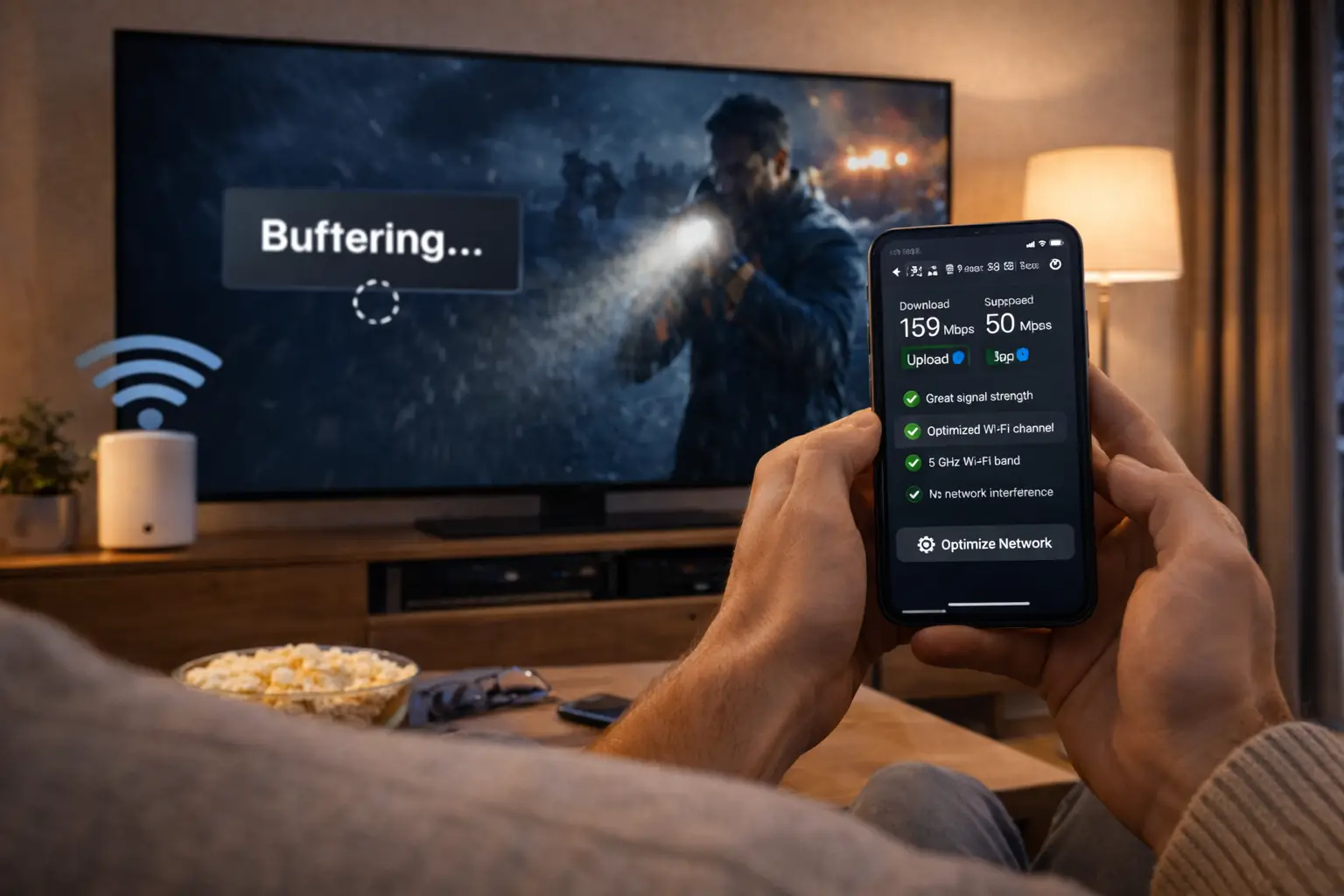
Three everyday examples
You have just ordered and the access e-mail is not in your inbox: use the form, because the team will need your order address and will reply to it. Your bedroom TV shows a red error you do not understand: use WhatsApp and send a photo of the screen. Your family wants two TVs playing at once on weekend evenings: use the form and list the devices, since the reply will contain conditions you will want to keep.
- Form for orders, payment and screen requests
- WhatsApp for photos of error messages
- Never both for the same question
Pick one channel per question and stay with it. If you write on WhatsApp and then send the same text through the form, two people may start working on the same case and the replies can cross. Better still, if you remember something important after sending, add it to the same conversation rather than opening a new one. Our contact us page has the form itself and the WhatsApp number in one place.
Help in English or in French
Canada is a country of bilingual households, and a lot of our subscribers switch languages between the dinner table and the TV remote. Our team answers in English and in French. You do not need to choose a language in advance or tick a box: write the way you are most comfortable, and the reply comes back in that language.
Mixed messages are welcome too. If your teenager typed the first lines in English and you add a sentence in French, that is perfectly normal; the team replies in whichever language dominates, or asks which one you prefer. What matters is that you can follow every step without translating it in your head, especially when the steps involve settings menus that may themselves be in a third language on an imported box.
Write the way you speak at home. Clear help is help you can follow without a dictionary.
One practical tip for bilingual homes: player menus and TV settings often follow the language of the device, not the language of your message. If your Android TV box is set to French and you write to us in English, say so. The team will then name the menu items as they appear on your screen, for example “Paramètres” rather than “Settings”, so you are not hunting for a word that is not there. The same goes for a Samsung or LG smart TV whose system language differs from the language you prefer to read in.
Writing a message our IPTV support can solve first time
The quality of the first message decides how many messages follow. When a request contains everything the team needs, the first reply can contain the fix. When it says only “it doesn’t work”, the first reply has to be a list of questions, and you lose a round. Here is what a complete request looks like.
A complete request: everything the team needs to find your order and see what you see.
- The e-mail address you used to order, so we can find your subscription
- Your pack and its duration: 1, 3, 6 or 12 months
- The device, and the room if you have several screens
- The player app and how you connected it: Xtream Codes or M3U link
- A short story: what you did, what you expected, what happened instead
- The exact wording of any error, or a photo of the screen on WhatsApp
- For buffering, a speed test run on the device itself
- What you have already tried, so nobody repeats it
Short and complete beats long and vague. You do not need to explain how the TV was bought or describe every menu you opened. “Samsung TV in the bedroom, IPTV Smarters Pro, channels load but stop after a few seconds, restarted the router and the TV, other TVs play well” is a near-perfect message in one line. It already tells the team that the account and the connection are healthy, and that the problem lives on that one screen.
Tip: before you write, try the same channel on a second device in your home, one screen at a time. Saying “it works on my phone but not on the TV” narrows the cause more than any other single detail.
Order and access e-mail questions
The most common first message we receive is about the access e-mail. After you order, your details are sent by e-mail within minutes. They come either as Xtream Codes (a server URL, a username and a password) or as an M3U link. If that message has not reached you, the cause is almost always one of a handful of ordinary things, and most of them you can check before writing.
- At checkout
Check the address
The access e-mail goes to the address typed in the order. One wrong letter sends it elsewhere.
- Within minutes
Look in every folder
Open spam, junk, promotions and any filtered folders, not only the main inbox.
- Still nothing
Search your mailbox
Search for “IPTV Canada” or for the words “server” and “username”.
- Then
Write to us once
Use the form with the address you meant to use and the name on the payment.
If you discover that you typed the address wrongly at checkout, do not order again to fix it. Write to us with both versions of the address, the correct one and the one you think you typed, plus the name on the card or PayPal account. The team can match the order and tell you how the details will reach you. Ordering a second time only creates a second subscription you did not need.
Keep the access e-mail once it arrives. File it in a folder you can find in seconds, because you will need it again: when a new TV joins the household, when a player is reinstalled, or when you move house. Many “lost login” requests are really “lost e-mail” requests, and they disappear when the message has a permanent home. Our guide to setting up IPTV with Xtream Codes shows where each line of that e-mail goes in each player.
Never forward your access e-mail to anyone outside your home, and never post a screenshot of it in a public group or forum. Those details are your household’s key to the service.
Payment, plans and end dates
Payment questions are simple once you know how our plans are built. Each pack is bought for 1, 3, 6 or 12 months, paid once in Canadian dollars by card or PayPal. There is no contract and no automatic renewal: nothing is charged again when the period ends. That has two consequences worth knowing. You never have to cancel anything, and your access simply stops at the end date unless you order a new period.
VIP Premium Pack
- 27,000+ channels
- 61,000+ series
- 155,000+ movies
- HD, Full HD and 4K
Ultimate 4K Pack
- 57,000+ 4K channels
- 47,000+ series
- 179,000+ movies
- 20 servers in Europe
You will not find prices on this page, because they live in one place and are kept current there: see current prices on the IPTV subscription plans page. What the team can do is help you choose. Tell us how your household watches, which devices you own and how fast your connection is on the main TV, and we will say which pack and which duration make sense. A household that mostly follows series often leans towards the VIP Premium Pack; a home that has invested in a 4K television and a strong line may prefer the Ultimate 4K Pack.
Questions about a payment that did not go through, a PayPal confirmation without an access e-mail, or a card statement you do not recognise all go through the contact form. Include the date, the payment method and the order e-mail. Never send a card number, an expiry date or a security code: we will never ask for them, by any channel. If you want to understand payment before ordering, our page on paying for your IPTV subscription in Canada covers the steps in detail.
Note your end date
The day your access arrives, add the end date to your phone calendar with a reminder a week earlier. With no automatic renewal, that reminder is the only thing standing between you and a quiet TV on a Friday night. When the date approaches, you can order the same pack again or pick another one on the plans page.
Have a question about your order or your pack
Write once with your order e-mail and we will reply in English or French, 7 days a week.
Changing devices, players or address
Households change. A TV is replaced, a box gets handed down to the cottage, a player app stops suiting you, or the whole family moves to another province. None of that requires a new subscription. Your access belongs to your household, not to a particular device, a particular app or a particular address. What changes is the setup work, and support can walk you through it.
Install a compatible player from the device’s official app store and enter the details from your access e-mail.
Then: close the player on the old device so your single connection is availableYour channels, series and movies come from the subscription, not the app, so nothing is lost.
Then: enter the same login in the new player and remove the old oneSame login, new network. The internet line and router position are what changed.
Then: run a speed test on each TV and adjust the guide’s time offset if you changed time zoneRemove the player and its saved login from that device if you still can.
Then: write to us so the team can advise on your access detailsMoving between provinces is worth a special mention. If you go from Halifax to Calgary, or from Montréal to Vancouver, the TV guide in your player may show programmes at the wrong time until you change its time zone or time offset. It is a one-minute fix in most players, and our IPTV EPG guide shows where the setting lives. Your subscription itself does not care where in Canada you live.
A change of e-mail address is the one change you should tell us about in writing. If you no longer use the address you ordered with, write from the new address, mention the old one and the name on the payment, and ask how future messages should reach you. The team will tell you what is possible for your order.
Extra screens and the one-connection rule
Every pack includes one simultaneous connection. In everyday terms: you can install the same login on the living-room TV, the bedroom box, a tablet and a phone, and use any of them, but only one can play at a given moment. If a second screen starts while the first is still playing, the player shows an error about too many or maximum connections, or the first stream stops. That is the rule doing its job, not a fault.
Some households need more than that. Two parents who want different programmes in different rooms, or children watching downstairs while an adult watches upstairs, need several screens at once. Those extra simultaneous screens are available on request. Write through the contact form or WhatsApp, say how many screens you want playing together and on which devices, and the team will reply with the conditions and the price for your situation. We do not publish a fixed multi-screen offer, because the right answer depends on your household.
Speed needed per screen playing at the same time
Before you ask, check that your connection can carry what you have in mind. The figures add up: two screens in Full HD need 30 Mbps between them, and one 4K screen plus one Full HD screen need 40 Mbps, before the rest of the family’s phones and laptops take their share. Run the speed test on the TVs themselves, not on a phone next to the router. Our guide to IPTV on multiple screens explains how households organise around the rule.
One household only: your login is for the people who live in your home. Sharing it with friends or relatives in another home is not allowed, and it also means two households fighting over one connection, with errors on both sides.
Setup help, step by step
Setup questions are where written support shines. The team does not need to see your TV; it needs to know which device and which player you use, and how far you got. From there, the answer is a short list of steps you can follow at your own pace, with the exact menu names for your device.
How a setup conversation usually goes
You tell us the device and the player. We confirm the login method that suits it, Xtream Codes or M3U. We name the screen where each detail goes. You try it and report back with what you see. If something blocks, we look at that one step together, instead of starting again from scratch.
- Device and player named in the first message
- One step at a time
- Your report back after each step
- Install the player from the official store. Use the app store built into your TV, box, phone or computer. We never send installation files, and you should never need one.
- Open your access e-mail on another screen. A phone next to the TV lets you copy each line carefully without switching apps on the television.
- Choose the login method. Most players offer Xtream Codes; some work better with the M3U link. If unsure, ask us which one suits your player.
- Enter each detail exactly. Watch for capital letters, a missing part of the server URL and spaces at the end of a field.
- Let the lists load. The first load of channels, series, movies and the TV guide can take a while on a large catalogue. Be patient before pressing anything else.
- Report back if it stops. Tell us at which step and what the screen says. That is all the team needs to continue.
Our setup hub covers each method in depth, including how to set up IPTV with an M3U playlist. If you have not chosen a player yet, the IPTV apps hub compares them, and the IPTV devices hub compares the hardware.
Playback problems: quick checks before you write
Many playback issues can be solved at home in a few minutes, and the team will usually ask you to try these first anyway. Running them before you write means your first message can say “already done”, and the conversation starts further along.
| What you see | Quick check | Detailed guide |
|---|---|---|
| No access e-mail | Check spam and promotions folders, then the address used in the order | Xtream Codes setup |
| Player cannot connect | Re-enter the server URL, username and password with no extra spaces | App can’t connect |
| Loading circle, pauses | Restart router and device, test speed on the TV, try a cable | Buffering |
| Picture locks, sound stops | Clear the player cache, update the app and the device system | Freezing |
| Sound but no picture | Try another channel, another quality and another HDMI cable | Black screen |
| “Too many connections” | Close the player on every other device using the same login | Multiple screens |
If the checks do not help, write to us with the result of each one. “Router and TV restarted, speed test on the TV shows a healthy result, other TVs play well, cache cleared” tells the team that the cause is probably in that player or that device, and the reply can go straight to the next step. The full method lives in our IPTV troubleshooting hub, which sorts every problem into four zones: connection, device, player and account.
Deep dive: why the team asks for a speed test on the TV itself
A phone held next to the router measures the best case in your home. The TV in the basement, two floors and three walls away, often gets much less. Since the stream plays on the TV, only a test run on the TV tells us whether that screen has the 10 Mbps it needs for HD, the 15 Mbps for Full HD or the 25 Mbps for 4K. Most smart TVs and boxes offer a speed test app in their official store, and some players include one in their settings.
The house rules behind every IPTV support answer
Some answers from support are not opinions but rules, and they are the same for every household. Knowing them in advance explains a lot of replies, and it helps you judge whether what you read elsewhere about us is accurate.
One connection
Each pack plays on one screen at a time. More screens at once only on request.
One household
Your login stays within your home. No sharing with other households.
No renewal
One payment for 1, 3, 6 or 12 months. No contract, nothing charged again.
Official stores only
Players come from your device’s official app store, never from files we send.
Independent from apps
We do not publish players; licences are priced on each app’s official website.
Order of arrival
Every message waits its turn, whichever channel it came through.
There are also things we will not help with, whoever asks. We do not give advice on getting around network blocks, we do not hand out codes or playlists outside a paid subscription, and we do not help anyone use a login that belongs to another household. These limits protect the households who play by the rules, and they keep our answers consistent from one day to the next.
On legality, our position is neutral and the same everywhere on this site: the technology is legal; whether a service is legal depends on the broadcasting rights it holds, so check before subscribing. If you want the longer explanation, our page asking is IPTV legal in Canada covers the question without legal jargon.
Staying safe when you ask for help
Support conversations involve your account, so a few safety habits are worth keeping. They protect you from mistakes and from anyone pretending to be us.
Safe to send
- The e-mail address you used to order
- Your username from the access e-mail
- The device, the player and its version
- A photo of an error message
- A speed test result
Never send
- Card numbers, expiry dates or security codes
- The password of your e-mail or any other service
- Your access details in a public group
- Remote access to your computer
- Personal documents of any kind
Our team will never ask for card details, for the password of another service, or for remote control of your devices. If someone claiming to be IPTV Canada asks for any of those, it is not us. Stop the conversation and write to us through the contact page to check. The same applies to messages offering cheap “extra screens” or “lifetime access” from an unknown number: extra screens are only arranged through our own support, with conditions explained in writing.
When you send a photo of your screen on WhatsApp, glance at it first. If the player is showing your password in clear text, take a new photo of a different screen or cover that part. The username is enough for us to find your access; the password is not needed to diagnose anything.
IPTV support vocabulary in plain words
Support replies sometimes use a few technical words. Here is what they mean, in the sense we use them, so a reply never leaves you guessing.
- Access e-mail
- The message sent within minutes of your order, containing your login details.
- Xtream Codes
- A login made of three parts: server URL, username and password, entered in the player.
- M3U link
- A single playlist address that some players accept instead of the three-part login.
- Player app
- The application that plays the streams, such as TiviMate or IBO Player, installed from an official store.
- Simultaneous connection
- A screen playing at a given moment. Each pack includes one.
- EPG or TV guide
- The programme grid inside the player, which may need a time offset for your zone.
- Cache
- Temporary data a player stores. Clearing it often fixes slow menus without removing your login.
- End date
- The last day of your 1, 3, 6 or 12 month period. Nothing renews automatically after it.
If a reply contains a word that is not on this list and not clear to you, simply ask. Nobody on the team will mind explaining it again in simpler terms, in English or French.
More pages around IPTV support
These pages complete the support section and pick up where a support conversation often leads: a guide to follow, a device to choose, a pack to compare.
Ready to write to us
One complete message, in English or French, through the form or WhatsApp. We answer 7 days a week.
FAQ
Which languages does your support team speak?
You can write to us in English or French. We reply in the language you use, which keeps things simple for bilingual households and homes across Québec.
How long does it take to get a reply?
Messages are handled in order of arrival, 7 days a week. To avoid extra rounds, send one complete message with your order e-mail, device, player and a description of the issue.
Is it better to use the contact form or WhatsApp?
Both reach the same team and the same queue. The form suits detailed questions, payments and multi-screen requests; WhatsApp is practical for sending a photo of an error.
Can support set up my device for me?
We guide you step by step in writing, with the menu names of your own device. You keep control of your equipment, and our setup guides cover each player in detail.
My access e-mail has not arrived. What should I do?
Check spam, junk and promotions folders, then search your mailbox. If it is still missing, write through the contact form with the address you meant to use and the name on the payment.
How do I ask for more than one screen at the same time?
Each pack includes 1 simultaneous connection. Send a request through the contact form or WhatsApp with the number of screens and the devices, and support will reply with the conditions and the price.
Do I need a new subscription when I change TV or move house?
No. Install a player from the new device’s official app store and enter the same details from your access e-mail. Close the player on the old device first.
Will my subscription renew on its own?
No. Each period of 1, 3, 6 or 12 months is paid once, with no contract and no automatic renewal. Access stops at the end date until you order again on the plans page.
Can you help with a player licence?
We explain how a player works with your subscription, but we are independent from app publishers. If an app asks for a licence, check the current price on the app’s official website.
Will support ever ask for my card details or passwords?
Never. We do not need card numbers or the password of any other service. If someone claiming to be us asks for them, stop and contact us through the contact page to check.