If your household only learns one player, make it IPTV Smarters Pro. It runs on a wide range of devices, accepts both Xtream Codes and M3U playlists, and keeps its menus plain enough for a grandparent, a teenager and a busy parent to use without a briefing. That is why our support team often suggests it as the first player to try, and why we use it as the reference app when we need to tell an app problem apart from a network problem.
This guide covers everything from the first install to the habits that keep the app quick months later: what to have ready, how to find the genuine listing, how to fill each login field, what happens during the first load, how to set up the guide for your time zone, how to give each person their own profile, and how to read and fix the error messages people send us most often. One thing to know before you start: IPTV Canada is independent from the app’s publisher. We do not make, sell or control IPTV Smarters Pro. We make sure your subscription works smoothly inside it, and we help you set it up 7 days a week.
Why IPTV Smarters Pro is the household all-rounder
IPTV Smarters Pro is a player. It contains no channels, series or movies of its own; it reads the access details of your subscription and sorts everything into clear sections. Because the content comes from your plan and not from the app, you can reinstall it, move it to a new device or try it alongside another player without losing anything you paid for.
Many kinds of screens
Phones, tablets, TV boxes and sticks, depending on what each official store lists. One layout to learn.
Two login formats
Xtream Codes for the full experience, or an M3U link when you need it.
Profiles
Several user profiles on one device, each with its own favourites and history.
Clear sections
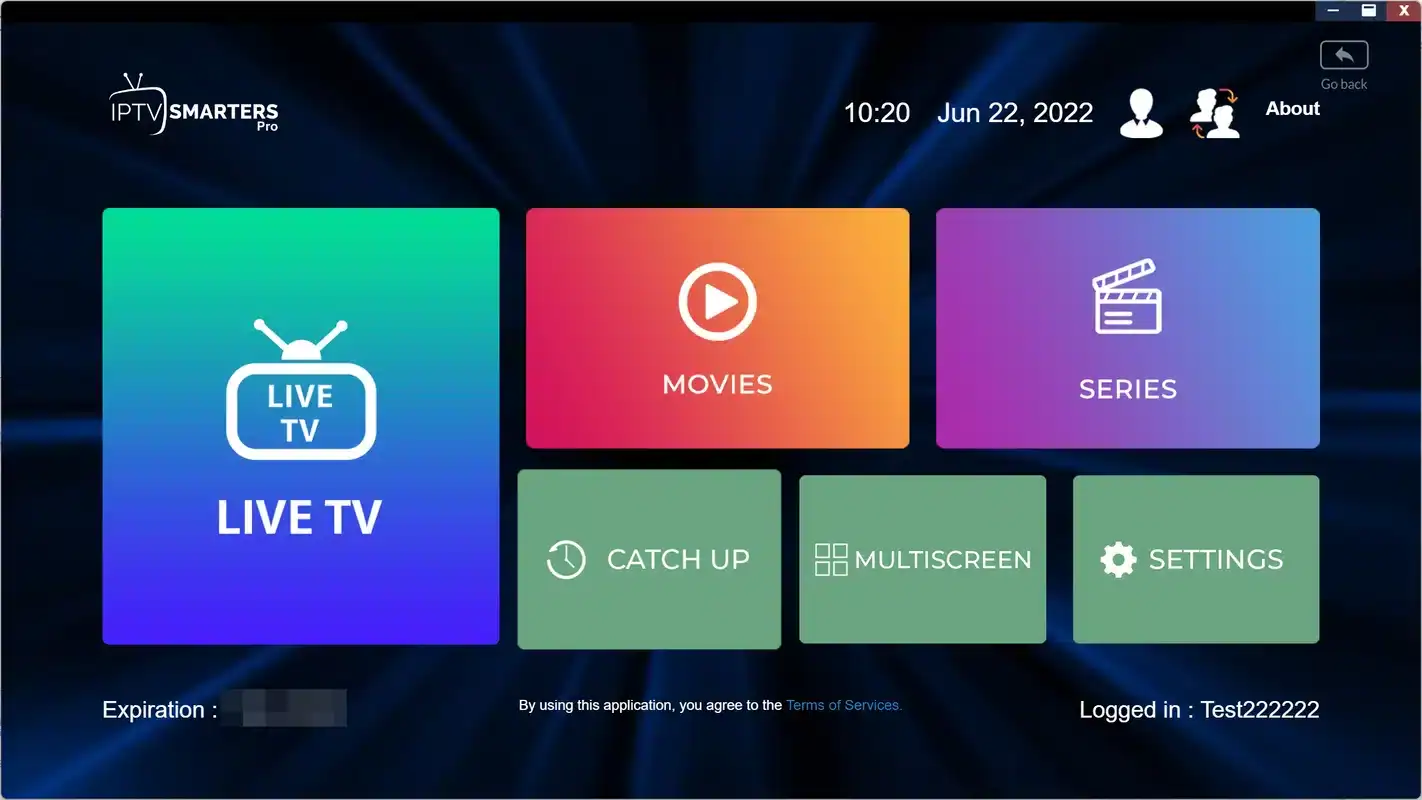
Live TV, movies, series and the TV guide, each in its own tile on the home screen.
A reliable reference
A simple, predictable player to test your access when something seems off elsewhere.
Easy to explain
Straightforward menus mean fewer calls from the living room asking where a channel went.
The common thread is predictability. IPTV Smarters Pro is not the flashiest player and not the most configurable, but it behaves the same way on a phone in a Halifax kitchen as on a TV box in a Saskatoon basement. For many households, that consistency is worth more than any single feature.
Who IPTV Smarters Pro suits, and who may prefer another player
No player is perfect for everyone. Before you invest an evening in setup, check that your habits line up with what this app does well. If they do not, our IPTV apps hub compares every supported player side by side.
A strong fit if you
- Watch on a mix of phones, tablets and a TV box, and want the same layout on each
- Share one TV with family members who each want their own favourites
- Prefer a few clear menus to dozens of technical settings
- Want one dependable player to fall back on when troubleshooting
- Use Apple devices as well as Android ones
Look at another player if you
- Want a full-screen guide grid that feels like cable: try TiviMate
- Own a Samsung or LG TV whose store does not list it: try IBO Player
- Love adjusting buffer and video engine options: try XCIPTV
- Never want to type an address with a remote at all
Plenty of homes end up with two players: IPTV Smarters Pro on phones and tablets, and TiviMate on the main TV. The same access works in both. Just remember that only one of them can play at a given moment on a single pack.
What to have ready before installing IPTV Smarters Pro
Ten minutes of preparation saves most of the frustration we see in support messages. Gather these before you open the store, and the setup itself becomes a short, calm job rather than a hunt for passwords with the remote in one hand.
- Your access e-mail, open on your phone or computer, with the server URL, username and password visible.
- The device you will watch on, updated to its latest system software.
- Enough storage on that device: a few hundred megabytes of room keeps the first load smooth on sticks and older boxes.
- A wired connection or a strong 5 GHz Wi-Fi signal where the TV sits.
- On a TV box, the remote app on your phone or a small USB keyboard to make typing easier.
- A name for the profile, such as the room or the person who will use it.
Where your access comes from
Your access arrives by e-mail within minutes of your order, as Xtream Codes details (server URL, username and password) and an M3U link. If you cannot find it, check your spam or promotions folder for the address you used at checkout, then contact support. Our page on paying for your IPTV subscription explains what happens between payment and that e-mail.
Installing IPTV Smarters Pro from your official app store
Always install IPTV Smarters Pro from your device’s official app store. Availability varies by device and region, so search for the exact name and check the publisher shown on the store page before you install. Some versions may offer paid features or a licence depending on the device; if so, check the current price on the app’s official website. That licence is a matter between you and the publisher, separate from your IPTV Canada plan.
| Device | Where to look | Good to know |
|---|---|---|
| Android phones and tablets | The official store on your device | Comfortable for watching around the house, one stream at a time |
| iPhone and iPad | The App Store | Names can look alike; compare the publisher with the official website |
| Android TV and Google TV boxes | The store built into the box | Ethernet gives the most stable picture |
| Fire TV Stick | The store on the stick’s home screen | Restart the stick now and then to keep it responsive |
| Apple TV, smart TVs and PC | The device’s official store, if the app is listed | If it is not listed, choose another supported player |
Important: never install IPTV Smarters Pro from a link sent by e-mail, message or social media, and never use a copy that claims to come “pre-loaded” with channels. Those versions are not genuine, can put your device at risk and are not supported. IPTV Canada never sends installation files or links.
Device-specific details, such as where the store sits on the home screen or how to make room on a full stick, are in our device guides: IPTV on a Fire TV Stick, IPTV on an Android TV box and IPTV on Apple TV and iPhone. Once the app is installed, open it once to accept the publisher’s terms, then come back to the next section.
IPTV Smarters Pro on each kind of device
The app looks much the same everywhere, but each type of device has its own quirks. These notes come from the questions we answer most often, sorted by the screen you are holding or pointing the remote at.
Android phones and tablets
Touch makes everything faster: you can paste the URL, swipe through groups and pinch through the guide. Turn the screen sideways for the guide and for full-screen playback. If you watch on mobile data away from home, remember that streaming uses a lot of it; choose a lower quality or wait for Wi-Fi. Keep the battery saver from closing the app in the background during a long movie.
iPhone and iPad
On Apple devices, compare the publisher’s name on the App Store listing with the one on the app’s official website, because look-alike names exist. The login is identical. To watch on a bigger screen, our Apple TV and iPhone guide explains the options built into Apple devices.
Android TV and Google TV boxes
This is where the app is most comfortable on a television. Plug the box into the router with a cable if you can, use the remote app on your phone to type the URL, and hide unused groups so the remote has less to scroll through. A box with enough memory keeps the first load short.
Fire TV Stick
Sticks are small and convenient but short on storage and memory. Close other apps before a long session, restart the stick every few days, and keep the channel list lean. If the stick sits behind the TV, a short HDMI extender can improve its Wi-Fi reception noticeably. Our Fire TV Stick guide covers the stick’s own settings.
Tip: set up the device you use most first, and only add the others once everything plays well there. If a problem appears on the second device but not the first, you already know the access is working and can focus on that device.
Logging in to IPTV Smarters Pro with Xtream Codes, field by field
Xtream Codes is the best way into this player, because it brings live channels, movies, series and the TV guide in a single login. The screen asks for four things. Only three of them come from your e-mail; the first is a label you choose.
The Xtream Codes login: one label of your choice and three details copied exactly from your e-mail.
- Open the app and accept the publisher’s terms if they appear on the first screen.
- Choose “Login with Xtream Codes API” or “Add user”. Skip the playlist option unless you specifically want to use your M3U link.
- Fill in “Any name” with a label such as “Living room” or “Maya”. It only appears on this device.
- Type your username and password exactly as written. Both are case-sensitive, so watch capital letters.
- Enter the URL with the prefix and the port exactly as your e-mail shows them. The port is the number after the colon at the end of the address.
- Tap “Add user” and let the app load your lineup. The first load is the longest.
- Open a live channel to confirm playback, then check that the guide shows what is on now and next.
If the login is refused, do not retype the same thing faster. Delete each field completely and enter it again slowly, by hand rather than by pasting. Our Xtream Codes setup guide explains what each field means and how the same details fit into other players.
Using your M3U link in IPTV Smarters Pro instead
Some people prefer the playlist route, for example when they manage several devices from a list of links, or when a family member set things up that way before. IPTV Smarters Pro accepts it. Choose the playlist or M3U option on the login screen, give it a name, and paste the full address from your access e-mail.
Use Xtream Codes. It brings the guide, movies and series sorted into menus with no extra step.
Then: follow the field-by-field steps abovePaste the same address here. Your channels will load; the guide may need a separate source.
Then: check the guide after the first loadSwitch to the Xtream Codes login on this device rather than fighting the guide settings.
Then: delete the playlist profile you no longer needTyping a long playlist address on a TV remote is tedious and error-prone. On a phone or tablet, copy and paste works well, but check that no space slipped in at either end. The M3U playlist guide covers this format in detail, including when it is the better choice in other players.
The first load: what happens on screen
After you tap “Add user”, IPTV Smarters Pro fetches your whole lineup, then the movie and series libraries, then the TV guide. With a large pack, this takes a little while, and people sometimes assume the app has frozen. It has not. Here is the order things usually happen in, so you know what to expect.
- Right after login
Account check
The app confirms your username, password and URL. A refusal here means a typo, a missing port or an inactive plan.
- Next
Live channels
The channel groups load. On a large lineup this is the longest part, especially on sticks.
- Then
Movies and series
The on-demand libraries are indexed into their own sections.
- Last
TV guide
Program listings fill in. If some are missing, a refresh from the settings usually completes them.
- Done
Home screen
The tiles for Live TV, Movies, Series and the guide appear. You are ready to watch.
Let the first load finish before you press anything. Interrupting it, or pressing back repeatedly, can leave a half-built list that then looks incomplete. If that happens, open the profile menu and reload, or simply remove the profile and add it again with the same details. Later loads are much quicker because the app only refreshes what changed.
The length of the first load depends mostly on the device. A recent box on a cable finishes quickly; an older stick on a distant Wi-Fi signal takes noticeably longer. If yours seems slow, that is not a sign of a problem with your access, just of how much the device has to sort through. Hiding unused groups afterwards makes every later refresh lighter.
Finding your way around the IPTV Smarters Pro home screen
The home screen is built around large tiles that work with a remote or a finger. Exact names can change from one version to another, but the structure has stayed familiar for a long time, which is part of why the app is easy to support.
Live TV
Live channels are sorted into groups. Pick a group on the left, then a channel on the right; a small preview often plays before you go full screen. While watching, the remote’s up and down buttons usually move between channels in the same group.
Movies and series
The on-demand sections work like a library. Series are organized by season and episode, and the app remembers where you stopped, which is handy when two people are working through different shows on the same device under different profiles.
Search
With a large lineup, search beats scrolling every time. Use it to jump straight to a channel or title rather than paging through long groups with the remote.
Setting up the IPTV Smarters Pro TV guide for your time zone
With an Xtream Codes login, the guide loads on its own. Two settings decide whether it is actually useful: the refresh, which fills in missing listings, and the time shift, which lines up program times with your clock. Canada spans six time zones, including Newfoundland’s half-hour offset, so this matters more here than in many countries.
Get the guide right in three moves
Work through these in order. Most guides are fixed by the first one; the other two handle the rest.
- Check the device’s own date, time and time zone in its system settings.
- In the app’s settings, find the EPG or guide section and refresh it, then wait a minute.
- If times are still off by a fixed amount, adjust the time shift until listings match your clock.
A guide that is exactly one hour off almost always comes from the device’s clock or a daylight saving setting, not from the subscription. A guide that is empty for a few channels while others are full usually just needs a refresh. If neither move helps, our IPTV EPG guide goes deeper, and support can check the guide with you.
The same logic helps when you travel inside the country. If you take a tablet from Toronto to a cottage in Manitoba, the device usually changes time zone on its own; if listings look strange afterwards, refresh the guide rather than changing the time shift.
Profiles for every person in the house
Profiles are the feature households mention most. IPTV Smarters Pro lets you add several user profiles on the same device, each using the same IPTV Canada credentials with its own favourites and viewing history. Your teenager’s favourites stay out of your list, and the kids’ cartoons do not crowd the top of your guide.
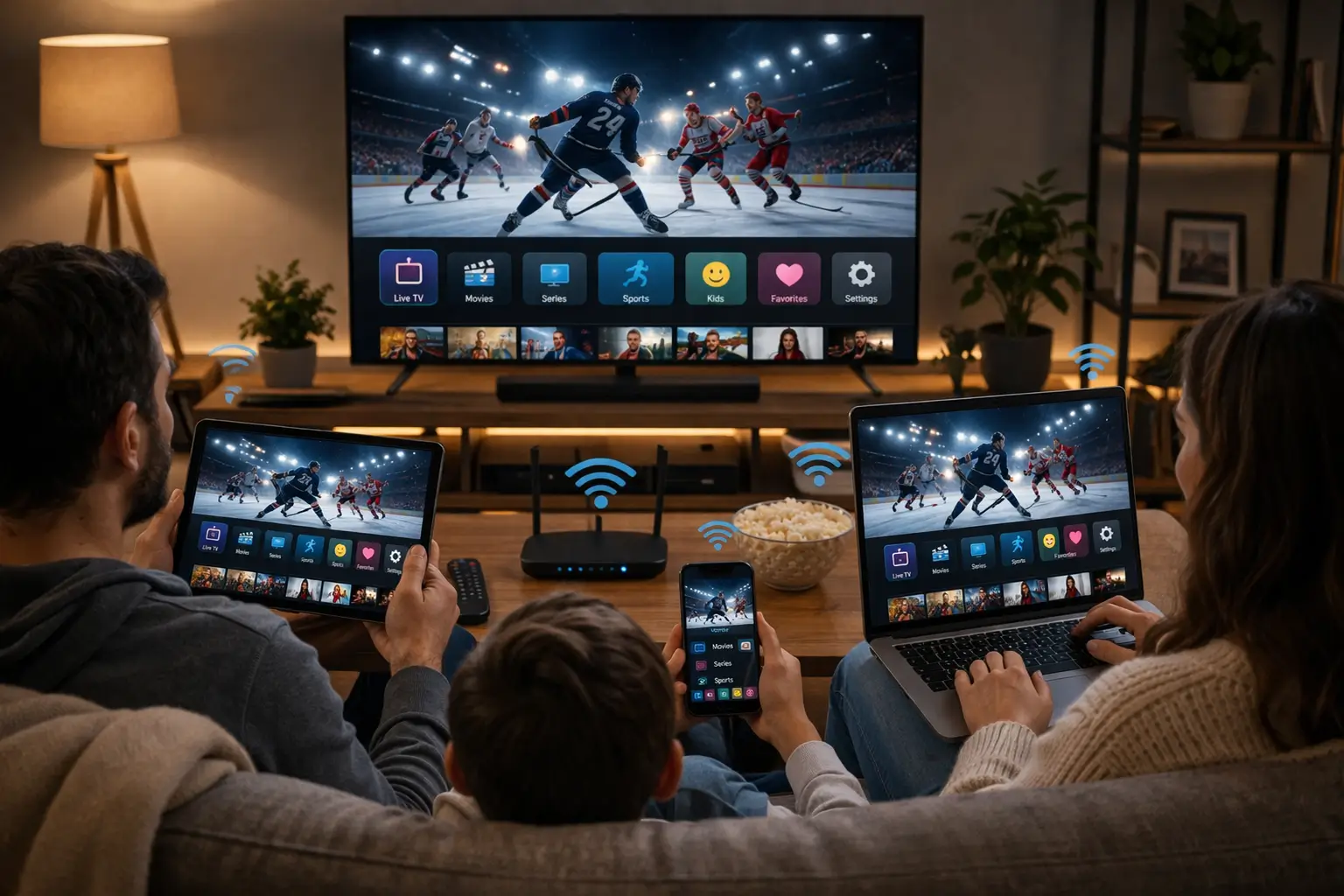
Setting up a profile per person
Add each profile from the user list with the same three details from your e-mail, and give it the person’s name. Then let each person build their own favourites.
- One profile per regular viewer, named clearly
- Favourites built by the person who uses them
- A shared “Family” profile for movie nights
- Parental controls on the children’s profile where the version offers them
Profiles also help when grandparents visit or a babysitter takes over for the evening. A simple “Guest” profile with a dozen familiar channels in its favourites saves you from explaining the full lineup. And when someone moves out, removing their profile cleans up the device without touching anyone else’s setup.
Remember: profiles organize the app; they do not add screens. Your pack still includes 1 simultaneous connection, whichever profile is open. If two people want to watch at the same time on different devices, ask support about extra simultaneous screens.
Favourites, search and a tidier channel list
A large lineup is only useful if each person can reach their daily channels in a couple of clicks. Three habits make IPTV Smarters Pro feel small and fast, even on a stick.
First, build favourites early. Long-press a channel, or use the menu button on your remote, and add it. Ten or fifteen channels per profile cover most people’s evenings. Second, hide the channel groups nobody watches, from the settings or the category menu. A shorter list loads faster on older boxes and is far easier for visitors or grandparents. Third, use search for anything outside the favourites instead of scrolling.
The best channel list is the one your family can use without asking you. Favourites and hidden groups get you there in an evening.
Tidying is especially worthwhile with the larger packs. The VIP Premium Pack, with 27,000+ channels, rewards a few minutes spent hiding groups, because the remaining list becomes something you can actually browse.
A practical way to start: sit down with each regular viewer for five minutes, open their profile and ask which channels they reach for most evenings. Add those to favourites together. Then, from your own profile, go through the group list once and hide everything in a language nobody at home speaks or a theme nobody follows. You can always unhide a group later from the same menu, so there is no risk in being bold.
One login on phone, tablet and TV box
This is where IPTV Smarters Pro earns its reputation. Install it on every screen you own, log in with the same access, and you get the same menus everywhere. Your phone becomes a portable TV for the kitchen or the backyard, and the box keeps the living room covered, as long as they take turns.
Stop playback on the TV first, then open the same title on the tablet.
Then: the tablet plays on your single connectionOne of the two streams will stop or show an “in use” message.
Then: agree who watches, or ask about extra screensYour access travels with you. Check the cottage internet can carry the quality you choose.
Then: lower the quality on a weak connectionIf your household genuinely needs two or more screens playing at once, write to us through the contact page. Support will explain the conditions and the price for your situation. Our guide to IPTV on multiple screens covers bandwidth planning: two Full HD screens at once need around 30 Mbps for those two streams alone.
Two people, two screens, same evening
Ask support for extra simultaneous screens and get the conditions and price in writing.
Using IPTV Smarters Pro as your reference test player
Because it is simple and widely used, IPTV Smarters Pro makes an excellent yardstick. When a channel misbehaves in another player, or on a device you are unsure about, running the same test in this app tells you quickly where the fault lives. Our support team often asks for this exact test.
- Pick one channel that is misbehaving in your usual player, and note the time and what you see.
- Close the other player completely so it does not hold your single connection.
- Open the same channel in IPTV Smarters Pro on the same device, with the same network.
- Compare the result. If it plays smoothly here, the fault is in the other app’s settings or cache. If it fails the same way, look at the device or the network.
- Repeat on a second device, such as your phone on the same Wi-Fi, to separate a device issue from a network issue.
- Send the results to support with the player names and device models. That information shortens the diagnosis considerably.
This method takes five minutes and replaces hours of guesswork. It also protects you from changing the wrong thing, such as buying a new box when a cache clear would have done, or rearranging the router when the real issue was a setting in one player.
Fixing IPTV Smarters Pro errors
Most problems have simple causes. These are the messages and symptoms our support team sees most often with this app, with the fix to try first. Wording can vary slightly between versions, but the meaning stays the same.
| What you see | Likely cause | What to do first |
|---|---|---|
| Login fails or “invalid” details | Typo, wrong capital letter or hidden space | Delete each field and retype it slowly by hand |
| App cannot reach the server | URL incomplete, prefix or port missing | Copy the URL exactly as written in the e-mail, port included |
| Account in use or stream stops | Another device is streaming with the same login | Stop playback elsewhere; each pack allows 1 connection |
| Channels listed but none play | Weak connection or a stuck app | Restart the app and device, then test your internet speed |
| Empty or partial guide | Guide not refreshed yet | Refresh the EPG in settings and wait a minute |
| Guide times shifted | Device clock or time shift setting | Check the device time zone, then the time shift |
| Picture pauses or stalls | Speed below what the quality needs | Use a cable or 5 GHz Wi-Fi, or lower the quality |
| Menus slow or crashing | Full cache or low storage | Clear the app cache, then restart the device |
For smooth playback, plan for 10 Mbps per screen in HD, 15 Mbps in Full HD and 25 Mbps in 4K. If an error message is not in the table, our page on an IPTV app that cannot connect lists the wording of other common messages, and the IPTV troubleshooting hub takes you through playback problems by symptom.
When you contact support about an error, a photo of the message on screen is worth more than a description. Add the device model, whether you used Xtream Codes or the M3U link, and whether the same channel plays on another device. With those four details, our team can usually point to the cause in the first reply rather than after a long exchange, in English or in French, whichever you prefer.
Keeping IPTV Smarters Pro healthy over time
A player that ran beautifully on the first evening can slow down after months of use, especially on a stick with little storage. A few maintenance habits keep it responsive, and none of them touches your subscription.
- Install app updates from the official store when they appear; they often fix playback and guide bugs.
- Clear the app’s cache from your device’s settings every so often, then restart the device.
- Reload the profile after a big lineup change, so new groups appear.
- Keep the device’s own system software current.
- Uninstall players you no longer use to recover storage.
Deep dive: when to reinstall instead of clearing the cache
Clearing the cache removes temporary data and solves most slowdowns. A full reinstall goes further: it removes the app and every profile, then gives you a clean start from the official store. Reinstall when the app crashes at launch, when menus stay broken after a cache clear and a restart, or after a major update that left things behaving oddly. Before you reinstall, take a photo of your profiles and favourites so you can rebuild them, and keep your access e-mail at hand. The reinstall itself takes a few minutes; rebuilding favourites takes a few more.
Deep dive: licences and paid features
Depending on the device and version, the publisher of IPTV Smarters Pro may offer paid features or ask for a licence. The terms and the price belong to the publisher and can change, so check the current price on the app’s official website before paying, and pay only through the official route shown in the app. We cannot sell, activate or transfer that licence, and it has no effect on your IPTV Canada plan, which covers access to the content only.
IPTV Smarters Pro terms you will meet in the menus
The menus use a few words that are not obvious the first time. Here is what they mean in this app, in plain language, so that a support conversation or a setting change feels less like guesswork.
- Add user
- Creates a login profile on this device using your access details.
- Xtream Codes API
- The login type that uses a URL, a username and a password.
- Playlist
- The login type that uses your M3U link instead.
- EPG
- The TV guide data: what is on now, next and later.
- Time shift
- Moves guide times forward or back to match your clock.
- Category
- A channel group. Hide categories you never watch.
- Cache
- Temporary data the app keeps to load faster. Clearing it fixes many slowdowns.
- Port
- The number after the colon at the end of the server URL. Required when your e-mail shows one.
If a menu uses a word that is not here, it is probably a newer label for one of these ideas. Menu names change with updates, but the logic stays the same, and support can tell you where an option moved.
Which pack fits an IPTV Smarters Pro household
Every pack works in IPTV Smarters Pro, and the app’s clear movie and series sections make large on-demand libraries easy to browse. The choice is about what your household watches, not about the player.
The Premium Pack gives you 20,000+ channels, 24,000+ series and 100,000+ movies in HD, Full HD and 4K, a comfortable size for most families. The VIP Premium Pack goes further, with 27,000+ channels, 61,000+ series and 155,000+ movies, which suits homes where profiles are busy with long-running shows. The Ultimate 4K Pack offers 57,000+ 4K channels, 47,000+ series and 179,000+ movies, served from 20 servers in Europe, for homes with a 4K TV and a connection that can spare 25 Mbps for it.
All packs run for 1, 3, 6 or 12 months, with a one-time payment in Canadian dollars by card or PayPal, no contract and no automatic renewal. See current prices on the IPTV subscription plans page, or compare durations on the 12-month IPTV subscription page if you already know the app suits your household.
Related IPTV Smarters Pro guides
Once IPTV Smarters Pro is running, these pages help you polish the rest of the setup, from the device it runs on to the network behind it.
Set up IPTV Smarters Pro tonight
Pick a pack and a duration; your access arrives by e-mail within minutes.
FAQ
Is IPTV Smarters Pro included with my subscription?
No. IPTV Smarters Pro is made by an independent publisher, and IPTV Canada is not affiliated with it. You install it yourself from your device’s official app store, then enter the access details we send you by e-mail.
Do I have to pay for IPTV Smarters Pro?
That depends on the version and the device. If the app offers paid features or a licence, check the current price on the app’s official website. Any such payment goes to the publisher and is separate from your IPTV Canada plan.
Should I use Xtream Codes or the M3U link?
Use Xtream Codes whenever you can. It loads live channels, movies, series and the TV guide in one step. Keep the M3U link for players that do not support Xtream Codes.
Can I install IPTV Smarters Pro on several devices?
Yes. Install it on as many of your own devices as you like and log in with the same credentials, then watch on one device at a time, since each pack includes 1 simultaneous connection.
Do profiles let two people watch at once?
No. Profiles keep favourites and history separate, but they share the same single connection. For two screens at the same time, contact support for the conditions and price.
Why does the app say my login is wrong when I copied it correctly?
Copying from an e-mail sometimes adds a hidden space at the start or end. Delete each field and type it again by hand, check capital letters, and make sure the URL includes the port if one is listed.
Why is my TV guide an hour off?
Check your device’s time zone and daylight saving setting first. If listings are still shifted by a fixed amount, adjust the time shift in the app’s guide settings.
The first load seems stuck. What should I do?
Give it time: a large lineup takes longest on the first load. If nothing changes after several minutes, restart the app and reload the profile, or remove it and add it again.
How fast does my internet need to be?
Plan for 10 Mbps per screen in HD, 15 Mbps in Full HD and 25 Mbps in 4K. A wired connection to your TV box makes the biggest difference in stability.
Can support help me set up IPTV Smarters Pro?
Yes. Our team helps you configure the app with your access, 7 days a week by e-mail and WhatsApp, in English and French. Tell us your device model and what you see on screen.