When a household already runs on iPhones and iPads, IPTV Apple TV setups tend to feel the most natural of all. One Apple account, one App Store, a remote that does very little and does it well, and a phone in every pocket that can type passwords for the TV or send a picture to it. This guide covers the whole Apple side of IPTV Canada: which device plays which role in the home, which players to look for, how to log in without wrestling the on-screen keyboard, what AirPlay can and cannot do, and the tvOS settings that make the picture look its best.
The steps apply to Apple TV boxes as well as iPhones and iPads. If you are still comparing Apple TV with Android boxes, sticks and smart TV apps, start with the IPTV devices hub or the best IPTV box buying guide.
Why Apple homes choose IPTV Apple TV setups
An Apple TV is not the device with the most players or the most settings. Its appeal lies elsewhere: consistency, smooth playback and the way it fits around the phones and tablets a family already owns. For IPTV, that translates into a few concrete benefits.
Smooth, consistent interface
Menus respond quickly and look the same from one app to another, which makes a new player easy to learn.
Your iPhone as a keyboard
When a text field appears on the TV, an iPhone signed in to the same account can type it for you.
AirPlay from any iPhone
Guests and family can send a stream from a phone to the big screen when the player supports it.
Match Content
tvOS can switch dynamic range and frame rate to match each video, for a natural picture on 4K TVs.
One store, one account
Players come only from the App Store and update through it, with the same Apple account as your phone.
Easy hand-off
Start the evening on the TV and continue on an iPad in bed, one screen at a time, with the same login.
The trade-offs: the App Store’s list of IPTV players for tvOS is shorter than Google Play’s, and not every model has an Ethernet port. If the players you want are missing on tvOS, an Android TV box may suit you better.
There is also a quieter advantage: Apple TV boxes tend to receive system updates for a long time, and players update through the same App Store. That means fewer surprises after a few seasons of use, and a device that behaves the same way for every member of the family. For a household that values “it just works” over “I can tweak everything”, that consistency is worth more than a long list of settings.
Apple TV, iPhone and iPad: which screen does what
In an Apple home, each device tends to settle into a role. Thinking in roles helps you decide where to install a player first and where AirPlay is the simpler answer.
| Device | Typical role | Input | Ethernet | AirPlay |
|---|---|---|---|---|
| Apple TV 4K | Main living-room screen, 4K and HDR on a 4K TV | Siri Remote, iPhone remote | On some models | Receives from iPhone and iPad |
| Apple TV HD | Second TV in Full HD | Siri Remote, iPhone remote | Yes | Receives from iPhone and iPad |
| iPad | Personal screen in the kitchen, bedroom or office | Touch | No | Sends to Apple TV or compatible TV |
| iPhone | Quick checks, typing for the TV, the yard | Touch | No | Sends to Apple TV or compatible TV |
Whatever the role, the rules are identical on every device: the same login details, the same 1 simultaneous connection, the same speed per screen. To find your model, open Settings, General, About on the Apple TV; the model name appears near the top. If it says 4K, the box can output 4K to a 4K TV through a capable HDMI port.
Where to start depends on the screen you watch most. If the living-room TV is the centre of your evenings, set up the Apple TV first and treat the iPhone as its keyboard and a backup screen. If you mostly watch alone in a bedroom or a dorm room, start on the iPad, where copy and paste makes the login trivial, and add the Apple TV later. Either way, test one full evening on the first device before installing on the others; if something needs adjusting, you will only change it once.
What you need before you start
Have these ready before you sit down with the remote. They turn the setup into a short, calm job.
Your pre-setup list
An Apple TV connected by HDMI and signed in to your Apple account, or an iPhone or iPad with a recent system version. A steady connection in the room, ideally a cable to the Apple TV if it has a port. And your access e-mail, which arrives within minutes of ordering.
- Apple TV on HDMI, signed in to the App Store
- iPhone nearby, on the same Wi-Fi, to type for the TV
- 10 Mbps for HD, 15 Mbps for Full HD or 25 Mbps for 4K, per screen
- For 4K: a 4K Apple TV, a 4K TV and a 4K-capable HDMI port
- Your access e-mail with Xtream Codes or an M3U link
Not subscribed yet? Choose a pack and a duration of 1, 3, 6 or 12 months on the plans page. You pay once in Canadian dollars by card or PayPal, with no automatic renewal and no contract; see current prices there. The payment guide explains each checkout step, from choosing card or PayPal to finding your access e-mail.
Players in the App Store for IPTV Apple TV
Several players that accept IPTV Canada credentials have been listed in the App Store. The catch on Apple devices is that each app may exist for iPhone and iPad, for Apple TV, or for both, and availability can differ by region. Always search on the device itself.
| Player | Login | Character | Where to search |
|---|---|---|---|
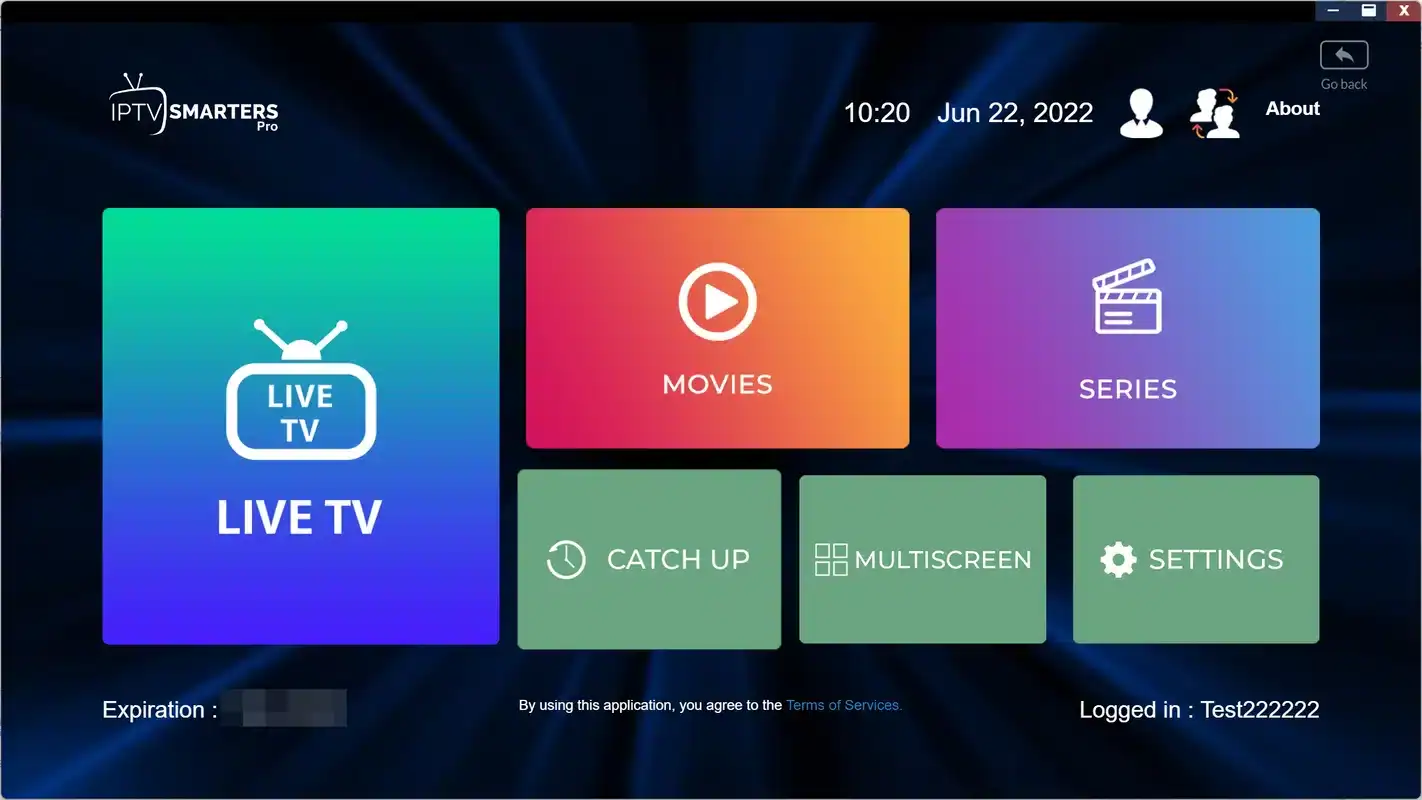
| IPTV Smarters Pro | Xtream Codes, M3U | Big, simple sections; easy for beginners | App Store on iPhone and iPad, and on Apple TV where listed |
| GSE Smart IPTV | Xtream Codes, M3U | Flexible playlist management, many options | App Store on iPhone, iPad and Apple TV, where listed |
| IBO Player | Playlist added through the publisher’s activation | Same look as on smart TVs and Android boxes | App Store, where listed |
Important: install players only from the App Store. Never use a link, a configuration profile, a test build invitation or a file shared online. We are independent from app publishers. Some players ask for a licence or offer in-app purchases: check the current price on the app’s official website. If no supported player is listed on your Apple TV, use AirPlay from an iPhone that has one, or a different device.
If two players are available, choose by habit. People who browse by sections, such as movies first, then series, often prefer IPTV Smarters Pro; our IPTV Smarters Pro guide explains every screen. People who manage several playlists or like detailed options lean toward GSE Smart IPTV. Homes where a Samsung or LG TV already runs IBO Player may prefer one interface everywhere.
IPTV Apple TV setup step by step
With the Apple TV signed in and updated, the installation and login take a few minutes. The only slow part is typing, and the next section shows how to skip most of it.
- Update first. Settings, System, Software Updates. Install any pending update and let the Apple TV restart.
- Open the App Store. Select it on the home screen and go to the Search tab, or hold the Siri button and say the player’s name.
- Check and install. Confirm the name and publisher match, then select Get. Use Face ID or your password on your iPhone if asked.
- Open the player and choose Xtream Codes. Enter the server URL, username and password exactly as in your e-mail. Or add your M3U link. For IBO Player, follow the activation shown on screen.
- Let it load. The first import of channels, movies, series and the TV guide takes a moment. Leave the remote alone until the lists appear.
- Move the player to the top row. Press and hold the app icon, then move it into the top row so its shortcuts appear above the dock.
Typing tip: when the Apple TV shows a keyboard, an iPhone on the same account and network usually displays a notification offering to type. Tap it and you can type, or paste from your e-mail, straight into the TV field. You can also open the Apple TV Remote from Control Centre on the iPhone for the same keyboard.
The login screen on tvOS
Choose Xtream Codes when the player offers it. Three details let the player load live channels, movies, series and the guide by itself. An M3U link is a single address instead; it works, though some players then need a separate guide address before program information shows.
Field labels vary by player; the three details never do.
Three slips account for most refused logins on Apple TV. The first is autocorrect or auto-capitalization from the iPhone keyboard, which can turn a lowercase username into a capitalized one; check the first letter. The second is a missing port: if your server address in the e-mail ends with a colon and a number, that part is required. The third is a trailing space after pasting. Our Xtream Codes guide shows the fields in each player, and the M3U playlist guide covers the playlist route.
Setting up iPhone and iPad as personal screens
On iPhone and iPad, the steps mirror the Apple TV, but touch makes everything quicker. You can copy each detail from the e-mail and paste it into the player, which removes typing errors almost entirely.
- Step 1
Search the App Store
Look for IPTV Smarters Pro or GSE Smart IPTV, check the publisher, and install.
- Step 2
Copy, then paste
Open your access e-mail, long-press each detail to copy it, then paste into the player’s matching field.
- Step 3
Name the profile
Use something like “Kitchen iPad” so you know which screen is playing.
- Step 4
Trim the lists
Hide groups you never use and add favourites, just as on the TV.
- Step 5
Close before switching
Exit the player before starting the Apple TV, since only one screen plays at a time.
Phones and tablets shine as the “other” screen: the news while cooking, a series in bed, cartoons in a child’s room. On an iPad, Split View with a recipe or a document is possible in many players. On cellular data, streaming uses a lot of data, so keep viewing to home Wi-Fi unless your mobile plan is generous. The kids’ iPad deserves a word too: a stream left running there will stop the living-room Apple TV from starting.
Picture in Picture is another iPad and iPhone strength, in players that support it. You can keep a live channel in a small floating window while you answer a message or check a recipe, then tap it back to full screen. It is still one stream, so it follows the same rule as everything else, and closing the floating window is what actually releases the connection.
Apple TV ready, iPhone in hand
Pick a pack and a duration of 1, 3, 6 or 12 months. One payment in Canadian dollars, no contract, nothing renews on its own.
AirPlay: sending IPTV from an iPhone to the TV
AirPlay lets an iPhone or iPad send video to an Apple TV, or to a compatible smart TV, on the same Wi-Fi network. For IPTV, it is a useful bridge: a guest-room TV without a player, a moment when the Apple TV’s player is missing on tvOS, or a family member who prefers browsing on a phone.
There are two ways to send. The cleaner one is the AirPlay button inside the player’s video controls, when the player has one: the phone hands the video over, and you can often lock the phone while it plays. The other is Screen Mirroring from Control Centre, which copies the whole phone screen, including notifications, and keeps the phone busy. Prefer the player’s own button when available.
AirPlay works well when
- The phone and the TV are on the same 5 GHz network
- The player has its own AirPlay button
- The phone stays plugged in and near the router
- You need a picture on a TV without its own player
Expect hiccups when
- The phone is at the edge of Wi-Fi range
- You mirror the whole screen and notifications pop up
- The player does not support AirPlay for live streams
- The phone goes to sleep or takes a call
Because the stream still comes from the phone, AirPlay counts as a single connection. It does not create a second one, and it does not let two screens play different channels. For TVs that accept AirPlay directly, including many recent Samsung and LG models, the smart TV guide explains when installing a player directly on the TV is the better long-term option.
tvOS video and audio settings for IPTV Apple TV viewing
The Apple TV’s picture settings live in Settings, Video and Audio. The defaults are sensible, but two options make a visible difference with IPTV, and one fixes the most common complaint from new owners: menus that look dull or too bright.
Format
Set it to your TV’s native resolution, 4K on a 4K TV, usually in SDR. Let Match Content switch to HDR only when a video needs it.
Match Dynamic Range
Switches the TV into HDR for HDR content and back for everything else, so menus and HD channels look natural.
Match Frame Rate
Changes the TV’s refresh rate to the video’s, which smooths motion in films. Expect a brief blank on channel changes.
Audio Format
Leave it on automatic so the Apple TV asks your TV or soundbar what it can play. Switch to stereo to test missing sound.
Deep dive: why “4K HDR always on” can look worse
If the format is forced to 4K HDR, the Apple TV converts everything, menus and Full HD channels included, into HDR. Many TVs then raise brightness and alter colours, so standard content looks washed out or oddly bright. With the format in 4K SDR and Match Dynamic Range on, the TV only enters HDR when the video itself is HDR, and the rest looks the way it was produced. The trade-off is a short blank as the TV switches modes. On older TVs that handle mode changes slowly, some viewers prefer to leave matching off and accept the conversion. Try both on your own set.
Inside the player, look for the video player or decoder option if channels show sound but no picture; switching it is a quick test before contacting support. Subtitles and audio language are chosen per stream from the player’s playback menu, which you reach on the Siri Remote by swiping down during playback in most apps. If the screen goes black after changing the format, wait: tvOS asks you to confirm and reverts by itself if you do not. Our IPTV black screen guide covers the other causes.
Network setup for Apple TV and iPad
Apple TV models differ on networking. Some have an Ethernet port; some rely only on Wi-Fi. If yours has a port and the router is reachable, use a cable: it is the most effective defence against buffering, especially in 4K. If it does not, the 5 GHz band and a clear line to the router matter more than any setting.
Per-screen speed on any Apple device

Checking the connection the Apple way
On Apple TV, Settings, Network shows whether you are on Wi-Fi or Ethernet and how strong the signal is. If the signal looks weak, move the Apple TV out of any closed cabinet, keep it away from the back of the TV, and make sure it sits on the 5 GHz network. For iPhone and iPad, stream closer to the router or add a mesh point in rooms where the signal drops.
- Ethernet where the model has a port
- 5 GHz Wi-Fi, router in the open
- Apple TV outside cabinets, not behind the TV
- Restart router and Apple TV after updates
The per-screen figures add up when support has arranged extra simultaneous screens for you: an Apple TV in 4K and an iPad in Full HD at the same moment need 25 plus 15, so 40 Mbps for video alone. The buffering guide walks through network checks in order, and the 4K IPTV guide confirms each link of the 4K chain.
One more Apple-specific point: iPhones and iPads switch between Wi-Fi and cellular data on their own when the Wi-Fi signal weakens. In a large house or a backyard at the edge of range, that switch can interrupt a stream or quietly use mobile data. If you notice either, stay closer to the router or add a mesh point outdoors-facing, and keep an eye on the data usage figure in the phone’s settings.
Family settings on Apple devices
Apple devices come with their own restriction tools, and players add a second layer. Used together, they keep IPTV predictable for children without locking out adults.
Two layers of control
On Apple TV, Settings, General, Restrictions lets you set a passcode and limit app installation, purchases and content ratings for apps from the store. On iPhone and iPad, Screen Time does the same and adds app time limits. Inside the IPTV player, a parental PIN locks individual categories, which the system tools cannot see. Set both: the system decides which apps a child can open, and the player decides what they can browse inside it.
Shared Apple TVs benefit from user profiles too, where tvOS offers them, so each adult’s recently played row stays personal. For older relatives, the simplest gift is moving the player to the top row and showing them one gesture to return to it. The IPTV Montreal guide has extra tips for bilingual families who want French menus for one person and English for another.
Siri Remote habits that make IPTV quicker
The Siri Remote has very few buttons, which is part of its charm and part of the learning curve. IPTV players lean on the same handful of gestures, and knowing them turns zapping from a chore into something quick. These work in most players; a few apps assign their own extra shortcuts, which their settings menus list.
- Click the centre of the clickpad to open a channel or show the controls
- Swipe down during playback to reach audio, subtitles and info in many players
- Press Back once to return to the channel list, twice to reach the player’s menu
- Press the TV button to go to the home screen without closing the player
- Hold the Siri button and say a player’s name to open it from anywhere
- Double-click the TV button to see open apps and swipe a frozen one away
That last gesture is worth remembering. If a player freezes on a channel, closing it from the app switcher and reopening it is often faster than a full restart. It also releases the stream, which matters for the 1-connection rule: a player paused in the background on the Apple TV might still hold the connection while someone tries to start an iPad upstairs.
For anyone who finds the clickpad too sensitive, Settings, Remotes and Devices lets you adjust touch surface tracking, and on newer remotes you can switch the clickpad to “clicks only”. Older relatives often get on better with that setting, since an accidental swipe no longer jumps three channels at once. If an older Siri Remote is lost, the Apple TV Remote in an iPhone’s Control Centre does everything the hardware one does, keyboard included.
Apple terms you will meet during setup
Apple uses its own vocabulary for features that other platforms name differently. Here is what each term means for IPTV, so the menus make sense the first time.
- tvOS
- The Apple TV’s operating system. Players must have a tvOS version to install on the Apple TV itself.
- iPadOS and iOS
- The systems on iPad and iPhone. A player can exist here without a tvOS version.
- Siri Remote
- The Apple TV’s remote, with a clickpad, a Back button, a TV button and voice search.
- Top row
- The first row of apps on the Apple TV home screen. Apps placed there can show shortcuts above it.
- Match Content
- Settings that switch dynamic range and frame rate to match each video, for a natural picture.
- AirPlay
- Apple’s way of sending video from an iPhone or iPad to an Apple TV or compatible TV on the same network.
- Screen Mirroring
- An AirPlay mode that copies the whole phone screen, notifications included.
- Restrictions and Screen Time
- Apple’s family controls on Apple TV and on iPhone or iPad.
None of these terms changes how your subscription works. They change where you look for a setting. When a guide on this site says “the player’s settings”, it means the menus inside the IPTV app, not the Apple TV’s Settings app, which controls the device as a whole.
Troubleshooting on Apple TV, iPhone and iPad
Apple devices share most of their problems with other platforms, with a few twists of their own. Find your symptom below and start with the suggested fix.
Some players exist only for iPhone and iPad. Search for another supported player on tvOS.
Then: use AirPlay from an iPhone that has oneCheck auto-capitalization from the iPhone keyboard, the port at the end of the URL and stray spaces.
Then: test the same login on your iPhoneThe format is forced to HDR. Set it to SDR at your TV’s resolution and turn on Match Dynamic Range.
Then: compare one HD and one 4K channelThe phone is far from the router or mirroring the whole screen.
Then: use the player’s own AirPlay button, phone plugged inUpdate the player and tvOS or iOS, then restart the device.
Then: reinstall the player if it persistsTwo screens are playing on 1 simultaneous connection.
Then: close the player on the iPad or iPhoneTo restart an Apple TV quickly, go to Settings, System, Restart, or hold the Back and TV buttons on the Siri Remote until the light blinks. Should nothing work, send support the device model, the player name and what you see. The IPTV troubleshooting hub also has a guide for each symptom, including the “can’t connect” guide for login errors.
One connection across every Apple device
Every IPTV Canada pack includes 1 simultaneous connection. You can install the same credentials on the Apple TV, each family member’s iPhone and the iPad, and watch on one at a time. AirPlay does not change this: the stream comes from the phone and counts once. When a second device starts playing, one stream stops.
If two people in your home often want to watch at once, ask for extra simultaneous screens. Write to support through the contact page and they will explain the conditions and the price. Credentials stay within your household; sharing them with another home causes conflicts and puts the access at risk. The multiple screens guide explains how to plan bandwidth once extra screens are in place.
- Close the player on the iPad before starting the Apple TV
- Swipe away paused players in the Apple TV app switcher
- Give each device a profile name so you know which one is playing
- Keep the login on household devices only
- Sign out of the player on any device that leaves the home
Most “it stopped by itself” reports in Apple homes trace back to a forgotten iPad or a player paused in the background on a second Apple TV. Once the household adopts the habit of closing the player when leaving a room, the rule stops being noticeable.
When an Apple TV is not the best fit
We like Apple TV for IPTV, but it is not the right answer in every home. Being honest about its limits saves you from buying hardware that does not match your habits. These situations come up most often in support conversations.
| Situation | Why Apple TV struggles | Better route |
|---|---|---|
| You want a cable-style guide grid player | Guide-first players are mostly found in Google Play | An Android TV box with a guide-first player |
| No supported player is listed on tvOS in your region | The tvOS list is shorter than on other platforms | AirPlay from an iPhone, or a smart TV player |
| The TV is far from the router and your model has no Ethernet | Wi-Fi alone at long range limits 4K | A model with Ethernet, or a mesh point near the TV |
| Nobody in the house uses Apple devices | You lose the iPhone keyboard and AirPlay benefits | Compare devices in the best IPTV box guide |
| Your smart TV already runs a supported player well | An extra box adds a remote and an input | Keep the smart TV app |
If one of these rows describes you, it does not mean the Apple TV will not work; it means another device might feel better day to day. Your login moves freely between devices, so you can always change later without touching your plan.
Moving your setup to a new Apple TV or iPhone
Replacing an Apple TV or upgrading a phone is simple, because your IPTV access lives in the subscription, not in the device. Apple’s own transfer tools copy the device settings, and in some cases the apps themselves; the player’s login often needs entering again.
- Keep your access e-mail ready. You will need the server URL, username and password, or the M3U link, once more.
- Set up the new device. On Apple TV, the iPhone set-up option can transfer your Apple account and Wi-Fi in a few taps.
- Reinstall the player. Search the App Store, or open the app from your purchased list if it does not appear automatically.
- Log in and tidy. Enter the details, hide unused groups and rebuild favourites.
- Retire the old device. Sign out of the player, or erase the device if it leaves your household.
If the old Apple TV moves to a bedroom rather than leaving the house, keep the player on it and simply remember the 1-connection rule. Two Apple TVs can hold the same login; only one plays at a time.
Choosing a pack for IPTV Apple TV viewing
All three packs play on every supported Apple device. The Apple TV handles large catalogues comfortably, and an iPad is a pleasant way to browse a deep series library. Pick by content and by the quality your TV can show.
Series lovers on an Apple TV often settle on the VIP Premium Pack: 27,000+ channels, 61,000+ series and 155,000+ movies in HD, Full HD and 4K. If you own an Apple TV 4K connected to a 4K TV and 25 Mbps is available for it, the Ultimate 4K Pack brings 57,000+ 4K channels, 47,000+ series and 179,000+ movies, with 20 servers in Europe. The Premium Pack, with 20,000+ channels, 24,000+ series and 100,000+ movies, covers most homes that watch mainly in HD and Full HD. Every pack comes in 1, 3, 6 or 12 months; see current prices on the plans page.
On Apple devices, the picture is rarely the limit. The connection and the content you choose decide what you actually see.
More guides for Apple households
Player missing on your Apple TV
Tell us your Apple TV model and region. Support suggests the best route, 7 days a week by e-mail or WhatsApp, in English and French.
FAQ
Which player should I use on Apple TV?
IPTV Smarters Pro, GSE Smart IPTV and IBO Player have been listed in the App Store. Availability varies by device and region, so search the store on the Apple TV itself first.
Why is a player on my iPhone but not on my Apple TV?
Publishers release separate versions for iOS and tvOS, and some only make one. Try another supported player on the Apple TV, or send the picture from your iPhone with AirPlay.
Can I watch IPTV Canada on my iPhone and Apple TV?
Yes. Install it on both and use them one at a time. Each pack includes 1 simultaneous connection; for more screens at once, contact support for the conditions and price.
Does AirPlay count as a second connection?
No. With AirPlay the stream comes from the iPhone or iPad and is only displayed on the TV, so it remains one connection.
Do I need an Apple TV 4K?
Only for 4K on a 4K TV. Other models play HD and Full HD. 4K also needs a 4K-capable HDMI port and around 25 Mbps for that screen.
How do I type the server URL without the remote?
When the keyboard appears on the TV, tap the notification on your iPhone, or open the Apple TV Remote in Control Centre, and type or paste the details from your e-mail.
Why do menus look washed out on my Apple TV?
The format is probably forced to HDR. Set it to SDR at your TV’s resolution and switch on Match Dynamic Range so HDR is used only for HDR content.
Can I watch on my iPhone outside the house?
Your access is for your household and works on your devices one at a time. On cellular data, streaming uses a lot of data, so check your mobile plan and prefer Wi-Fi.
Are the players paid?
Some players ask for a licence or offer in-app purchases. We are independent from app publishers, so check the current price on the app’s official website.
What should I do if the player app keeps closing?
Update the player and the system, restart the device, and reinstall the player from the App Store if it continues. Then contact support with the model and player name.