Picking an IPTV app feels like a small decision, yet it shapes almost everything you notice each evening: how fast a channel opens, how readable the TV guide is, and whether your partner, your kids or your parents can find their favourites without calling you over. You do not need to be technical to get it right. Your IPTV Canada subscription works with several well-known players, and the best one for you depends on two things only: the screen you watch on and the way your household likes to watch.
This hub explains what a player does and does not do, compares the four players we cover in depth, matches each one to the devices found in Canadian homes, and walks you through a setup routine that works in any of them. You will also find the rules that apply whatever player you pick: where to install it, who you pay for a licence, how the single-connection rule works across devices, and how to tell an app problem from a network problem. Each player then has its own detailed guide, linked just below.
Your IPTV app guides, one per player
Start here if you already know which player you want, or come back once the comparison further down has helped you decide. Each guide covers installation from the official store, login, the TV guide, the settings that matter and the errors our support team sees most often with that specific app.
Two more players, Smart IPTV and GSE Smart IPTV, also work with our service. They are less common in Canadian living rooms, so instead of separate guides we cover them through the general IPTV setup hub. The login logic is identical: the same details from your access e-mail, typed into a different screen.
What an IPTV app actually does
An IPTV app is a player and nothing more. Think of it as the remote control and the on-screen layout rolled into one piece of software. It connects to the server details we send you, loads your channel list, builds the TV guide and plays the stream you select. The channels, series and movies themselves come from your subscription, not from the app. That is why you can delete a player, reinstall it or swap it for another one without losing anything you paid for.
Keeping that chain in mind saves a lot of frustration. When something goes wrong, you can ask which link is weak. A menu that freezes, a guide that will not refresh or a button that does nothing usually points to the player. A picture that stutters in every player on every device points further up the chain: your home network, your internet speed or, more rarely, the service. Our support team uses exactly this reasoning when you write in, and you can use it too before you even open a ticket.
The separation also gives you freedom. You can try a second player on the same TV box tonight, keep the one you prefer and remove the other. Nothing changes on our side, and you never need to buy anything new from us to switch. The only thing that might cost money is a licence or premium version charged by the publisher of the player, which we cover in its own section further down.
The one-sentence version
Your subscription is the content, the player is the window you look through. Change the window as often as you like; the view stays the same.
IPTV app comparison at a glance
The table sums up the four players we cover in depth. All of them work with your IPTV Canada subscription. Availability can change from one device, model or region to another, so always confirm the listing in your device’s official app store before you plan around a player.
| Player | Typical devices | How you log in | Best known for | Publisher licence |
|---|---|---|---|---|
| IPTV Smarters Pro | Phones, tablets, Android TV boxes, Fire TV and more, depending on the store | Xtream Codes or M3U | Versatility, simple menus, several profiles | Terms vary by version; check the app’s official website |
| TiviMate IPTV Player | Android TV, Google TV, Fire TV | Xtream Codes or M3U | A guide grid that feels like cable, quick zapping | A premium version exists; check the current price on the app’s official website |
| IBO Player | Samsung and LG smart TVs, many boxes | Playlist added on the publisher’s official page with your MAC address and device key | No typing on the TV remote | A licence may apply; check the current price on the app’s official website |
| XCIPTV | Android phones, Android TV boxes, Fire TV | Xtream Codes | Detailed playback settings, fast login | Check the app’s official website for current terms |
Read the table from left to right. The device column rules players in or out. The login column tells you how much typing to expect. The third column is where personal taste comes in, and the last column reminds you that any licence is a matter between you and the publisher, never part of your plan with us.
If you are torn between two players, you do not have to choose blindly. Install both from the official store, log in with the same access, and watch an evening on each. Because each pack allows 1 connection at a time, simply close one player before opening the other. By the end of the week, the household will have voted with the remote.
Choosing an IPTV app by device
Your hardware narrows the list more than anything else. Here is what we recommend for the screens we see most often in Canadian homes, from a condo living room to a cottage den.
Samsung and LG smart TVs
Smart TVs run their own app stores, and the selection of players is smaller than on Android devices. IBO Player and Smart IPTV are the usual choices. If your set is older and its store does not list a supported player, a small streaming box plugged into a spare HDMI port is often the simplest fix. Our smart TV setup guide covers both routes.
- Check the store on the TV itself, not a website
- Update the TV’s software first
- Keep the phone nearby for IBO Player’s codes
Fire TV Stick
On a Fire TV Stick, TiviMate, IPTV Smarters Pro and XCIPTV are the most popular players, as long as they appear in the official store for your region. Sticks have limited storage and memory, so a lighter channel list and an occasional restart help a lot. The Fire TV Stick guide explains the stick-side settings.
Android TV and Google TV boxes
Boxes running Android TV or Google TV offer the widest choice. TiviMate is the favourite for anyone who wants a proper guide grid, while IPTV Smarters Pro and XCIPTV are strong alternatives. A box with an Ethernet port gives you the steadiest picture. Shopping for one? Our Android box guide and the broader comparison of the best IPTV box in Canada explain what to look for.
Apple TV, iPhone and iPad
On Apple devices, look for IPTV Smarters Pro or GSE Smart IPTV in the App Store. The login is the same: your Xtream Codes details or your M3U link. The Apple TV and iPhone guide has the specifics, including how to send the picture to a bigger screen.
Android phones, tablets and PC
For screens you carry from room to room, IPTV Smarters Pro is the most comfortable option, and XCIPTV is a good second choice on Android. Remember the single-connection rule: watching on your phone while someone else watches the living-room TV needs extra simultaneous screens, which you can request through our contact page.
Matching an IPTV app to the way your household watches
Once your device has narrowed the list, habits decide the rest. Two homes with the same Android TV box can end up happiest with different players, because one family surfs live channels all evening while the other mostly starts a series and leaves it running. These scenarios cover the patterns we hear about most often.
You want to scroll channels and time slots at once and zap with the arrow keys. TiviMate is built for exactly that on Android TV and Fire TV.
Then: read the TiviMate guideEach person wants their own favourites and history. IPTV Smarters Pro keeps separate profiles on the same device.
Then: set up one profile per personIBO Player lets you add the playlist from your phone instead, using the codes shown on your TV.
Then: keep your phone handy during setupXCIPTV offers buffer and video engine options that can smooth out stutters without new hardware.
Then: change one setting at a timeUse one player that runs on both, so the menus feel the same everywhere. IPTV Smarters Pro is the usual answer.
Then: install it on both, use one at a timeAny of the four will do. Pick the one whose movie and series menus you find easiest to read.
Then: test two players for an evening eachThere is no wrong answer here, only a more or less comfortable one. Plenty of households run two players: TiviMate on the main TV for live viewing and IPTV Smarters Pro on phones and tablets. The same access works in both, one screen at a time.
Xtream Codes or M3U: the two ways into any IPTV app
Your access e-mail arrives within minutes of your order, and it gives you two ways to connect a player. Both lead to the same subscription; they simply package the information differently. Most players accept both, and when a player offers Xtream Codes, that is the option we recommend.
| What you compare | Xtream Codes | M3U link |
|---|---|---|
| What you enter | Server URL, username, password | One long playlist address |
| Live channels | Yes | Yes |
| Movies and series sorted into menus | Yes, in most players | Depends on the player |
| TV guide loads with the login | Yes, in most players | Sometimes needs a separate guide source |
| Easiest for typing on a remote | Three shorter fields | One long address |
| Used by IBO Player’s official page | Some versions | Yes |
In practice, choose Xtream Codes in IPTV Smarters Pro, TiviMate and XCIPTV, and use the M3U link when a player only asks for a playlist address or when IBO Player’s official page prefers it. If you want the detail behind each field, our guides to setting up IPTV with Xtream Codes and to using an M3U playlist explain where every character goes and why a missing port number blocks a login.
Tip: keep the access e-mail somewhere you can reach in seconds, such as a pinned note or a starred message on your phone. You will reuse the same details every time you set up a player on another device, and having them at hand turns a frustrating evening into a five-minute job.
Installing an IPTV app safely from the official store
Every player we support is installed the same way: from the official app store built into your TV, box, phone or computer. That rule has no exceptions. A legitimate setup never needs a file sent by message, a link from a comment thread or a copy of a player that claims to come pre-loaded with channels. Those copies can carry security risks, they cannot be updated properly, and we do not support them.
Important: IPTV Canada is independent from every app publisher. We do not develop, sell or control these players, and we never send installation files, links or “unlocked” versions. If anyone offers you a ready-made player or a playlist shared in public, ignore it and do not enter your details.
Even inside an official store, copycat listings sometimes appear with names that look almost identical. A thirty-second check of the store page avoids installing the wrong thing. Here is what to look at before you press install.
- The exact player name, spelled the way it appears in our guides.
- The publisher’s name on the listing, matching the one shown on the app’s official website.
- A recent update date, which suggests the app is maintained.
- Screenshots that show a player interface, not a wall of channel logos.
- Permissions that make sense for a video player.
- A description that talks about playing your own playlist, not about content included.
If the player you wanted is not listed on your device, that is useful information, not a dead end. It means your model does not support it. Choose another supported player from the same store, or consider a small streaming box. Never go looking for a copy elsewhere.
Setting up any IPTV app in five steps
Whatever player you choose, the process follows the same pattern. The menus have different names, but the logic does not change. Have your access e-mail open on your phone before you start, and sit where you can see the TV comfortably.
- Pick your player using the device and household recommendations above. If you are unsure, start with IPTV Smarters Pro or, on Android TV and Fire TV, TiviMate.
- Install it from your device’s official app store. Search for the exact name and check the publisher on the store page before installing.
- Choose your login method. Select Xtream Codes, sometimes labelled “Xtream Codes API”, whenever the app offers it. Use the M3U option only if the player has no Xtream Codes login, or, for IBO Player, add the playlist through the publisher’s official page.
- Enter your details carefully. Copy the server URL exactly as written in the e-mail, including the port number if there is one. Usernames and passwords are case-sensitive, and a stray space is the most common cause of a failed login.
- Let the guide load, then test. Give the player a minute to fetch the TV guide, then open a channel in each quality you plan to use. If listings stay empty, our IPTV EPG guide explains the next checks.
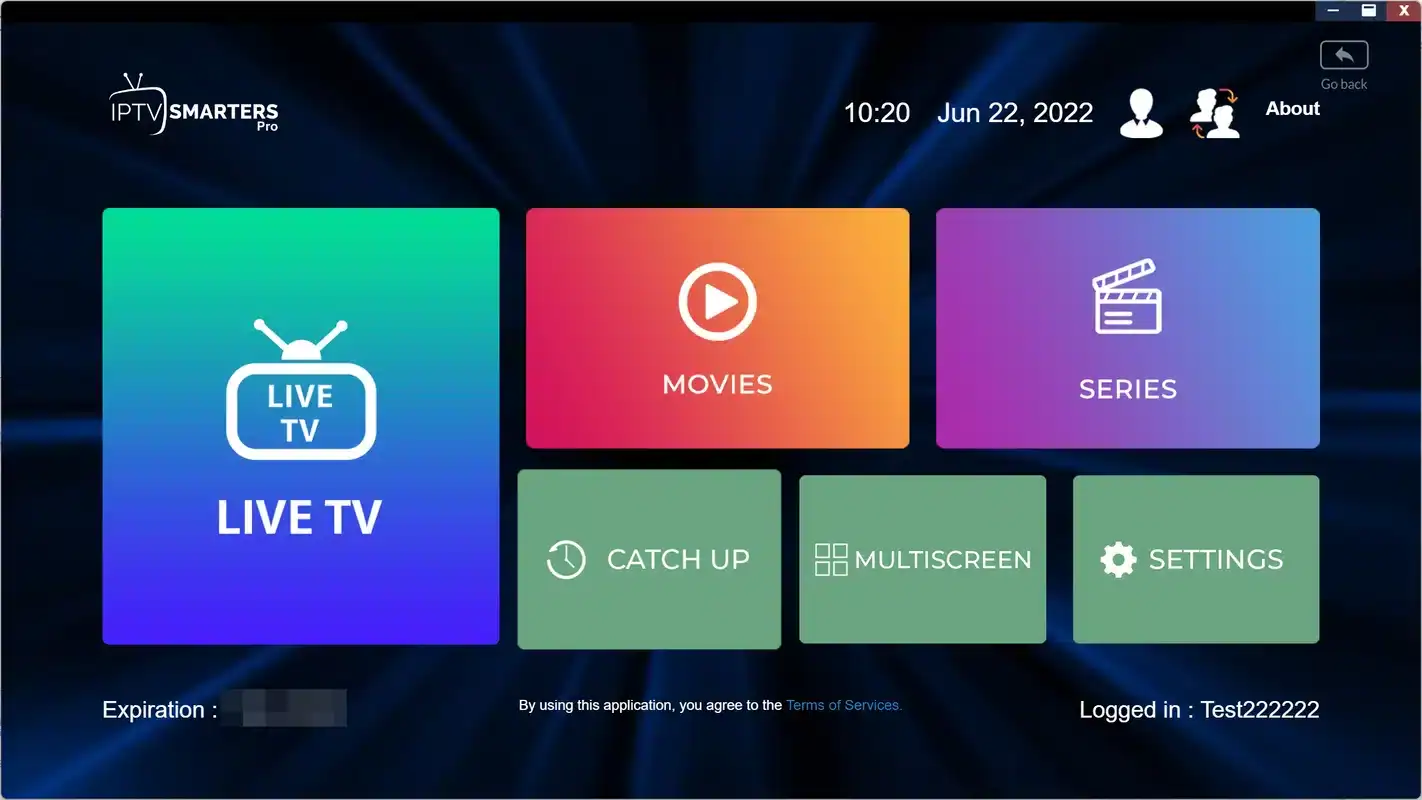
The login screen looks much the same in every player: a name of your choice and three fields from your e-mail.
The playlist name is only a label on your device, so pick something useful, such as the room or the person. Once the first device works, the second one is quicker, because you reuse the same credentials. The devices then simply take turns: one stream at a time per pack.
Licences, premium versions and who you pay
This is the part that confuses many people, so let us be precise. Your IPTV Canada subscription gives you access to the channels, series and movies. The player is separate software from an independent publisher. Some players cost nothing, some show ads, some offer a premium version with extra features, and some ask for a licence after a period of use. Those terms belong to the publisher, can change at any time, and are never part of your plan with us.
What IPTV Canada handles
- Your subscription, pack and duration
- Your access details, sent by e-mail within minutes
- Help configuring the player with your access, 7/7
- Requests for extra simultaneous screens
What the publisher handles
- The player itself, its design and its updates
- Any licence, premium version or ads
- The price of that licence, shown on its official website
- Activation of that licence on your device
If a player asks for a licence or offers a premium version, check the current price on the app’s official website and pay the publisher only through the official route shown inside the app. We never collect money on behalf of a publisher, and we cannot activate, transfer or cancel a licence for you. If you would rather not pay for a player at all, the comparison above shows which alternatives run on the same device.
Two separate purchases, two separate sellers: your plan from us, any player licence from its publisher. Keeping them apart avoids almost every billing question.
One login, several devices, any IPTV app
The connection rule is the same whatever player you use, and it is the rule people most often misunderstand. Every pack includes 1 simultaneous connection. You can install your access on the living-room box, the bedroom smart TV, your phone and your tablet, in any mix of players, and use them one at a time. What you cannot do on a single pack is play two streams at the same moment.
Profiles inside a player do not change this. IPTV Smarters Pro can hold a profile for each person, and TiviMate can hold several playlists, but they all draw on the same single connection. If a second device starts playing while the first is still streaming, one of them will show a message about the account being in use, or will simply stop. Close the stream on the other device and try again.
If your household genuinely needs two or more screens playing at once, that is possible on request. Write to support through the contact page, and the team will explain the conditions and the price for your situation. Our guide to IPTV on multiple screens explains how to plan the bandwidth and which devices to prioritize. Never share your access with another household: credentials belong to one home.
Need two TVs playing at the same time
Tell support which devices you use and how many screens you need at once. You will get the conditions and price in writing.
Switching IPTV app without losing anything
People switch players for all sorts of reasons: a new TV box, a publisher licence they do not want to pay, a family member who prefers a different layout, or a player that stopped behaving after an update. Because your subscription lives on our side, moving to another player is painless. The only things you rebuild are personal touches such as favourites and hidden groups. Here is a calm way to do it.
- Before you switch
Note your favourites
Take a quick photo of your favourites list and of any groups you hid, so you can rebuild them in minutes.
- Same evening
Install the new player
Get it from the official store and log in with the same access e-mail. Keep the old player installed for now.
- First test
Compare side by side
Close one player, open the other, and watch the same channels in each. Remember: one stream at a time.
- After a few days
Rebuild your layout
Add favourites, hide unused groups and set the guide’s time offset in the player you are keeping.
- When you are sure
Remove the old player
Uninstall it to recover storage, which helps on sticks and older boxes.
One habit makes switching even easier: keep a short note of the settings you changed in each player, such as the time offset, the buffer size or the hidden groups. If you ever reinstall or move to a new box, you will rebuild your setup from that note instead of from memory.
Getting the best picture from your IPTV app
A great player can only show what your connection delivers. Our recommended internet speed is per screen, and it adds up when several people use the internet at once for streaming, gaming or video calls. If two screens are playing in Full HD on a multi-screen arrangement, plan for 30 Mbps for those two alone.
Recommended speed per screen
Habits that matter more than the app
Before you blame a player for a stutter, check the basics. These habits help every app we support.
- Use Ethernet for TV boxes whenever you can, or the 5 GHz Wi-Fi band near the router.
- Restart the device and the player now and then, especially Fire TV Sticks.
- Clear the player’s cache if menus slow down.
- Match quality to the screen: 4K on a small bedroom TV wastes bandwidth.
- Keep the player and the device software up to date.
If streams pause in every player you try, the problem sits upstream of the app. Our guides to fixing IPTV buffering and to IPTV freezing or cutting out go through the network checks in order, from router placement to the busy-evening test. Changing players will not fix a weak Wi-Fi signal, but a cable often will.
Telling an app problem from a network problem
The quickest way to solve a playback issue is to locate it. Our support team asks the same few questions every time, and you can ask them yourself before writing in. The answers almost always point to one link in the chain: the player, the device, the home network or the access itself.
One player only
A channel fails in one app but plays in another on the same device. Clear that app’s cache, update it or reinstall it from the store.
One device only
Everything works on the phone but not on the box. Restart the box, check its storage and its connection to the router.
Every device, busy hours
Pauses appear in the evening on all screens. The home network or internet speed is the likely cause.
Login refused everywhere
Check for typos, spaces and the port in the server URL, and confirm your plan is still active.
Stops when someone else watches
Another device is using your single connection. Stop one stream, or ask support about extra screens.
Guide times are wrong
Check the device’s time zone first, then the guide’s time offset in the player.
When you do write to support, include the player name, the device model, what you see on screen and whether the same channel plays in a second player. That last detail alone often halves the time it takes to find the cause. Our IPTV troubleshooting hub and the page on an IPTV app that cannot connect cover the most common messages word for word.
Deep dive: why a second player is the best diagnostic tool
Installing a second player costs you a few minutes and answers the most important question in troubleshooting: is the fault inside the app or outside it. If a channel freezes in TiviMate but plays smoothly in IPTV Smarters Pro on the same box, the network and the access are working, and the fix is in TiviMate’s settings or cache. If it freezes identically in both, no amount of app tweaking will help, and you should look at the connection instead. That is why our support team keeps one simple reference player in mind and may ask you to try it.
Common IPTV app mistakes to avoid
Most setup trouble comes from a handful of habits that are easy to fix once you know them. None of them is a sign that you did anything wrong; they are simply the traps we see again and again in support messages from households across the country.
- Copying the server URL without the port. If the e-mail shows a colon and a number at the end of the address, that part is required.
- Pasting with a hidden space. Copying from an e-mail can add an invisible space at the start or end of a field. Retype it by hand if the login fails.
- Choosing the playlist option by habit. In players that support Xtream Codes, that login brings the guide, movies and series in one go.
- Leaving every channel group visible. A huge list loads slowly on sticks and older boxes. Hide what nobody in the house watches.
- Forgetting the device time zone. A guide that is one hour off is almost always a time setting, not a fault.
- Expecting profiles to add screens. Profiles organize favourites; they do not create extra simultaneous connections.
- Installing a player from a link. Only the official store is safe and supported.
If you recognize one of these, fix it first and test again before trying anything more complicated. Nine times out of ten, the evening is saved in a couple of minutes.
Pairing your IPTV app with the right pack
Every pack works in every player we support, so the choice of pack is about what you want to watch and on what screen, not about the app. That said, some pairings make particular sense. TiviMate’s grid shines with a large live lineup, IBO Player is a natural match for a big 4K smart TV, and IPTV Smarters Pro’s tidy movie and series menus make a large on-demand library easy to browse.
VIP Premium Pack
- 27,000+ channels
- 61,000+ series
- 155,000+ movies
- HD, Full HD and 4K
Ultimate 4K Pack
- 57,000+ 4K channels
- 47,000+ series
- 179,000+ movies
- 20 servers in Europe
Every pack is available for 1, 3, 6 or 12 months, paid once in Canadian dollars by card or PayPal, with no contract and no automatic renewal. See current prices on the IPTV subscription plans page. If you want to test your chosen player on your own devices before committing for longer, the 1-month IPTV subscription is designed for exactly that, and nothing renews when it ends.
IPTV app vocabulary in plain English
Player menus and setup e-mails use a handful of terms again and again. Knowing them makes every guide on this site quicker to follow and helps you describe a problem precisely when you contact support.
- Player
- The app that reads your subscription and shows it on screen. It holds no content of its own.
- Xtream Codes
- A login made of a server URL, a username and a password.
- M3U link
- A single playlist address that some players use instead of separate fields.
- EPG
- The electronic program guide, the grid of what is on now and next.
- Time offset
- A setting that shifts guide times when they do not match your clock.
- Channel group
- A folder of channels in the list. Hiding groups shortens the list.
- Profile
- A personal space inside a player with its own favourites. It does not add screens.
- Publisher licence
- A fee some app publishers charge for their player, separate from your plan.
- MAC address
- A code that identifies your device, used by IBO Player to link a playlist to your TV.
- Simultaneous connection
- One stream playing at a given moment. Each pack includes 1.
For a broader introduction to the technology itself, our guide to what IPTV is starts from the very beginning, and the main IPTV guide hub collects every explainer in one place. On legality, keep a neutral view: the technology is legal; whether a service is legal depends on the broadcasting rights it holds, so check before subscribing. Our page asking whether IPTV is legal in Canada explains what to look for.
Where to go next with your IPTV app
You now know how players work, which one suits your screens and your household, and the rules that apply to all of them. The next step depends on where you are: still choosing a device, ready to install, or already watching and looking to polish the setup.
Ready to connect your favourite player
Choose a pack and a duration, and your access arrives by e-mail within minutes.
FAQ
Which IPTV app is best in Canada?
There is no single winner; it depends on your device and habits. IPTV Smarters Pro is the most versatile, TiviMate is the favourite on Android TV and Fire TV, IBO Player suits many Samsung and LG smart TVs, and XCIPTV appeals to people who like detailed settings. All of them work with IPTV Canada.
Do you send the app with my subscription?
No. We send your access details by e-mail within minutes: Xtream Codes or an M3U link. You install the player yourself from your device’s official app store. We never send installation files or links, and we are independent from app publishers.
Can I use the same login on several devices?
Yes. Set up the same credentials on as many of your own devices as you like and use them one at a time, because every pack includes 1 simultaneous connection. For more screens at once, ask through our contact page and support will explain the conditions and price.
Can I use two different players with the same access?
Yes. Many households run TiviMate on the main TV and IPTV Smarters Pro on phones. The same access works in both, as long as only one stream plays at a time.
Do I need to pay for the player?
It depends on the publisher. Some players cost nothing, others offer a premium version or ask for a licence. Check the current price on the app’s official website. That payment goes to the publisher and is separate from your IPTV Canada plan.
Will I lose anything if I change players?
No. Your channels, series and movies come from your subscription. You only rebuild personal settings such as favourites, hidden groups and the guide’s time offset.
Is using an IPTV app legal in Canada?
The technology is legal; whether a service is legal depends on the broadcasting rights it holds, so check before subscribing. Our guide on IPTV legality in Canada explains what to look for.
Why does my player show the wrong times in the TV guide?
Check the time zone on your device first, then the time offset setting inside the player. Once both match your region, the guide lines up with your clock.
My player won’t connect. What should I check first?
Re-enter the server URL, username and password exactly as written in your e-mail, without extra spaces and with the port if one is shown. Make sure no other device is streaming with the same login, then restart the player.
Can support help me set up a specific player?
Yes. Our team helps you configure any supported player with your access, 7 days a week by e-mail and WhatsApp, in English and French. We cannot manage a publisher’s licence, but we can get your subscription running inside the app.