Some people want a player that simply works. Others like to look under the hood. XCIPTV suits both. It logs in fast with Xtream Codes, lays out live TV, movies and series cleanly, and offers more playback settings than most players, which helps when an older box, a Fire TV Stick behind the TV or a crowded Wi-Fi network needs a little tuning. If you watch on an Android device or a Fire TV, it is well worth an evening.
This guide is built for that tuning mindset. After the install and the login, it explains each setting that changes playback, when to touch it and when to leave it alone, a method for testing changes without getting lost, recommended starting points for different devices, the TV guide, and fixes for the issues we see most often. Please note that IPTV Canada is independent from XCIPTV’s publisher. We do not develop or distribute the app; we help you use your subscription inside it, 7 days a week, in English and French.
What XCIPTV is built for
XCIPTV is a player built around the Xtream Codes login. Like every IPTV player, it contains no channels, series or movies of its own. It connects to the server details in your access e-mail and organizes your subscription into sections you can browse with a remote or a touch screen. What sets it apart is how much control it gives you over the way video is played.
Fast Xtream login
Server URL, username, password, and you are in. No playlist juggling.
Choice of video engine
Switch the internal player when a channel misbehaves on one engine.
Adjustable buffer
Hold a few more seconds of video to ride out short network dips.
Decoding options
Hardware or software decoding, to suit the chip inside your device.
Phone and TV layouts
Works with touch on a phone and with a remote on a TV box.
Favourites and search
Reach your daily channels quickly in a large lineup.
Those options are the reason households with older or modest hardware often end up on XCIPTV. A box that struggles with one player’s defaults can play smoothly once the engine or the buffer is adjusted. That said, you never have to touch a setting: on a recent device connected by cable, XCIPTV’s defaults are usually the best place to stay.
When XCIPTV is the right choice
Every supported player works with your subscription, so the choice is about fit. XCIPTV shines in some situations and is less suited to others. Our IPTV apps hub compares all of them; here is the view from XCIPTV’s side.
Pick XCIPTV if
- You watch on Android phones, Android TV or Google TV boxes, or a Fire TV
- You want to adjust playback to an older box or a busy network
- You like a fast login and a straightforward layout
- You want a second player to compare against when troubleshooting
- You prefer to avoid paying for a player where the publisher’s terms allow it
Look elsewhere if
- You want a cable-style guide grid as the centre of your viewing: TiviMate
- You use Apple devices too and want one app everywhere: IPTV Smarters Pro
- You watch on a Samsung or LG smart TV with its own system: IBO Player
- Settings menus make you nervous and you never want to see one
Plenty of homes run XCIPTV alongside another player on the same box. The access is the same in both, so you can keep XCIPTV for the channels that play best in it and use another app for the guide grid, one stream at a time.
XCIPTV also makes a good second opinion. When a channel misbehaves in your usual player, opening it in XCIPTV on the same device tells you within a minute whether the issue follows the channel or stays with the app. That single test often decides whether you need to tune a player, look at your network or contact support.
Installing XCIPTV from your device’s official app store
XCIPTV is installed from the official store on your device. Search for the exact name, check the publisher on the listing, and install. Availability can change from one device or region to another. If XCIPTV is not listed on your device, choose another supported player rather than looking for copies elsewhere.
On an Android phone or tablet
Open the official store on the device, search for “XCIPTV”, check the listing and install. Phones are the easiest place to log in, since you can paste the details from your e-mail.
On an Android TV or Google TV box
Use the store built into the box. If you can, connect the box to the router with a cable before the first login; it makes the first load faster and gives you a fair baseline for any tuning later. Our Android TV box guide covers the box’s own settings.
On a Fire TV Stick
Use the store on the stick’s home screen. Sticks have less storage and memory than boxes, so remove apps you never use before installing. The Fire TV Stick guide explains how to check storage and restart the stick properly.
Important: install XCIPTV only from your device’s official app store. Do not use links, files or “pre-configured” versions sent by message or posted online. They are not genuine, they may harm your device and they are not supported. IPTV Canada never sends installation files or links, and no genuine setup asks you to change your device’s security settings.
The publisher may offer different versions or extra features. Check the app’s official website for current terms and, if anything is paid, the current price. Any such payment goes to the publisher and is separate from your IPTV Canada plan.
On the store listing itself, take a few seconds to compare the publisher’s name with the one on the app’s official website, and look at the last update date. Look-alike listings appear from time to time, and the official website is the reference that settles any doubt.
Logging in to XCIPTV with Xtream Codes
Your access e-mail contains a server URL, a username and a password. Keep it open on your phone, especially if you are typing on a TV box with a remote. XCIPTV’s login screen is short, which is one of its strengths.
Three fields, all copied from your access e-mail. Nothing else is needed.
- Open XCIPTV and accept any permission or terms screen shown by the publisher.
- Select the Xtream Codes login if the app asks you to choose a login type.
- Enter your username and password exactly as written. Both are case-sensitive.
- Enter the server URL with the prefix and the port number exactly as your e-mail shows them.
- Sign in and wait while the app loads live channels, movies, series and the guide.
- Open a live channel to test playback, then check the guide for program information.
If the login fails, delete each field and type it again by hand; copying from an e-mail sometimes adds an invisible space. On a TV box, the remote app on your phone or a small USB keyboard makes typing far less error-prone than the on-screen keyboard. Our Xtream Codes setup guide explains what each part of the address means, and why a missing port is the classic cause of a refused login.
Tip: before you change a single playback setting, watch a few channels with the defaults for an evening. You need to know how the app behaves untouched on your device, otherwise you cannot tell whether a later change helped.
A tour of the XCIPTV home screen
After the first load, XCIPTV opens on a home screen with large sections. Names and icons may change with updates, but the structure stays recognizable, and it works the same with a remote or a finger.
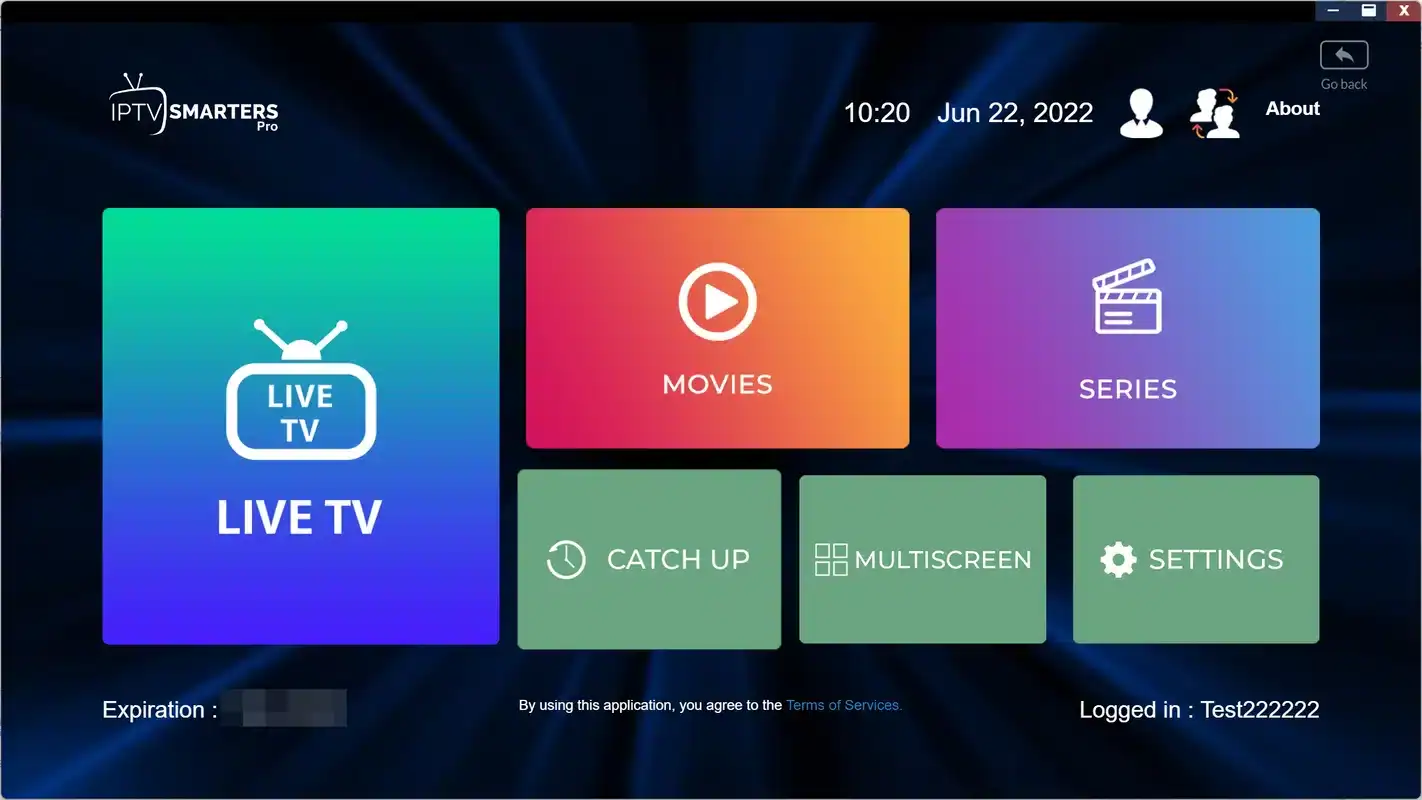
Live TV lists your channel groups; pick a group, then a channel. While a channel plays, the remote’s up and down buttons usually move through the group. The guide shows what is on now and next. Movies and series behave like a library, with categories and search. The settings, which this guide spends most of its time on, sit behind a gear icon or a menu entry.
On a phone, the same sections appear as tiles or tabs you tap. On a TV box, you move between them with the arrow keys and confirm with the centre button. The back button almost always takes you one level up, so you can explore without fear of getting lost.
Start by adding your daily channels to favourites and hiding groups nobody watches. A lighter list loads faster on sticks and entry-level boxes, and it makes every later test quicker, because you reach your test channels in a press or two.
The XCIPTV settings that change playback
This is where XCIPTV stands out. If channels stutter, take a while to start or show the wrong shape on screen, a few settings often help. Names can vary between versions, but you will usually find these in the settings menu, under a player or video heading.
| Setting | What it does | When to change it |
|---|---|---|
| Video player or engine | Switches the internal player used for video | When a channel stalls or shows a black screen on the current engine |
| Buffer size | Stores a few more seconds of video before and during playback | When the picture pauses briefly on a busy home network |
| Hardware or software decoding | Chooses whether the device’s video chip or its main processor handles the picture | When an older box struggles with Full HD or 4K |
| Aspect ratio | Adjusts how the picture fills the screen | When the image looks stretched or has black bars |
| Stream format | Selects the format requested from the server | Only when support suggests it during troubleshooting |
Each of these is covered in more detail below, with the situations where it helps and the ones where it makes no difference. The golden rule applies throughout: change one thing, test, then decide whether to keep it.
Choosing the XCIPTV video engine
XCIPTV includes more than one internal video player, often called an engine. Each engine handles streams slightly differently, and some devices simply get along better with one than another. Switching engines is the most effective single change when a specific channel refuses to play or plays with sound and no picture.
Switch to the other video engine in settings and reopen the channel.
Then: if it plays, keep that engineTry the other engine before anything else. The stream may suit it better.
Then: test three other channels to confirm nothing brokeThe engine is not the cause. Look at the buffer, then the network.
Then: run a speed test next to the deviceLeave the engine alone. Clear the app cache and restart the device instead.
Then: hide unused groupsAfter switching, give the new engine a fair test: several channels, in the quality you usually watch, at the time of evening when you usually watch. A change that looks good on one channel at noon can behave differently on a busy evening, when more people in the house and the neighbourhood are online.
If both engines behave the same on a stubborn channel, note the channel name and the time and send them to support. A channel that fails in every engine and every player is something our team should look at, and those details help us check it quickly.
Buffer size and busy home networks
The buffer is a small reserve of video the player keeps ahead of what you are watching. When the network slows down for a moment, the player draws on that reserve and the picture keeps going. A larger buffer rides out longer dips, at the cost of a slightly longer wait when you open a channel.

When a larger buffer helps
A bigger buffer is a good first move when the picture pauses briefly and then recovers on its own, especially in the evening.
- Pauses are short and recover without you doing anything
- They happen more when others at home are online
- The device is on Wi-Fi rather than a cable
- The same channels play smoothly at quieter times
A larger buffer will not fix a connection that is simply too slow for the chosen quality. Plan for 10 Mbps per screen in HD, 15 Mbps in Full HD and 25 Mbps in 4K. If your speed test next to the TV falls below what the quality needs, no buffer setting can make up the difference; a cable, a better router position or a lower quality will. Our guide to fixing IPTV buffering walks through those network checks in order.
What each quality needs per screen
Hardware or software decoding in XCIPTV
Every video has to be decoded before it appears on screen. Most devices have a dedicated video chip that does this efficiently, called hardware decoding. The alternative is software decoding, where the device’s main processor does the work. XCIPTV lets you choose.
| What you compare | Hardware decoding | Software decoding |
|---|---|---|
| Who does the work | The device’s video chip | The device’s main processor |
| Usually the default | Yes, on most devices | No |
| Load on the device | Light | Heavier, especially in Full HD and 4K |
| Worth trying when | It is the starting point | A specific channel shows artefacts or no picture with hardware decoding |
On most devices, hardware decoding is the right choice and you should leave it on. Software decoding is a tool for specific cases: a channel that shows blocky artefacts, green flashes or no picture with hardware decoding may play correctly in software. On older boxes, though, software decoding of Full HD or 4K can overwhelm the processor and cause stutters of its own, so test it on the channels you actually watch before keeping it.
A quick way to tell whether software decoding is overloading your box: watch a Full HD channel for a few minutes and see whether the remote becomes sluggish or the picture drops frames during movement. If it does, switch back to hardware decoding.
A one-change-at-a-time tuning method
The most common mistake with a configurable player is changing several settings at once, then not knowing which one helped or which one caused a new problem. This method keeps you in control. It takes a little patience, but it saves hours of confusion and gives you a setup you understand.
- Baseline
Note how it plays now
Pick three test channels you watch often. Note when and how they misbehave with the default settings.
- Change one
Adjust a single setting
Start with the setting that matches the symptom: engine for one stubborn channel, buffer for brief pauses.
- Test
Watch the same channels
Same channels, same time of evening, same quality. Give each one a few minutes.
- Decide
Keep or revert
Better: keep it. Same or worse: set it back before moving on.
- Record
Write it down
Keep a short note of what you changed and why. It will help if you reinstall or move to a new box.
If you have been through the engine, the buffer and the decoding option without improvement, stop tuning. The cause is almost certainly outside the app: the device, the network or the internet connection. At that point, our support team can help you narrow it down. Send the note of what you tried; it saves a round of questions.
One change, one test, one decision. That rhythm turns a settings menu from a maze into a toolbox.
Starting points for XCIPTV on different devices
There is no universal best configuration, but some starting points work well for common setups. Use them as a first guess, then refine with the method above.
Fire TV Stick or entry-level box
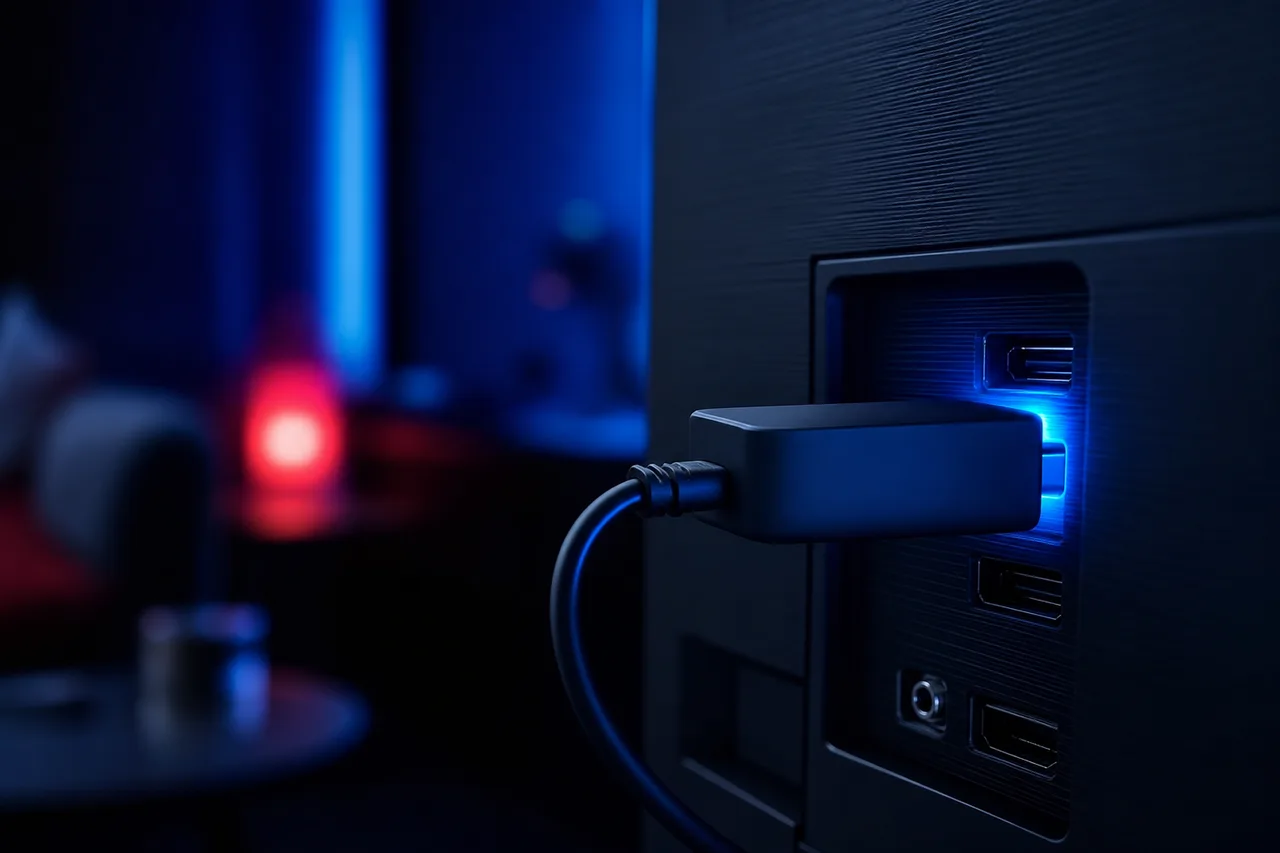
Try a slightly larger buffer first, since it often smooths out short pauses without any other change. Keep hardware decoding on. Keep the channel list lean, restart the stick every few days and, if it hides behind the TV, consider a short HDMI extender for better Wi-Fi reception.
- Larger buffer first
- Hardware decoding on
- Hidden groups, lean favourites
Newer Android TV or Google TV box on a cable
The defaults are usually best. Spend your time on picture quality instead: make sure the box outputs the right resolution for your TV and that 4K content reaches a 4K-capable HDMI input. If you watch in 4K, check that the box, the HDMI port and the TV all support it, ideally HDMI 2.0 or newer, and that the connection has room for 25 Mbps on that screen alone.
Android phone or tablet
Phones rarely need tuning; most problems come from a weak Wi-Fi signal in another room or from mobile data limits. Choose a quality that suits the small screen, and stay near the router for long sessions. If you watch on mobile data, remember that video uses a lot of it.
Older box on Wi-Fi
Start with a cable if at all possible; it changes more than any setting. If a cable is not an option, move to the 5 GHz band near the router, raise the buffer, and keep 4K for a better-connected screen.
Whatever your device, write down the starting point you chose. If you later move XCIPTV to a new box, begin from the defaults again rather than copying your old settings, because a newer device often needs less help than the one it replaced.
Picture shape and quality in XCIPTV
Not every playback complaint is about pauses. Sometimes the picture plays smoothly but looks wrong: stretched faces, black bars on all four sides, or a soft image on a large TV. These are usually quick fixes once you know where to look, and most of them sit partly in XCIPTV and partly in the device’s own display settings.
Stretched picture
Set the aspect ratio in XCIPTV to fit or original rather than fill, then reopen the channel.
Black bars all round
Check the device’s display settings: the output resolution may not match the TV, or zoom may be applied.
Soft image on a big TV
Make sure you opened the Full HD or 4K version of a channel, and that the box outputs that resolution.
4K that never looks 4K
Every link must support it: the stream, the box, the HDMI cable and port, and the TV input.
A useful rule of thumb is to match quality to screen size. On a small bedroom TV or a phone, 720p or 1080p looks sharp and leaves bandwidth for the rest of the household. On a large living-room set, Full HD is the comfortable minimum and 4K is worth it when the connection and the hardware are ready. Choosing the quality that fits the screen often solves pauses and picture complaints at the same time.
If you change the aspect ratio and the picture still looks odd on one channel only, the source itself may be framed differently. Try a second channel in the same quality before changing anything else.
Setting up the XCIPTV TV guide
With an Xtream Codes login, XCIPTV fetches the TV guide automatically. If some channels show no listings, open the settings and look for the option to refresh or reload the guide, then wait a minute. Large guides take a moment to fill.
If times look wrong, check the time zone on your device first. A box set up in another province, or a phone that was manually set to a different zone, will shift every listing. Fix it in the device’s system settings, then refresh the guide. Only use XCIPTV’s own guide time offset if listings are still shifted after the device clock is correct. Our IPTV EPG guide covers time zones across the country and what to do when a guide stays empty.
This matters more in Canada than in many countries. With six time zones from Newfoundland to British Columbia, a device that guesses the wrong zone can be off by up to several hours. Setting the zone by hand in the system settings, rather than relying on automatic detection, is the most reliable fix on boxes that move between homes.
Guide order of checks
Device clock and time zone first, guide refresh second, time offset in the app last. Most guide problems end at the first step.
Tidy up the guide the same way you tidied the channel list: favourites for daily channels, hidden groups for everything else. A lighter guide refreshes faster, which matters most on Fire TV Sticks and entry-level boxes.
Solving common XCIPTV issues
Here are the issues our support team hears about most with XCIPTV, with the first thing to try. If your symptom is not listed, the method above, one change at a time, still applies.
- Login refused: check capital letters, hidden spaces and the port in the server URL.
- “Account in use” or playback stops when someone else starts watching: each pack allows 1 simultaneous connection, so stop the stream on the other device.
- Brief pauses in the evening: try a larger buffer, use a cable if possible, and check the speed next to the device.
- Sound but no picture on some channels: switch the video engine in settings and test again.
- Blocky picture or green flashes on one channel: try software decoding for a test, then switch back if it does not help.
- Stretched picture or black bars: adjust the aspect ratio setting.
- Menus slow down: clear the app’s cache from your device’s settings and restart.
- A problem in XCIPTV only: test the same channel in another player, such as IPTV Smarters Pro, to confirm whether the app is the cause.
If the same channels pause in every player on every device, the cause is in the network rather than in XCIPTV. Our pages on IPTV freezing or cutting out and an IPTV black screen continue the diagnosis from there, and the troubleshooting hub sorts every problem by symptom.
When you write to support about XCIPTV, include four details: the device model, the setting values you are using now, the channels you tested, and what happened at what time. With those, our team can usually tell in the first reply whether to adjust the app, check the network or look at the channel itself, in English or in French as you prefer.
Deep dive: resetting XCIPTV to a clean state
If you have changed many settings and lost track, or the app behaves strangely after an update, a clean start is often faster than more tuning. Clear the app’s data from your device’s settings, or uninstall it and reinstall it from the official store. You will need to log in again with your access e-mail and rebuild favourites and hidden groups, so take a photo of them first. Then follow the one-change-at-a-time method from the defaults, using your notes as a guide.
Keeping XCIPTV quick over time
A player that ran beautifully in the first week can slow down after months of use, especially on a stick with limited storage. None of the habits below touches your subscription, and together they keep XCIPTV feeling new.
- Install updates from the official store when they appear; they often fix playback and guide bugs.
- Clear the app cache from your device’s settings every so often, then restart the device.
- Restart sticks and boxes every few days, using the system restart rather than just the power button on the TV.
- Keep storage tidy by uninstalling apps you no longer open.
- Review your settings note after a big update, in case a default was reset.
- Re-test your three channels once in a while at a busy time, to catch a change in your network early.
Updates deserve a word of caution. Occasionally an update changes a default, such as the video engine, and a channel that played perfectly starts misbehaving. That is exactly when your settings note pays off: compare the current settings with what you wrote down, restore any that changed, and test again. If nothing changed and the problem started right after the update, tell our support team which version you are on; we see patterns across many households and can often say whether others noticed the same thing.
XCIPTV on a phone and a TV box with one login
You can install XCIPTV on your phone and on your TV box with the same login and use them one at a time. That makes it easy to start a series on the living-room TV and finish it on a tablet in the kitchen, as long as you stop the TV first. Every pack includes 1 simultaneous connection, whichever devices and players you use.
If you need more screens playing at once, ask through our contact page. Support will explain the conditions and the price for your situation. Plan the bandwidth accordingly: a TV box in 4K and a tablet in HD playing together need around 35 Mbps for those two streams. Our guide to IPTV on multiple screens covers the details, and credentials should always stay within your own household.
Settings in XCIPTV belong to each device, so the buffer and engine you chose on the TV box do not follow you to the phone. That is usually a good thing: the phone on Wi-Fi and the box on a cable rarely need the same tuning. Keep one line per device in your settings note.
More than one screen at the same time
Tell support which devices you use and receive the conditions and price for extra simultaneous screens.
XCIPTV and your pack
XCIPTV handles a large lineup with ease, and its tuning options are especially useful when you push higher qualities on modest hardware. Every pack works in the app.
Premium Pack
- 20,000+ channels
- 24,000+ series, 100,000+ movies
- HD, Full HD and 4K
VIP Premium Pack
- 27,000+ channels
- 61,000+ series, 155,000+ movies
- HD, Full HD and 4K
Ultimate 4K Pack
- 57,000+ 4K channels
- 47,000+ series, 179,000+ movies
- 20 servers in Europe
If you are just getting started with XCIPTV and want time to tune it on your own devices, a shorter plan gives you room to experiment before committing. Plans last 1, 3, 6 or 12 months, paid once in Canadian dollars by card or PayPal, with no contract and no automatic renewal. See current prices on the IPTV subscription plans page. If 4K is your goal on an older box, our guide to 4K IPTV helps you check every link in the chain before choosing the Ultimate 4K Pack.
XCIPTV settings vocabulary
XCIPTV’s settings use a few technical words. Here is what they mean in practice, so you can read the menu with confidence.
- Video engine
- The internal player that turns the stream into a picture. Switching it can fix stubborn channels.
- Buffer
- A short reserve of video kept ahead of playback to cover network dips.
- Hardware decoding
- The device’s video chip handles the picture. Light and usually best.
- Software decoding
- The main processor handles the picture. Heavier; useful for specific channels.
- Aspect ratio
- How the picture fills the screen: stretched, fitted or original shape.
- Stream format
- The format the app asks the server for. Change it only on support’s advice.
- Cache
- Temporary app data. Clearing it fixes many slowdowns.
For the wider IPTV vocabulary, from M3U links to simultaneous connections, see our guide to what IPTV is.
Related guides for XCIPTV users
These pages pick up where this one stops, from the device behind the app to the network in front of it.
Ready to tune your setup
Choose a pack and a duration; your access arrives by e-mail within minutes.
FAQ
Which devices can run XCIPTV?
XCIPTV is mainly used on Android phones and tablets, Android TV and Google TV boxes, and Fire TV devices. Availability depends on your device’s official app store, so search for it there.
Can I use an M3U link in XCIPTV?
XCIPTV is designed around the Xtream Codes login, which is also the best option for loading the TV guide, movies and series. Use the server URL, username and password from your access e-mail.
Is XCIPTV made by IPTV Canada?
No. XCIPTV belongs to an independent publisher, and IPTV Canada is not affiliated with it. We help you set up your subscription in the app, but updates and terms come from the publisher.
Which setting should I change first?
Match the setting to the symptom. For one channel that will not play, switch the video engine. For short pauses on a busy evening, try a larger buffer. Change one thing at a time.
Should I use hardware or software decoding?
Hardware decoding is the right default on most devices. Try software decoding only for a specific channel that shows artefacts or no picture, and switch back if it does not help.
Why does a channel play in another app but not in XCIPTV?
Try switching the video engine, clear the app’s cache and restart your device. If the problem continues, contact support with the channel name and your device model.
Will a bigger buffer fix all buffering?
No. It helps with short dips. If your connection is below what the quality needs, plan for 10 Mbps per screen in HD, 15 Mbps in Full HD and 25 Mbps in 4K, and improve the network first.
Can I watch on my phone and TV box at the same time?
Each pack includes 1 simultaneous connection, so you can install XCIPTV on both and watch on one at a time. For two screens at once, contact support for the conditions and price.
Do I need to pay for XCIPTV?
Check the app’s official website for its current terms. If any version or feature is paid, the payment goes to the publisher and is separate from your IPTV Canada plan.
How do I undo all my setting changes?
Clear the app’s data from your device’s settings, or reinstall it from the official store, then log in again with your access e-mail. Take a photo of your favourites first so you can rebuild them.