
Of the two login formats IPTV Canada sends, Xtream IPTV access is the one we recommend to most households. Instead of one long playlist address, you receive three short details: a server URL, a username and a password. You enter them once in your player, and it organises everything for you: live channels, series, movies and the TV guide, each in its own section, ready to browse.
This guide explains what each detail means and how to read it, how the player uses them, where to enter them in the most common players, which typing slips cause nearly every failed login, what the usual error messages mean and how to check that everything works afterwards. It is part of our complete IPTV setup section, which covers every stage from choosing a pack to watching your first channel.
What Xtream IPTV login details include
Your access e-mail arrives within minutes of your order. When it uses the Xtream Codes format, it contains three pieces of information that always work together. None of them is useful alone, and the player needs all three exactly as written.
| Detail | What it looks like | What it does |
|---|---|---|
| Server URL | A web address starting with http, sometimes followed by a colon and a port number | Tells the player which server to contact |
| Username | A string of letters and numbers | Identifies your subscription |
| Password | Another string of letters and numbers | Confirms that the access is yours |
| Profile name (asked by some players) | Anything you like | A label for you only, such as the room |
The three details behave like a street address, a name on the door and a key. The right key at the wrong address opens nothing, and the right address with the wrong name on the door goes nowhere either. When a login fails, the cause is almost always one of the three not matching the e-mail exactly, even by a single character.
The fourth row, the profile or playlist name, confuses many people the first time. It is purely for your own use. Write “Living room”, “Basement”, “IPTV Canada” or your first name. It has no effect on the connection, and getting it “wrong” is impossible.
Keep the e-mail somewhere safe. You will need it again whenever you add a device, replace a TV or reinstall a player, and having it at hand turns those moments into a two-minute job.
Why Xtream IPTV is the format we recommend
Both formats in your e-mail open the same channels, series and movies. Xtream Codes earns our recommendation because of how comfortable it makes daily use, especially on a TV where you type with a remote.
Three short fields
Much easier to type with a remote than one long playlist address.
Tidy sections
Live TV, series and movies usually appear in separate menus.
Guide included
Most players load the TV guide with the channel list, without an extra address.
Easy to check
Three separate fields are simpler to compare with your e-mail, one by one.
Account information
Many players show your access status and end date on an account screen.
Widely supported
Accepted by IPTV Smarters Pro, TiviMate, XCIPTV, GSE Smart IPTV and others.
The account information point is often overlooked. Because the player talks to the server with your username and password directly, many apps can display your access end date and connection status on a dedicated screen. That makes it easy to check when your period ends, and to spot at a glance whether another device is using your connection.
There are still cases where an M3U link is more practical, mainly with smart TV apps that only take a playlist address through a web portal. We cover them in the section on when to switch, further down this page, and in our guide to M3U playlist setup.
How an Xtream IPTV login talks to the server
Knowing what happens after you press the login button helps you read error messages correctly. The exchange is short and always follows the same path.
First, the player uses the server URL to find the server. If that address is wrong, the player cannot reach anything and usually reports a network or server error, even though your internet works perfectly. Second, the server checks your username and password. If either one is mistyped, it refuses with a message about an invalid login or authentication. Third, the server checks your access period and how many streams are in use. Finally, it sends the list of categories and the guide, and the player builds its menus.
This order tells you where to look. A message about the server or the network points at the server URL, including its port number. A message about the login or the password points at the username and password, including capital letters. A message about connections points at another device that is still playing. A message about expiry points at your access dates.
Most players do not explain the difference clearly, and some use the same vague wording for several cases. Keep this sequence in mind and you will usually guess the right cause on the first try.
Reading the server URL correctly
Of the three details, the server URL causes the most hesitation. It looks like a web address, but players are stricter about it than a web browser. A browser forgives small differences; a player does not.
The parts of a server URL
A server URL usually has three parts. It starts with a prefix, http or https. Then comes the server’s address. Sometimes it ends with a colon followed by a number, called the port. Copy all three parts exactly as in your e-mail: do not add or remove an “s” in the prefix, do not add “www”, and do not drop the colon and port number if they are there.
The port is the part most often forgotten. It looks like an optional decoration at the end of the address, but it tells the player which door of the server to knock on. Without it, the player knocks on the wrong door and receives no answer, which appears as a server or network error.
Trailing slashes are the second trap. If your e-mail shows no slash at the end of the address, do not add one. Some players tolerate it, others treat it as a different address. Similarly, some players fill in the http prefix for you; if yours shows it already in the field, do not type it a second time.
When you are unsure, compare the field with your e-mail character by character, reading from left to right. It feels slow, but it takes less time than three failed attempts. Reading the address aloud, in small groups of characters, is a surprisingly effective way to catch a missing colon or an extra letter before you press the login button.
Before you type: prepare your details
A little preparation saves you from repeating the login several times. Run through this list before you start, especially if you are setting up on a TV with only a remote.
- Your player is installed from your device’s official app store and opens without errors.
- Your device is connected to the internet, ideally by Ethernet cable for a TV or a box.
- The date and time on your device are correct, because a wrong clock can disturb secure connections and the TV guide.
- No other device is playing on your account, since each pack includes 1 simultaneous connection.
- Your access e-mail is open on another screen, ready to read.
- A keyboard is connected, or your TV maker’s phone remote app is ready, if your device supports either.
Typing on a stick or box
On a Fire TV Stick, the on-screen keyboard is usable but slow for a server URL. Many people type more comfortably with the TV maker’s or the device maker’s remote app on their phone, which sends the phone’s keyboard to the TV. Android TV and Google TV boxes often accept a USB or wireless keyboard directly. Either option cuts typing time and errors.
- Read the e-mail on a second screen
- Type in small groups of characters
- Check the first letter of each field
Plan a quiet moment for the first login. Typing three fields while the family waits for the hockey night snacks to come out of the oven is a recipe for mistakes. Ten calm minutes once is far better than several rushed attempts.
Xtream IPTV on each type of device
The three details are identical on every device, but the comfort of entering them is not. Each family of hardware has its own shortcut, and choosing the right one turns a tedious job into a quick one.
Samsung or LG smart TV
Players such as IBO Player take your details through their web portal, typed from a computer with the device ID shown on the TV.
Android TV or Google TV box
A USB or wireless keyboard usually works straight away and makes the server URL easy to type.
Fire TV Stick
A phone remote app lets you type with your phone’s keyboard instead of the arrow keys.
Apple TV
The remote in your iPhone’s Control Centre can type into text fields on the TV.
Phone or tablet
Copy each detail from the e-mail and paste it, then check for spaces at each end.
PC
Copy and paste in the player window, the quickest setup of all.
Whatever the device, the rule is the same: the fields must match the e-mail exactly. The shortcuts above only change how you type, never what you type. If one device logs in and another refuses the same details, the difference lies in a typing slip on the second device, not in your access.
Each device family has a dedicated guide with its own players and quirks: IPTV on Samsung and LG smart TVs, IPTV on Apple TV and iPhone and the best IPTV box in Canada for those still choosing hardware.
Entering your Xtream IPTV details in each player
Every player has its own menus, but the logic is always the same: find the Xtream Codes option, then fill in the three fields. Here is where to look in the players most often used in Canadian homes.
| Player | Where to find the Xtream Codes option | Player guide |
|---|---|---|
| IPTV Smarters Pro | On the first screen, Add user, then Login with Xtream Codes API | IPTV Smarters Pro |
| TiviMate | Add playlist, then choose the Xtream Codes type | TiviMate |
| XCIPTV | The login screen asks for server URL, username and password directly | XCIPTV |
| GSE Smart IPTV | Open the Xtream Codes API section and add a new entry | IPTV apps |
| IBO Player | Add your details through the app’s own portal, using the device ID shown on screen, then reload on the TV | IBO Player |
Menu names can change slightly between versions. If you do not see the exact wording, look for anything containing “Xtream”, “API” or “login”. Avoid the options labelled M3U, playlist URL or load from file, which expect a different format and will reject your three details.
All these players come from your device’s official app store. Some are licensed by their publisher. IPTV Canada is independent from app publishers, so check the current price on the app’s official website before you install one, and remember that you can try a different player at any time with the same details.
Step by step: a typical Xtream Codes login
Whatever player you use, the login follows these steps. The order of the fields on screen can vary, so read each label before typing.
- Open the player and go to the screen for adding a new user, profile or playlist.
- Choose the Xtream Codes option, not M3U or playlist URL.
- Enter a name of your choice if the player asks for one, such as the room.
- Type the username exactly as written in your e-mail, respecting capital and lowercase letters.
- Type the password the same way, character by character.
- Type the server URL, including the prefix and the colon and port number if your e-mail shows them.
- Confirm and wait while the player loads the categories, the catalogue and the TV guide.
The Xtream Codes form in a typical player. Only the name is yours to choose.
The first load takes a little longer than the following ones, because the player builds its full list. With the Premium Pack, for example, that means 20,000+ channels, 24,000+ series and 100,000+ movies to index, so give it a moment before you start browsing. Pressing back during this step can leave partial lists.
A walkthrough in IPTV Smarters Pro
IPTV Smarters Pro is one of the most widely used players, available on many platforms. Its Xtream Codes login is a good model for how other players work, so it is worth seeing the screens in order.
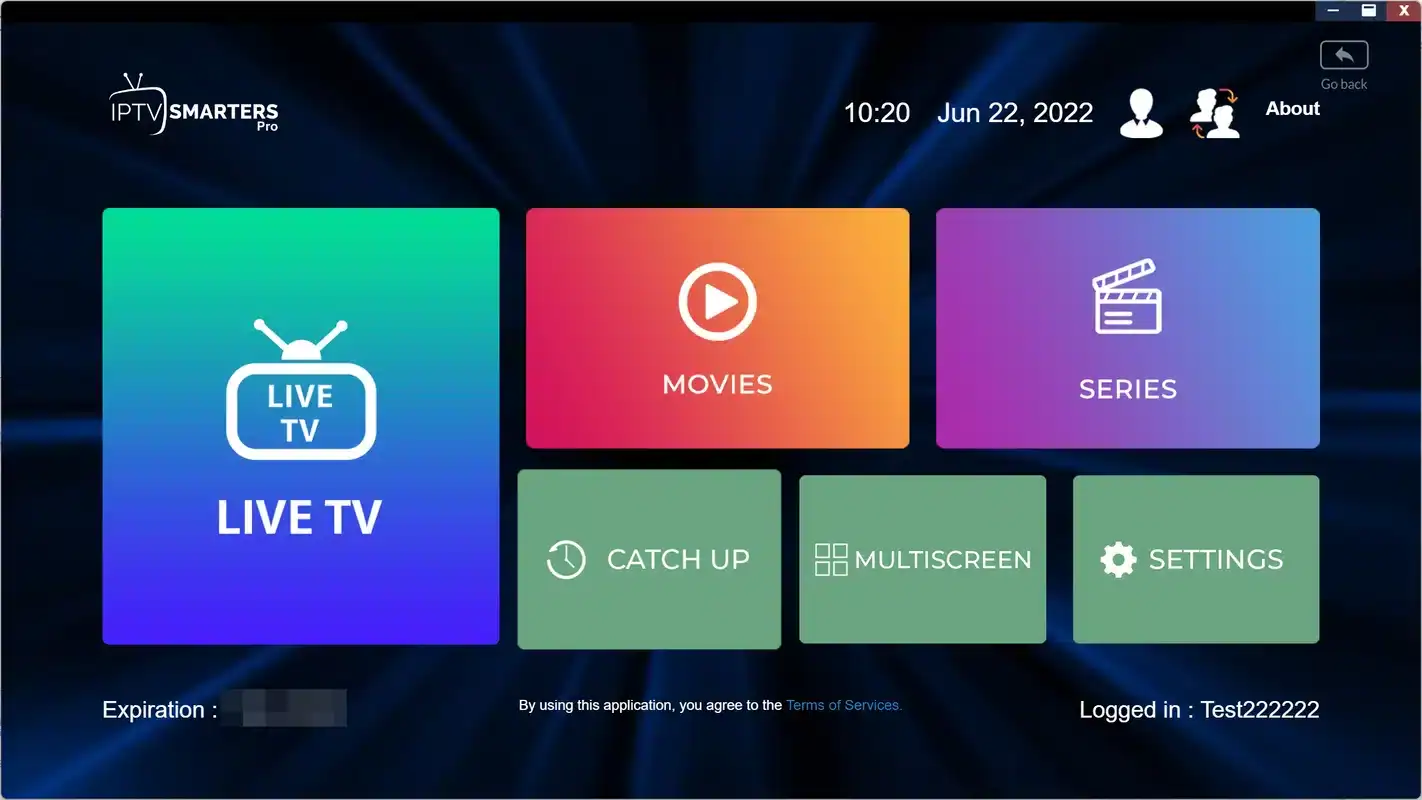
From first launch to home screen
On first launch, the app offers several ways to add a user. Choose the Xtream Codes API option. The form asks for a name, the username, the password and the URL. Once confirmed, the app loads your content and opens a home screen with large tiles for live TV, movies and series, plus access to the guide and the account information.
- Pick the Xtream Codes API option
- Fill the four fields
- Wait for the home screen tiles
- Screen 1
Choose how to add a user
Several options appear. Select the one mentioning Xtream Codes API.
- Screen 2
Fill the form
Name, username, password and URL, copied from your access e-mail.
- Screen 3
Loading
The app fetches live channels, movies, series and the guide. Leave it to finish.
- Screen 4
Home screen
Tiles for live TV, movies and series. Open live TV to test a channel.
The app lists your saved users on its first screen, which is handy if several people in the home add their own profile with the same details. Remember that all profiles share the single connection. Our full IPTV Smarters Pro guide goes further into its settings, from the player options to the guide.
Ready for your own details
Choose a pack and a duration of 1, 3, 6 or 12 months. Your Xtream Codes details arrive by e-mail within minutes.
Common typing errors and how to avoid them
When a login fails, a typing slip is the cause most of the time. Each of these situations has a clear sign and a quick fix. Check them one by one before changing anything else.
Usernames and passwords are case-sensitive, and many on-screen keyboards capitalise the first letter automatically.
Then: check the first character of each fieldThe letter O and the number 0, the lowercase l, the capital I and the number 1 are easy to confuse.
Then: compare those characters with the e-mail, zooming in if neededCopy and paste often adds an invisible space at the start or end of a field.
Then: move the cursor to each end and delete any spaceYour server URL ends with a colon and a number, and that part was left out.
Then: add the colon and the number exactly as writtenThe username sits in the password field, or the other way round.
Then: read each label and retype in the right fieldAn “s” was added to http, or a “www” crept in.
Then: copy the prefix exactly as in the e-mailTip: when you have retyped everything and it still fails, try the same details on a phone, pasting rather than typing. If the phone logs in, the details are correct and the issue is a slip on the TV. If the phone fails too, contact support with the exact message.
Patience matters more than speed here. Retype one field at a time, testing after each correction, so you know which one was wrong. That knowledge saves time the next time you add a device.
Some households keep a small note, stored safely at home, of the characters that tripped them up: “the second character is a zero, not a letter O” or “the password starts with a capital”. It contains no credentials on its own, yet it makes the next login on a new TV nearly effortless, especially for a family member who was not there the first time.
Changing player without starting over
One advantage of Xtream Codes is portability. Your three details work in any compatible player, so trying a different app is quick and changes nothing in your subscription. Many households start with one player and settle on another after a week of use.
- Install the new player from your device’s official app store, next to the old one.
- Close the old player completely, so it does not hold your single connection in the background.
- Add an Xtream Codes user in the new player, with the same three details from your e-mail.
- Let the library load without pressing buttons, then open a channel to test.
- Set the guide offset and favourites again, since each player stores its own settings.
- Keep or remove the old player once you are happy; nothing in your subscription depends on it.
Players differ mostly in their look, their guide layout and how they handle large catalogues on modest hardware. TiviMate is often praised for its guide grid on Android TV, XCIPTV for its lightness on smaller devices, and IPTV Smarters Pro for being available on many platforms. Our IPTV apps hub compares them in more detail.
If a player asks for a licence, remember that IPTV Canada is independent from app publishers: check the current price on the app’s official website. A licence bought for one player or one device does not necessarily carry over to another.
Error messages and what they usually mean
Players word their errors differently, and some are vague. This table translates the most common messages into likely causes, following the order in which the server checks your login.
| What the player says | Most likely cause | What to check |
|---|---|---|
| Invalid login, wrong username or password, authentication failed | A slip in the username or password | Capitals, look-alike characters, spaces, swapped fields |
| Server not reachable, network error, connection refused | The server URL or the internet connection | Prefix, address, colon and port; a web page on the same device |
| Too many connections, maximum connections reached | Another device is playing | Stop playback on every other screen, then wait a moment |
| Account expired, subscription ended | The access period is over | Your end date; packs do not renew automatically |
| Login works but lists are empty | The first load was interrupted | Reload the playlist and leave the remote alone |
The expired message deserves a calm read. Packs run for 1, 3, 6 or 12 months with no automatic renewal, so access stops at the end of the period until you order again. Nothing is wrong with the setup. If you believe your period should still be running, contact support with your username and the message on screen.
For a deeper look at login and connection errors, including network blocks and devices that lose their connection after a while, our IPTV app can’t connect guide takes over where this table stops.
When you contact support about an error, copy the message word for word or take a photo of the screen. Players often show a short code or a specific phrase that looks meaningless but points our team straight to the cause. Add the player name, its version, the device and the format you used, and the answer usually comes on the first reply, in English or in French.
After the login: checking that everything works
Once the player has finished loading, run a quick check to confirm the setup is complete. Doing it now, while you remember every step, is easier than discovering a gap on a busy evening.
- The live TV section shows categories and channels.
- The series and movies sections show posters and titles.
- A channel opens with picture and sound within a few seconds.
- The TV guide displays programmes at the right times for your province.
- The account screen, if your player has one, shows your access as active.
If the guide is empty or shifted by an hour or more, the login itself is working: only the guide needs attention. Our IPTV EPG guide explains how to refresh it and set the time offset for your Canadian time zone, including the half-hour case in Newfoundland.
Deep dive: the account information screen
Many players that support Xtream Codes have an account or user info screen. It typically shows whether the access is active, the end date of your period and connection details such as how many streams are in use. Use it to confirm your end date before planning a renewal, and to check whether another device is still playing when a stream refuses to start. Wording varies by player, and some show dates in a format from another country, so read them carefully.
Take a minute to tidy the home screen too. Mark a few favourite channels and hide categories you will never use. A clean list on day one makes every evening after it quicker.
Speed and picture quality after an Xtream IPTV login
Once channels open, quality depends on the speed that reaches the screen. A successful login is not the same as a smooth picture; it only proves the details are right. The rest is about the connection inside your home.
Recommended speed per playing screen
Test the speed on the device itself, using a speed test app from its official store, rather than on a phone next to the router. A TV at the far end of the house on Wi-Fi often receives a fraction of what the router delivers. If the test sits close to the figure for your chosen quality, lower the quality in the player for busy evenings or connect the device by cable.
If channels open but pause and reload, the IPTV buffering guide walks through router placement, Wi-Fi bands and player buffer settings. If the picture locks while sound continues, the freezing guide is the better starting point.
One login, all your devices
The same Xtream Codes details work on every device in your home. You do not need new credentials for the bedroom TV, the basement stick or the kitchen tablet. Each pack includes 1 simultaneous connection, so the devices take turns.
Three details, entered once per device, and the whole house is ready, one screen at a time.
When you add the details to a second device, stop playback on the first before testing. Otherwise the new device may show a connection error that has nothing to do with your typing. Give each profile a room name so you always know which screen is playing.
A useful order for a new home is to start with the screen you use most, test it fully, then add the others one by one. If a later device refuses the details, you already know they are correct, because the first device accepted them. That narrows the search to a typing slip or to the second device’s connection, and spares you from doubting your access.
If your household needs several screens playing at the same time, contact support through the contact page. They give you the conditions and the price for extra simultaneous screens. Our multiple screens guide explains how the single connection works in day-to-day life and which habits keep it from getting blocked.
Xtream IPTV or M3U link: when to switch
Xtream Codes suits almost every situation, but there are cases where the M3U link in your e-mail, or one sent by support on request, is the better choice. Both unlock the same content.
Stay with Xtream Codes when
- Your player has an Xtream Codes or Xtream API button
- You type with a remote
- You want series and movies in their own sections
- You want the guide without an extra address
Switch to M3U when
- Your player has no Xtream Codes option
- A smart TV app loads playlists only through its portal
- You want to manage the playlist and guide address separately
- You can paste a long link easily on that device
If you need the other format, contact support and they will send it. Nothing changes in your subscription when you switch, and you can use one format on the TV and the other on a phone without any conflict, as long as only one plays at a time.
A common mixed setup in Canadian homes looks like this: a portal-based player on the Samsung or LG TV using the M3U link, TiviMate on the Android box with Xtream Codes, and IPTV Smarters Pro on a phone. Three players, two formats, one subscription and one stream at a time. Each device simply uses the format its player handles best.
Keeping your login safe
Your three details are the keys to your subscription. Anyone who has them can use your single connection, which interrupts your own viewing. A few habits keep them safe without making your life harder.
Careful: your credentials are for your own household only. Sharing them with another home creates conflicts on your single connection and cuts your own viewing. Never post them on a forum or a social network, and never type them into a website that is not the official portal of your player.
Store the access e-mail in a folder you can find quickly instead of forwarding it around. When you give an old TV or box away, remove your profile from its player first. And if streams keep stopping while nobody in your home is watching elsewhere, contact support so the team can look into it with you.
Be wary of anything that promises to “unlock” more with your details, such as modified players or tools that offer extra features. Install players only from your device’s official app store. IPTV Canada never asks you to install anything from outside those stores.
Phishing messages are worth a word too. If you ever receive a message asking you to confirm your username and password through a link, do not answer it. When in doubt, contact support directly through the contact page of this site, and check with the team before typing your details anywhere other than your player.
Xtream Codes words, explained
Login screens and error messages use a small set of technical words. This glossary helps you recognise them in any player, and makes support conversations faster.
- Xtream Codes API
- The login method that uses a server URL, a username and a password. Also shown as Xtream API or Xtream login.
- Server URL
- The address of the server, with its prefix and sometimes a colon and a port number.
- Port
- The number after the colon at the end of a server URL. It must be kept when present.
- Case-sensitive
- Capital and lowercase letters count as different characters, as in usernames and passwords.
- Profile or user
- A saved login inside a player, named as you like.
- Account info
- A player screen showing access status, end date and connection details.
- Simultaneous connection
- One active stream. Each pack includes one, shared by all your devices.
With these words in mind, a message such as “XCIPTV says authentication failed, port included, phone works” tells our team almost everything they need on the first read.
Related pages
These pages continue the setup, help with devices and players, and lead to the packs themselves.
Login still refused
Send us the player, the device and the exact message. We answer 7 days a week by e-mail and WhatsApp, in English and French.
FAQ
Where do I find my Xtream Codes details?
They are in the access e-mail sent within minutes of your order: server URL, username and password. If you cannot find it, check your spam or promotions folder, then contact support.
Why does my player say “invalid login”?
Usually because of a typing slip: a capital letter, a look-alike character, an extra space or swapped fields. Retype each field slowly, comparing it with your e-mail.
Why does the player say the server cannot be reached?
Check the server URL first: the prefix, the address and the colon and port number if your e-mail shows them. Then check that the device itself has internet access.
Can I use the same Xtream Codes details on several devices?
Yes. Enter them on several devices in your home and watch on one at a time, since each pack includes 1 simultaneous connection. For more screens at once, contact support for the conditions and the price.
Does Xtream Codes load the TV guide automatically?
In most players, yes. The guide arrives with the channel list. If it stays empty, refresh it from the player settings or restart the app.
What is the “name” field in the login screen?
It is only a label for your own use, such as “Living room”. It has no effect on the connection, so you can write anything.
Which player works best with Xtream Codes?
IPTV Smarters Pro, TiviMate, XCIPTV and GSE Smart IPTV all accept Xtream Codes directly. The best one depends on your device and on the interface you prefer.
What does “maximum connections reached” mean?
Another device is already playing with your login. Stop playback on every other screen, wait a moment and try again.
Should I type http at the start of the server URL?
Type the prefix exactly as it appears in your e-mail, no more and no less. If the player already shows the prefix in the field, do not type it a second time.
Can I enter my details from a computer instead of the TV?
With portal-based players such as IBO Player, yes: you add them on the player’s official website using the device ID shown on the TV. With other players, a keyboard or a phone remote app makes typing on the TV much easier.
Why are series and movies missing after the login?
The first load was probably interrupted before it finished. Use the reload or refresh option in the player and leave the remote alone until the library is complete.
Where can I see when my access ends?
Many players show it on an account or user info screen. Packs run for 1, 3, 6 or 12 months with no automatic renewal. If in doubt, ask support.