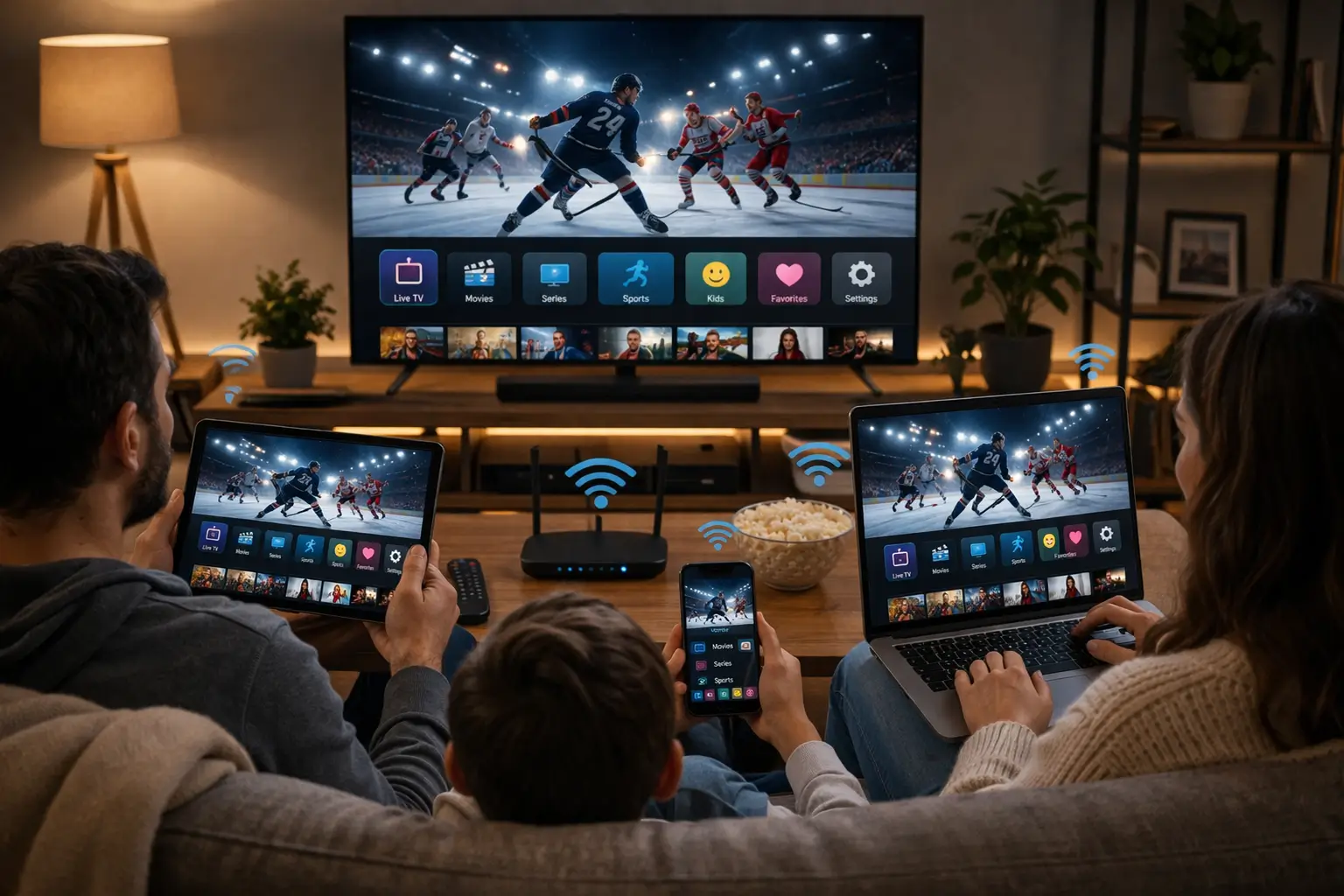
Most Canadian homes have screens everywhere: a big TV in the living room, a box in the basement rec room, a laptop in the home office, tablets and phones on every couch. So how do IPTV multiple screens work with IPTV Canada? The rule is short and honest. Each pack includes 1 simultaneous connection. You can install your access on as many of your own devices as you like, but only one of them plays at any given moment. When the household needs more screens playing together, support arranges it on request.
This guide explains what that rule means in daily life, how to install the same login across your devices, which hidden habits keep a connection busy, what a typical multi-device day looks like, how to ask for extra simultaneous screens and how much internet speed several streams need. It is part of our complete IPTV setup section.
How IPTV multiple screens work with one pack
A simultaneous connection is one active stream. The moment you press play on a channel, a series episode or a movie, your account uses its connection. When playback stops, the connection is available again for any other device in the house. That is the whole mechanism.
The rule is the same for every pack, whether you choose Premium, VIP Premium or Ultimate 4K, and for every duration. It does not depend on the device, the player or the login format. An Xtream Codes login on the TV and the M3U link on a tablet still share the same single connection, because both belong to the same subscription.
What the rule does not limit is installation. Your smart TV, your Android TV box, your Fire TV Stick, your Apple TV, your phone, your tablet and your computer can all hold your details at the same time. There is nothing to log out of when you change rooms, and nothing to reinstall. You stop on one screen and start on another.
That flexibility is the heart of the model. Many households watch on one screen at a time anyway: one person in the evening, another the next morning, a third on a weekend away. For those homes, a single connection installed everywhere is exactly what they need, without paying for screens that sit idle.
Installed versus playing: the difference that matters
Most confusion about multiple screens comes from mixing up two ideas: how many devices hold your login, and how many are streaming at this exact second. Only the second one counts against your connection.
| Situation | Uses the connection | Why |
|---|---|---|
| Player installed and closed | No | Nothing is streaming |
| Player open on the home screen or in the guide | Usually not | Browsing menus is not playback |
| A channel, episode or movie playing | Yes | One active stream |
| Playback paused but the player still open | Can, in some players | The stream may stay open while paused |
| TV switched off, box still running the player | Can | The box may keep streaming with no one watching |
| Picture-in-picture on a phone or tablet | Yes | The stream continues in the small window |
The last three rows explain most “my TV won’t start” evenings. Turning off a television does not always stop the box or stick connected to it. A paused movie on a tablet may hold the stream open. A phone that slipped into picture-in-picture keeps playing quietly in the corner of the screen. In each case, the connection is busy even though nobody is really watching.
The fix is a habit rather than a setting: close the player completely on devices you are not using, and press stop before you leave a room. On boxes and sticks, return to the device’s home screen or put them in standby from their own menu, not only by switching off the TV.
A day in a multi-screen home
To see how one connection fits real life, picture a typical family in Mississauga with four devices holding the same login. Nobody waits for anybody, because nobody watches at the same moment.
- Morning
News on the kitchen tablet
One parent watches the morning news over breakfast, then closes the player before leaving for work.
- Midday
A series on the office laptop
The other parent, working from home, plays an episode during lunch on the computer, then stops it.
- After school
Cartoons in the basement
The kids watch on the Fire TV Stick in the rec room, and someone presses home on the remote when it is time for homework.
- Evening
A film on the living room TV
The whole family gathers in front of the big screen with the Android TV box. One stream, one connection, everyone happy.
The pattern only breaks when two of those moments overlap: the kids still have the basement stick playing when the family sits down for the film. That is where small habits help. A simple house rule such as “the last one out presses stop” solves most conflicts without any change to the subscription.
If overlaps become a daily event rather than an exception, the household probably needs more than one stream at a time. That is the moment to ask support about extra simultaneous screens, covered further down this page.
Installing the same credentials on several devices
Adding your access to another device takes a few minutes. Repeat these steps on each screen you want to use. You never need new credentials for an extra device: the same details from your access e-mail work everywhere in your home.
- Install a player from the device’s official app store, such as IPTV Smarters Pro, TiviMate, IBO Player, XCIPTV, Smart IPTV or GSE Smart IPTV.
- Open your access e-mail on a second device, so you can read your Xtream Codes details or M3U link while you enter them.
- Enter the same details you used on your first device, exactly as written in the e-mail.
- Name the profile after the room or the person, for example “Basement” or “Office laptop”, if the player asks for a name.
- Let the library load and set the guide’s time offset if programme times look shifted.
- Stop playback everywhere else before you test the new screen, so it can use the connection.

Start with the main screen
Set up the device you use most first, usually the living room TV, and test it fully: live channels, series, movies and the TV guide. Once it works, every other device is quicker to add, because you already know which details go where and what a normal first load looks like.
- Main screen first, tested end to end
- Then one extra device at a time
- Test each one with the others stopped
For the exact fields in each player, see our guides on how to set up IPTV with Xtream Codes and how to set up IPTV with an M3U playlist. The guide’s time offset is stored in each player separately, so the IPTV EPG guide is worth a look whenever a new device shows programmes at the wrong time.
Mixing players across your devices
You do not need the same player on every screen. Each device can run the player that suits it best, all with the same login. The household keeps one subscription; each screen gets the most comfortable app for its hardware.
| Device in the home | Players often chosen | Why it suits that screen |
|---|---|---|
| Living room Android TV box | TiviMate | A clear guide grid on a large screen |
| Bedroom Samsung or LG smart TV | IBO Player, Smart IPTV | Available in the TV’s own store |
| Basement Fire TV Stick | IPTV Smarters Pro, XCIPTV | Light and quick on a compact device |
| Apple TV, iPhone or iPad | IPTV Smarters Pro, GSE Smart IPTV | Found in the App Store |
| Android phone or tablet | IPTV Smarters Pro, XCIPTV | Easy copy and paste from the e-mail |
| Home office PC | IPTV Smarters Pro | Runs in a window beside your work |
Each player keeps its own settings, favourites and guide offset on its own device. Changing favourites on the living room box will not change them on the tablet. Some households like that, because each person shapes their own screen; others prefer to spend ten minutes making the main devices look alike.
IPTV Canada is independent from app publishers. If a player requires a licence, check the current price on the app’s official website, and remember that a licence bought for one device may not cover another. Our IPTV apps hub compares the main players, and the IPTV devices hub explains the strengths of each family of hardware.
A practical tip for mixed homes: keep one player you know well on a phone or tablet as a reference. When a TV app misbehaves, opening the same channel on that reference device tells you in a minute whether the trouble belongs to the TV or to something wider. Just stop one before starting the other.
Keeping settings consistent across your screens
Because every player stores its preferences on its own device, a home with five screens has five separate sets of settings. That independence is useful, but it can also mean the guide is right in the living room and an hour off in the basement, or that favourites exist on the TV and nowhere else. A short routine keeps things coherent.
- Set the device clock and time zone on each screen before anything else.
- Adjust the guide’s time offset on each player, using the same reference programme.
- Hide the same unused categories on the main screens, so every room starts from a clean list.
- Mark the household’s core favourites on each device that the whole family uses.
- Pick the same default quality on screens that share a weak Wi-Fi area, to keep them steady.
- Note which player and version runs on which device, in case you need support later.
You do not need to make every device identical. A teenager’s tablet can keep its own favourites, and the office laptop can show only news categories. The aim is simply that the shared screens, the ones everybody reaches for, behave the same way wherever you sit down.
Quality settings deserve a thought in multi-device homes. A 4K stream on a smart TV that sits far from the router may pause, while the same channel in Full HD plays smoothly. Setting a sensible default per device spares family members from fiddling with menus. Our 4K IPTV guide explains what a full 4K chain needs, from the screen to the cable, so you can decide which rooms really benefit from it.
| Setting | Stored where | Set it once on |
|---|---|---|
| Login details | In the player on each device | Every device you use |
| Guide time offset | In the player on each device | Every device, after fixing its clock |
| Favourites and hidden groups | In the player on each device | The shared screens at least |
| Simultaneous connection | In your subscription | Nothing to set: one per pack |
Naming profiles so everyone knows which screen is which
When the same login lives on five devices, clear names save a lot of confusion. Most players ask for a profile or playlist name when you add your details. It is only a label for you, with no effect on the connection, but it makes support conversations and family discussions much simpler.
A profile named after the room. The login details themselves always come from your access e-mail.
Room names work best: “Living room”, “Basement”, “Kitchen tablet”, “Office laptop”. If a stream stops unexpectedly, the first question is always “which device is playing”, and a room name answers it instantly. Names after people work too in homes where each person has their own device.
Avoid adding the same login twice on one device under different names unless you need separate favourites. Two profiles on the same box still share the same single connection, and switching between them while one is playing can create a brief conflict.
What happens when two screens play at once
If a second device starts playing while the first is still streaming, your account tries to open two connections. Since the pack includes one, one of the two streams stops or refuses to start. Here is the sequence, so you recognise it when it happens.
On screen, this can look like a loading circle that never ends, an error message about connections, or a black picture on one of the devices. Players word it differently, which sometimes makes it look like a technical fault. It is not: the rule is simply working as designed.
Tip: when a stream refuses to start for no obvious reason, walk around the house before changing any settings. Check the TVs, the boxes behind them, the tablets on the couch and the phones on the counter. Nine evenings out of ten, a forgotten screen is the whole story.
Once you have stopped the other device, wait a moment before pressing play again. The server needs a short time to register that the first stream ended. Pressing play repeatedly in the meantime does not help and can make the player show more errors.
If the same conflict returns every evening at the same hour, look for a pattern rather than a fault. A child’s tablet that starts a show after school, a box set to resume the last channel when its TV wakes up, or a family member who watches on a phone during a commute home: each one shows up at a predictable time, and each one is solved by a habit rather than a setting.
Hidden habits that keep a connection busy
Some devices keep streaming when you think they have stopped. Knowing the usual culprits makes conflicts rare. Each tile below describes a situation our team hears about often.
Box left running
The TV is off, but the box behind it still plays the last channel. Return to the box’s home screen before leaving.
Picture-in-picture
A phone keeps a small window playing after you switched apps. Close it with a swipe.
Paused, not stopped
A movie paused on a tablet can hold the stream open in some players. Press stop or close the app.
Laptop lid closed
A player window on a laptop may keep running briefly. Quit the player before closing the lid.
Stick in a spare room
A Fire TV Stick in a guest room, still powered, can resume playback on its own when its TV turns on.
A visitor’s device
A relative given your details “just for the weekend” keeps them long after. Keep access within your household.
None of these is a fault, and each one is fixed by closing the player properly. If you cannot find which device holds the connection, restart your router: every device loses its connection for a moment, and only the one you start afterwards picks it up.
A tidy habit for families is to keep the player off the home screen of devices that are rarely used, so nobody opens it by accident. On shared tablets, remind children to close the app rather than just pressing home.
One screen at a time is enough
Every pack includes 1 simultaneous connection, installable on all your devices. Compare packs and durations, with current prices.
Household scenarios and what suits them
Every home uses screens differently. These situations cover the patterns we see most often in Canadian households, with the most sensible approach for each one.
One screen in the evening, phones now and then during the day.
Then: the single connection, installed on the TV and both phonesTwo or more streams at the same time, most evenings.
Then: contact support about extra simultaneous screensThe office PC during the day, the living room TV at night, never together.
Then: the single connection covers it, just close the player at the deskA guest room TV used for a few weeks a year.
Then: install the login on that TV and agree on who watches whenViewing moves with you rather than happening in two places at once.
Then: install on a device you bring along, one stream at a timeThe question to ask is never “how many devices do we own” but “how often do two of us press play at the same moment”. If the honest answer is “rarely”, the standard connection plus a couple of house habits is the simple choice. If it is “every evening”, ask support before frustration sets in.
Remember that a cottage or second home is still your household, but the single connection still applies: if someone stays in the city while you are away and both watch at once, one stream stops. Plan accordingly, or raise it with support.
House rules that keep one connection peaceful
In homes that share one connection, a few agreed habits matter more than any setting. They take a minute to explain at dinner and prevent most of the “who is watching” arguments that otherwise surface on busy evenings.
| House rule | Why it helps |
|---|---|
| Press stop, then leave the room | A switched-off TV does not always stop the box behind it |
| Close the app on phones and tablets | Picture-in-picture and paused streams can hold the connection |
| The big screen has priority after supper | Removes the nightly negotiation over who watches |
| Ask before pressing play on a second device | A quick check avoids cutting someone’s film halfway |
| Keep the access e-mail with one person | Details do not leak to friends or other homes |
These rules sound modest, yet they cover most of the conflicts we hear about. They also make diagnosis easier when something really does go wrong: if everyone follows them and a stream still refuses to start, you know the cause lies elsewhere, and the IPTV troubleshooting hub takes it from there.
Children adapt to these habits faster than adults expect. Showing them once how to close the player properly, rather than just pressing home, usually settles the matter for good. For younger kids, keeping the player only on the devices they are allowed to use simplifies things further.
Signs your home has outgrown one connection
A single connection serves many households for years. For others, daily life changes: children grow up, someone starts working evenings from a home office, a relative moves in. These signs suggest it is time to talk to support about extra simultaneous screens.
- Two people want to watch different things at the same time most evenings, not just occasionally.
- House rules are followed, yet streams still get cut because of real overlaps.
- A family member watches in a separate unit of the same home, such as a basement suite used by a relative.
- Weekends regularly bring two events or programmes that different people want to follow live.
- The question “who is using the TV” comes up more often than the question “what should we watch”.
If two or more of these ring true, write to support with the details listed in the next section. Asking commits you to nothing: support explains the conditions and the price, and you decide afterwards.
Tip: before you write, count how many evenings in a typical week had a real overlap. A concrete number such as “four evenings out of seven” helps you and support judge what the household really needs.
IPTV multiple screens: requesting extra simultaneous screens
When your household regularly needs two or more streams at once, the single connection will not stretch to cover it. In that case, you can request extra simultaneous screens. There is no extra pack to pick from the plans page; the request goes through our team.
How the request works
You contact support through the contact page, by e-mail or WhatsApp, in English or French, 7 days a week. You explain how many screens you would like to use at the same time and on which devices. Support then gives you the conditions and the price for your situation. Nothing changes on your account until you agree.
- Your current or planned pack and duration
- How many screens should play at once
- Which devices are concerned
- A speed test from the main screens
We do not publish set rates or limits for extra screens on this page, because they depend on each request. Support will always explain the details before anything is added, so you can decide calmly. If you are not a subscriber yet, you can ask before ordering; mention it in your first message.
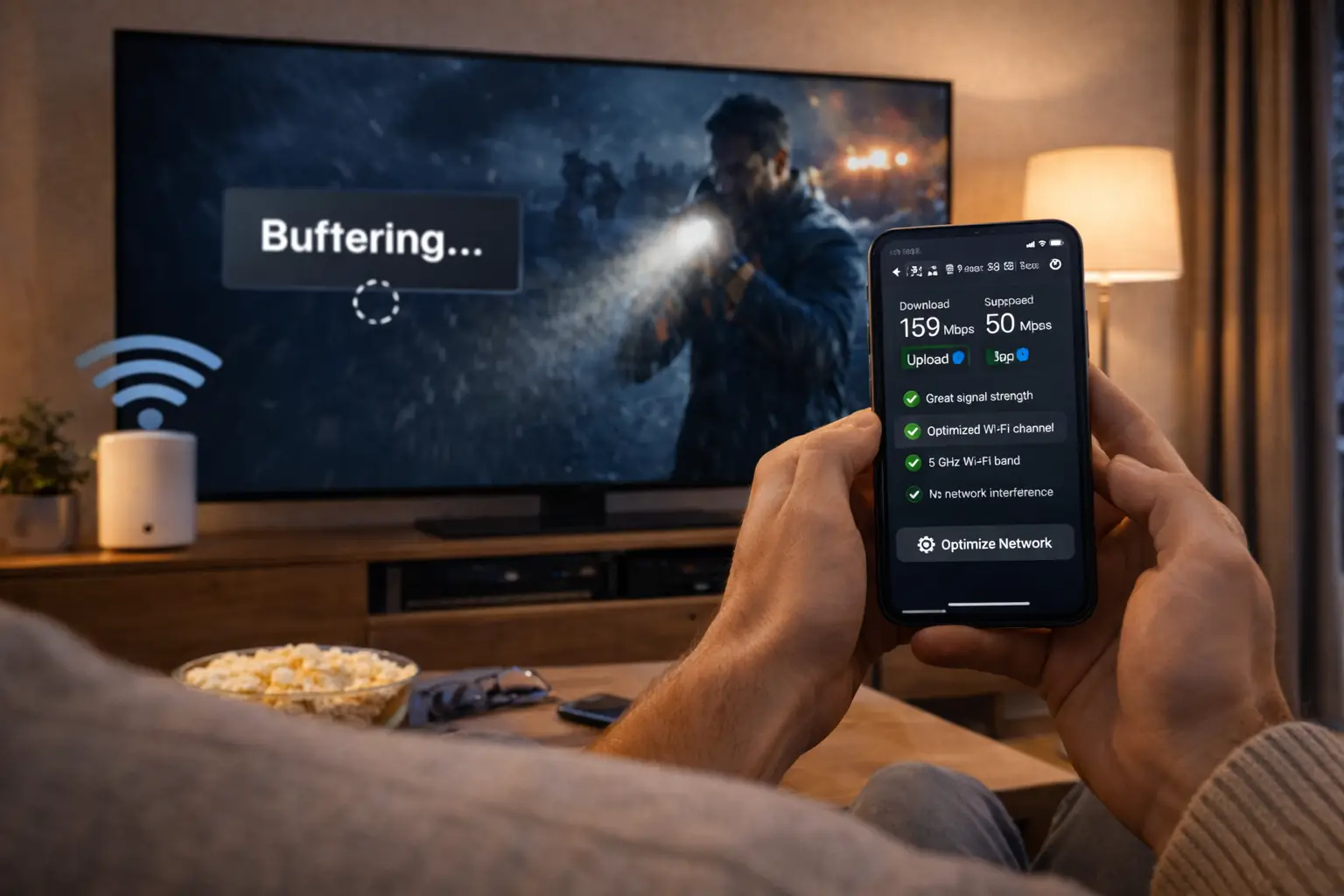
Prepare your speed figures before you write. Each extra stream needs its own share of bandwidth, and it is better to know in advance whether your connection can carry several streams than to discover it on the first busy evening. The next section shows how the figures add up.
Internet speed for IPTV multiple screens
Each screen that plays at the same time needs its own share of bandwidth. The recommended speeds are per playing screen, and they add up when several streams run together.
Recommended speed per playing screen
| Streams playing together | Speed to plan for |
|---|---|
| One screen in HD (standard connection) | 10 Mbps |
| One screen in 4K (standard connection) | 25 Mbps |
| Two screens in HD | 20 Mbps |
| One in Full HD, one in HD | 25 Mbps |
| Two screens in Full HD | 30 Mbps |
| One in 4K, one in Full HD | 40 Mbps |
| Two screens in 4K | 50 Mbps |
The rows with two screens only apply once support has added extra simultaneous screens to your account. With the standard single connection, you plan for one stream at a time, whichever device it plays on.
Other activity in the house uses the same line: video calls, online games, cloud backups, console updates. Leave room for them. Test the speed on each device you plan to use, not only next to the router, and test once in the evening, when your neighbourhood is busiest online.
Preparing your home network for several screens
Even with a fast plan, the Wi-Fi inside the house often decides whether several screens run smoothly. A router tucked in a basement corner can serve the TV above it well and the bedroom two floors up poorly.
A network that serves every room
Connect the main TV or box by Ethernet cable whenever the layout allows it; it frees Wi-Fi capacity for the other screens. Place the router in a central, raised spot. Use the 5 GHz band for screens near the router and keep 2.4 GHz for distant ones. In larger homes or older houses with thick walls, a mesh system with a point near each TV evens out the signal.
Run a quick test on each screen after any change. Open a channel in HD on the device farthest from the router and let it play for a while. If it holds steady there, the closer screens usually will too. If it pauses, move the router or add a mesh point before raising the quality.
Condos and apartments bring their own challenge: dozens of neighbouring networks on the same channels. If evenings are noticeably worse than afternoons, try another Wi-Fi channel in the router settings, or use Ethernet for the main screen. Our IPTV buffering guide covers these network fixes in depth.
Sharing outside the home: why it backfires
It can be tempting to give your details to a sibling across town or a friend in another city. It feels generous, but it works against you in very practical ways, before even considering that your access is meant for your own household.
A login shared with another home is a connection you no longer control.
With one simultaneous connection, the two homes compete for the same stream. Your film stops when they press play; their match stops when you do. Neither household knows when the other is watching, so the interruptions feel random and are hard to diagnose. Many “the service keeps cutting out” reports we receive end with the discovery of a login shared months earlier.
Careful: your credentials are for your own household only. Keep your access e-mail private, never post your details online and never forward them to another home. If you think your details are being used elsewhere, contact support so the team can look into it with you.
If family members in another home want the same experience, the clean solution is their own subscription. Each household then has its own connection, its own details and its own support conversation. The plans page shows the three packs and the current prices.
The single-connection model, honestly weighed
We prefer to be clear about what one connection per pack does well and where it falls short, so you can decide with all the facts in front of you.
Where it works well
- Install on every device in your home at no extra step
- Move between rooms without logging out
- Simple to understand: one stream at a time
- Lower bandwidth needs than several streams
- Suits couples, solo viewers and homes that watch together
Where it can pinch
- Two people cannot watch different things at once
- A forgotten device can block the main screen
- Families with separate evening habits need a request to support
- Shared access with another home quickly causes conflicts
For most homes we talk to, the pinch points are solved by habits: closing players, agreeing on evening screens, keeping access within the household. For the others, extra simultaneous screens are available on request, and support explains the conditions before anything changes.
Deep dive: replacing or adding a device later
When you replace an old TV or box, install a player on the new one and enter the same details from your e-mail. There is nothing to transfer and nothing to cancel. If the old device stays in the house, for example moved to a spare room, close its player so it does not hold the connection in the background. If you give the old device away, remove your profile from its player first, so your details do not leave the household with it.
Choosing a pack for a multi-device home
The connection rule is identical across the three packs, so the choice depends on what your household watches. Every pack includes HD, Full HD and 4K quality and works with the same players on the same devices.
VIP Premium Pack
- 27,000+ channels
- 61,000+ series
- 155,000+ movies
- HD, Full HD and 4K
Homes where each person has different tastes often lean towards a larger catalogue, since one subscription has to please everyone across the week. Households with a 4K television as the main screen tend to look at the Ultimate 4K Pack. Payment is made once, in Canadian dollars by card or PayPal, for 1, 3, 6 or 12 months, with no automatic renewal and no contract.
Whatever pack you choose, the setup across your devices is identical, and you can move from one pack to another at the end of your period. If you are unsure which catalogue suits a household with many different viewers, our guide to choosing the best IPTV in Canada walks through the questions to ask, and support is happy to help you compare before you order.
Related pages
These pages complete this guide, from setup details to devices and help when a stream misbehaves.
Need several screens at once
Tell us how many screens and which devices. Support gives you the conditions and the price, 7 days a week, in English and French.
FAQ
How many devices can I install my subscription on?
You can install the same credentials on several devices in your own home. Each pack includes 1 simultaneous connection, so only one device plays at a time.
Can two people watch at the same time on different TVs?
Not with the standard single connection. If you need several screens playing at once, contact support, who will give you the conditions and the price.
What happens if I start a second screen by mistake?
One of the streams stops or fails to start. Stop playback on the device you are not using, wait a moment, then start again.
Do I need different credentials for each device?
No. You use the same Xtream Codes details or M3U link on every device in your home.
Why does my TV say the connection is in use when nobody is watching?
A device is probably still streaming in the background: a box behind a switched-off TV, a paused tablet or a phone in picture-in-picture. Close the player on each device, or restart the router.
Can I use different players on different devices?
Yes. For example, TiviMate on an Android box and IBO Player on a smart TV with the same login, as long as only one plays at a time.
Is there a two-screen pack on the plans page?
No. Every pack includes 1 simultaneous connection. Extra simultaneous screens are arranged on request through the contact page, where support explains the conditions and the price.
Can I share my access with family in another home?
No. Your access is for your own household. Sharing it creates conflicts on the single connection and interrupts your own viewing.
What speed do two screens need?
Add the figures per screen: 10 Mbps for HD, 15 Mbps for Full HD and 25 Mbps for 4K. Two Full HD streams need about 30 Mbps, once support has added the extra screen.
Does closing the TV stop the stream?
Not always. A box or stick connected to the TV may keep playing after the screen is off. Return to the box’s home screen or stop playback before switching off the TV.
Do I keep my favourites when I switch devices?
Favourites, hidden categories and the guide offset are stored in the player on each device. Set them on each screen you use, starting with the shared ones.
Does the rule change with the pack or the duration?
No. Premium, VIP Premium and Ultimate 4K all include 1 simultaneous connection, for 1, 3, 6 or 12 months.