
IPTV freezing has a way of choosing the decisive moment: the last minute of a close game, the twist at the end of an episode, the answer on a quiz show. The image locks on a single frame, the sound drops out or stutters, and sometimes the player gives up and returns to the menu. Unlike a short loading pause, a freeze usually waits for you to do something. The good news is that freezes follow patterns, and a calm, ordered diagnosis finds the cause in most homes without buying anything new.
This page belongs to our IPTV troubleshooting section. It covers every supported device, from Samsung and LG smart TVs to Android TV and Google TV boxes, the Fire TV Stick, Apple TV, iPhone and iPad, Android phones and tablets and PCs, and every supported player, including IPTV Smarters Pro, TiviMate, Smart IPTV, IBO Player, XCIPTV and GSE Smart IPTV.
IPTV freezing, buffering or a crash: name the symptom
Three different problems get called “freezing” in everyday conversation, and each one is fixed in a different place. Spend thirty seconds matching what you see to the right row before you try anything. It keeps you from restarting a router to cure a tired app, or reinstalling an app to cure weak Wi-Fi.
| What you see | Name | Recovers by itself | Where the cause usually lives |
|---|---|---|---|
| Picture locks on one frame, sound stops or loops | Freezing | No, you have to act | Short network drops, device memory, player cache |
| Loading circle, then playback resumes | Buffering | Yes, after a pause | Speed reaching the screen too low or uneven |
| Player closes and returns to the home screen | App crash | No | Outdated app, full storage, overheated device |
| Sound plays, screen stays dark | Black screen | No | Decoding, format or display settings |
| Stream stops as another screen starts | Connection limit | No | The 1 simultaneous connection rule |
If your symptom is the loading circle, our IPTV buffering guide is the better place to be, since it focuses on speed per screen. If it is sound without picture, go to the IPTV black screen guide. If the player cannot even log in, the guide for an IPTV app that can’t connect starts from the error message. Everything below is about the true freeze: a picture that was playing, then stopped.
Tip: when a freeze happens, note three things before you touch the remote: the time, the channel or title, and which device you were on. Those three notes do more for the diagnosis than any reset.
Why a live stream freezes when a web page would not
People often say “but the internet works perfectly on my phone”, and they are right. A web page is patient. If the connection drops for a moment, the page simply finishes loading a little later and nobody notices. A live stream is not patient. It needs a steady flow of data every second, and the player only keeps a small reserve, called a buffer, to ride out short hiccups.
When the flow stops for longer than the reserve can cover, the player has nothing left to show. A short gap produces a buffering pause. A longer or repeated gap, or a gap that hits while the device is low on memory, leaves the player in a stuck state: the last frame stays on screen, the sound loops or cuts, and the stream does not restart by itself. That is the freeze.
This also explains why the device and the player matter as much as the line. The data can arrive on time and still freeze if the device cannot decode it fast enough, because its memory is full, it is overheating or the player is struggling with an old version. So a good diagnosis checks both halves of the chain: the path the data takes to reach the screen, and the device that turns that data into a picture.
A freeze is a gap the buffer could not hide. Find what opened the gap, and the freezes stop.
Read the pattern before you fix anything
Freezes almost never happen at random, even when they feel random. The moment they appear says a lot about their cause. Look at your notes, or simply think back over the last few evenings, and find the scenario that matches best.
Short drops in the connection, most often weak or crowded Wi-Fi in the room.
Then: start with step 1, the networkOther devices are taking a large share of the line at the same moment.
Then: go to step 2, other devicesThe player cache or the device memory fills up over a long session.
Then: steps 3 and 4, the player and the deviceThe line is not to blame, because the other screens play smoothly.
Then: focus on that device’s Wi-Fi, app and memoryTwo screens are trying to use one connection.
Then: read the section on account rulesThat stream may have a temporary issue on its side.
Then: try another channel and note the timeIf two patterns seem to fit, start with the one involving the network. A weak link between the router and the TV makes every other weakness worse, and fixing it often clears the second pattern too. If nothing fits, run the one-evening test plan further down this page, which separates the causes one at a time.
Step 1 of the IPTV freezing diagnosis: the network
Most freezes start with a short drop between the router and the screen. Browsing hides those drops, streaming exposes them. This first step checks the line and the link to the device, and it is the one that solves the largest number of cases.
- Restart the router. Unplug it, count to thirty, plug it back in and wait until every light is steady. Then restart the TV or box so it picks up a fresh network address.
- Look at the signal on the device. Open the network settings on the TV or box. One or two bars of Wi-Fi is not enough for steady streaming, even if web pages load.
- Measure the speed where you watch. Run a speed test on the TV or box itself if it has a browser or a speed test app from its official store, or on a phone held in front of the TV.
- Compare with the target. Aim for at least 10 Mbps for HD, 15 Mbps for Full HD and 25 Mbps for 4K on that one screen, with some room to spare.
- Try a cable for one evening. Connect the device to the router with Ethernet. If the freezes vanish, Wi-Fi was the cause and the next section tells you what to do about it.
Recommended speed for one screen, measured on that screen
A single speed test is a snapshot. A result that looks healthy at noon can be very different at nine in the evening, when everyone on your street is online. If your freezes cluster in the evening, run the test at that exact time, ideally while the freeze is happening. A sharp drop compared with the daytime points to congestion on your internet line, and the practical answer is to lower the picture quality on that screen during peak hours, or to talk to your internet provider about the line itself.
Remember also that speed is not the only thing that matters. A line can show a high number in a test and still drop for a second every few minutes. Those micro-drops are invisible in a test but very visible on a live channel. That is why the Ethernet test is so useful: it removes Wi-Fi from the picture completely and tells you which half of the network to work on.
Wi-Fi in the room where you watch
If the cable test made the freezes disappear, your line is good and the weak link is the radio signal between the router and the TV. In Canadian homes that usually means distance, floors, or neighbours. Each has a simple remedy, and you rarely need all of them.

Strengthen the link, from easiest to most reliable
Start at the top of the list and test after each change. Many homes are sorted by the second or third item.
- Move the router out of cupboards, corners and basements to a central, open spot.
- Connect the TV or box to the 5 GHz band, which is faster and less crowded than 2.4 GHz at short range.
- Keep the 2.4 GHz band for devices far from the router, where it reaches better through walls.
- Add a mesh point or a second access point in the room with the TV.
- Run an Ethernet cable, or use a powerline adapter where a cable is not practical.
Apartment and condo dwellers face a particular problem: dozens of neighbouring networks on the same channels, all busy in the evening. The 5 GHz band suffers much less from this, because its signal does not travel as far through walls and floors. In a house, the problem is more often distance and construction: a basement TV under a concrete floor, or a bedroom at the far end of a long hallway. There, a mesh point or a cable is the dependable answer.
Streaming sticks deserve a mention. Tucked behind a wall-mounted TV, a stick receives a weaker signal than a box sitting in the open, because the TV’s metal frame is right in front of its antenna. A short HDMI extension that lets the stick hang clear of the frame improves reception noticeably, and it also helps with heat, which we come to in step 4.
Step 2: other devices sharing the line
Your internet line is shared by everything in the house. When a console starts installing a large update, a laptop backs up a photo library or a phone uploads a weekend of videos, your stream suddenly gets a smaller share. If that share drops below what the picture needs, the buffer runs dry and the image locks.
Console updates
Large game updates often start automatically in the evening or overnight and can take most of the line.
Cloud backups
Computers syncing folders or backing up photos send data continuously, often without telling anyone.
Phone uploads
Phones upload photos and videos the moment they join home Wi-Fi after a day out.
Other video
Video calls, other streaming apps and online classes in other rooms all draw on the same line.
Security cameras
Cameras that send video to the internet do so around the clock, which adds up on modest lines.
System updates
Smart TVs, boxes and computers fetch system updates in the background, sometimes all at once.
Pause the heavy activities while you watch and see whether the freezing stops. If it does, you have three options. Schedule updates and backups for the middle of the night. Choose a lower picture quality when the house is busy. Or turn on the priority or quality-of-service feature many routers offer, which puts the TV first in line. Your router’s manual or settings page explains where to find it.
When you plan for a busy household, add up the speeds of everything that may run together. These sums only cover the streams themselves, so leave a healthy margin on top for calls, browsing and updates.
| Typical evening | Streams at once | Speed to plan for the streams |
|---|---|---|
| One person watching in the living room | 1 in Full HD | 15 Mbps |
| TV in 4K while someone browses | 1 in 4K | 25 Mbps plus browsing |
| TV in Full HD, a video call in the office | 1 in Full HD plus the call | 15 Mbps plus the call |
| Two screens arranged with support, both Full HD | 2 in Full HD | 30 Mbps |
| Two screens arranged with support, 4K and HD | 1 in 4K and 1 in HD | 35 Mbps |
Step 3: the player, its cache and its settings
Player apps keep temporary files while you watch: channel logos, guide data, pieces of video and thumbnails for the on-demand library. Over weeks of use, that cache grows. On devices with modest memory and storage, a bloated cache slows the app until it stalls on a frame. An old app version can also handle newer streams poorly. This step cleans the player without losing your login.
- Clear the cache, not the data. In the device settings, open the list of apps, choose your player and select clear cache. Clearing data would also erase your profile, so keep that for later.
- Update the player. Open your device’s official app store, search for the player and install any available update.
- Reload the channel list and the guide. Inside the player, use the refresh or reload option so you start from fresh information.
- Lower the buffer pressure. If your player offers a buffer size setting, a slightly larger buffer gives more reserve against short drops, at the cost of a slightly slower channel start.
- Try another player with the same login. If the freezes continue in one app only, install a second supported player from the official store and compare on the same channel.
Deep dive: hardware and software decoding
Many players let you choose how video is decoded. Hardware decoding uses the device’s dedicated video chip and is usually smoother and cooler. Software decoding uses the main processor and can handle unusual formats, but it works the device harder. If a particular device freezes on some channels, switching the decoder option in the player’s playback settings is worth one test. Change it, watch the same channel for a while, and keep whichever setting stays smooth.
Our service works with IPTV Smarters Pro, TiviMate, Smart IPTV, IBO Player, XCIPTV and GSE Smart IPTV, always installed from your device’s official app store. IPTV Canada is independent from the publishers of these apps: we do not make them, update them or sell their licences. If a player asks for a licence or offers a paid version, check the current price on the app’s official website. For a side-by-side look at the players, the IPTV apps hub compares their strengths, and the TiviMate guide and XCIPTV guide cover the playback settings mentioned above in detail.
Step 4: the device, its memory and its temperature
Smart TVs, boxes and sticks are small computers, and they behave like computers. Left in standby for weeks, they slowly run short of memory. Packed into a tight cabinet or behind a wall-mounted screen, they get hot. Short on storage after years of apps and updates, they slow down. Video playback is usually the first thing to suffer, and freezing is how it shows.
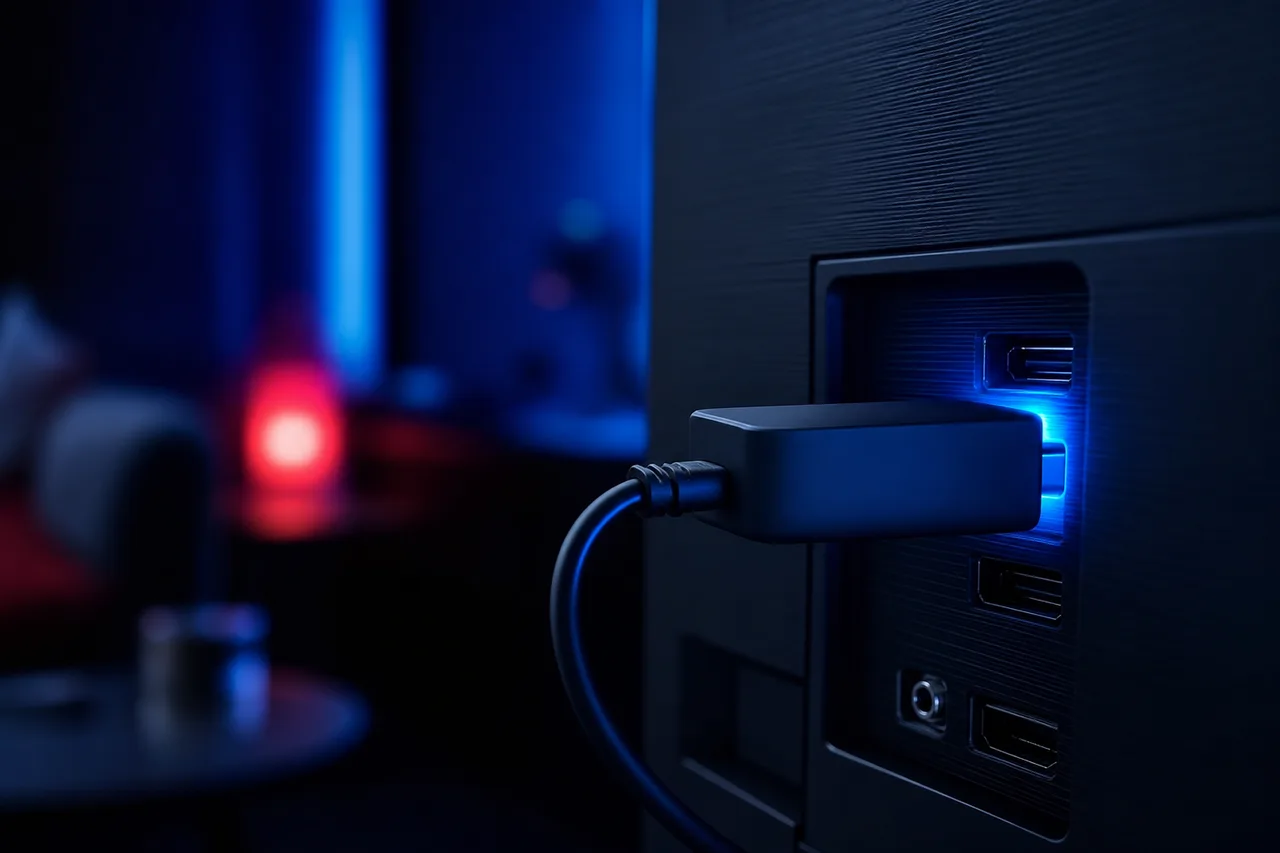
A full restart and a little breathing room
Standby is not off. A real restart clears the memory and closes processes that have been running for weeks. Give the device air and storage, and many freezes simply stop.
- Unplug the device from power for a short while, then start it again.
- Install any pending system update from the device settings.
- Close or remove apps you never use that run in the background.
- Keep some storage empty, especially on sticks and entry-level boxes.
- Use the power adapter supplied with the device, not a USB port on the TV.
- Give sticks and boxes space to breathe, away from other hot equipment.
Heat is easy to overlook. If a device feels very warm to the touch and freezes get worse the longer you watch, heat is a strong suspect. An HDMI extension that moves a stick away from the TV’s back panel, or moving a box out of a closed cabinet, often makes a visible difference. A fan is not necessary; open air usually is enough.
Older or entry-level devices sometimes cope well in HD and struggle in 4K. If one device freezes on 4K channels only, try the same content in Full HD on that device. If the freezes stop, the device has reached its limit for 4K, and our guide to the best IPTV box in Canada explains what to look for if you decide to replace it. Before you buy anything, read the IPTV devices hub, since many homes already own a capable device in another room.
When IPTV freezing follows a rule, not a fault
Some stops have nothing to do with your network, your player or your device. They are the account working as designed, and from the couch they look exactly like a freeze. Two rules explain most of these cases, and one habit makes them much worse.
One connection at a time. Each pack includes 1 simultaneous connection. You can install your login on every device in your household and use them one at a time. If someone starts a stream on a phone or a bedroom TV while the living room is playing, one of the two streams stops. The person on the couch sees a frozen frame and assumes something broke. If your household often needs two screens at once, extra simultaneous screens are available on request through the contact page, where support explains the conditions and the price. The IPTV on multiple screens page shows how families organise this.
End of the access period. Packs run for 1, 3, 6 or 12 months with a one-time payment and no automatic renewal. When the period ends, streams stop on every device at once. If that is your situation, see current prices on the plans page and pick a new duration. The Premium Pack includes 20,000+ channels, 24,000+ series and 100,000+ movies in HD, Full HD and 4K.
Watch out: your login is for your household only. If it is used in another home, both places compete for the same single connection, streams keep cutting out at random-looking moments, and the access can be suspended.
Two people, two screens, same evening
Ask support about additional simultaneous screens. They explain the conditions and the price for your home.
One channel or one title freezing
Sometimes everything plays smoothly except one channel, or one film from the on-demand library. That pattern clears your network, your device and your player in one stroke, because they handle every other stream without trouble. The cause is more likely on the side of that particular stream, or in the way your device handles its format.
That channel may have a temporary issue. These usually settle on their own.
Then: switch away, come back a little later and note the timeThe problem is lasting longer than a passing hiccup.
Then: tell support the channel name, the time and your deviceThe device or its link may be at its limit for 4K.
Then: test the same title in Full HD on that deviceThat file may have a problem at that point.
Then: try another version of the title if the library has one, and report itBefore you report a single channel, test it on a second device if you can. If the same channel freezes on the phone and on the TV, the issue is on the stream side and support needs to know. If it plays smoothly on the phone but freezes on the TV, go back to steps 3 and 4 for that TV, since the device or player is the weaker link. That one extra test turns a vague message into a precise one, and it shortens the reply.
Tip: keep a channel you know is reliable as a reference. When something freezes, switch to it. If the reference also freezes, look at your network. If it plays smoothly, the problem belongs to the first stream.
Evening freezes and peak-hour congestion
A very common pattern in Canadian homes: smooth playback in the afternoon, freezes from early evening onwards, smooth again late at night. That rhythm matches the busiest hours on residential internet lines, when whole neighbourhoods are streaming, gaming and video-calling at once. Your line has not changed, but the share it can deliver at that hour has.
- Afternoon
Quiet line
Fewer people online nearby. Speed tests look strong and playback is smooth even in 4K.
- Early evening
Neighbourhood wakes up
Homes fill up, devices sync after the commute and the line gets busier. Occasional stalls start.
- Prime time
Peak demand
The busiest stretch. If your line is close to the limit for your chosen quality, freezes cluster here.
- Late night
Back to calm
Demand drops. Playback recovers, which often makes the earlier freezes feel like a mystery.
To confirm this pattern, run a speed test on the watching device in the afternoon and again at the peak, and compare. A clear drop at the peak tells you the line, not your equipment, is the bottleneck at that hour. Inside your home, you can still help: keep the TV on a cable or on 5 GHz Wi-Fi, schedule updates and backups for the night, and pick Full HD rather than 4K during the busiest stretch. If the drop is severe every evening, your internet provider is the one who can look at the line itself.
A one-evening test plan to isolate the cause
If the patterns above did not point clearly at one cause, this plan separates them for you. It takes one evening, needs no purchases and changes only one thing at a time, so whatever stops the freezes is the answer.
| Test | What you change | If the freezes stop | If they continue |
|---|---|---|---|
| A | Restart router and device | Memory or a stale network address. Restart weekly. | Go to test B |
| B | Pause other heavy devices at home | Shared line. Schedule updates, use router priority. | Go to test C |
| C | Connect the device by Ethernet | Wi-Fi. Move the router, use 5 GHz, add a mesh point. | Go to test D |
| D | Clear cache and update the player | The player. Repeat the clean-up every few weeks. | Go to test E |
| E | Same login in a second player | The first player. Keep the one that stays smooth. | Go to test F |
| F | Same channel on another device | The first device. Check heat, storage and 4K limits. | Contact support with your notes |
Watch the same channel for at least the length of a typical programme after each change, because freezes that happen every so often need time to show themselves. Keep a short note of each result. If you reach test F and nothing has helped, you already have everything support needs, and our reply can start from the right place instead of from the beginning.
During the whole test, make sure nobody else in the house starts a stream with the same login. A second screen pressing play in the middle of test C would make Ethernet look useless, when in fact the 1 simultaneous connection rule cut the stream.
A simple routine that keeps IPTV freezing away
Once you have found and fixed the cause, a little maintenance stops the freezes from creeping back. None of it is technical, and most of it takes a minute. The left column lists the habits that keep playback smooth; the right column lists the ones that slowly bring freezes back.
Habits that keep playback smooth
- Restart the TV box or stick once a week
- Clear the player cache every few weeks
- Accept player and system updates from the official store
- Keep the TV on Ethernet or 5 GHz Wi-Fi
- Schedule console and backup updates overnight
- Agree at home on who watches when
Habits that bring freezes back
- Leaving devices in standby for months
- Filling the device storage with unused apps
- Hiding the box inside a closed, warm cabinet
- Choosing 4K on a screen that barely reaches 25 Mbps
- Two people starting streams on one login
- Moving the router into a cupboard after the fix
A good way to remember the routine is to tie it to something you already do weekly, such as taking out the recycling. Restart the box, glance at the storage, and move on. Every few weeks, clear the cache and check for updates. That small rhythm keeps most homes clear of freezes for months.
Freezing habits of each type of device
Every family of devices has a typical weakness when it comes to freezing. Knowing it saves time, because you can go straight to the most likely fix for the screen in front of you instead of working through every possibility.
| Device | Typical freezing trigger | Most effective fix |
|---|---|---|
| Samsung or LG smart TV | Built-in Wi-Fi weaker than a separate box, memory filled by many TV apps | Ethernet port on the TV, full power-off restart, remove unused TV apps |
| Android TV or Google TV box | Low storage on entry-level models, background apps | Keep storage space, clear player cache, try the decoder setting |
| Fire TV Stick | Heat and weak signal behind the TV, power from a USB port | HDMI extension, supplied power adapter, regular restarts |
| Apple TV | Usually steady; freezes mostly come from Wi-Fi in that room | Ethernet where the model has a port, or 5 GHz Wi-Fi |
| iPhone, iPad, Android phone or tablet | Moving between rooms and switching between Wi-Fi and mobile data | Stay close to the router, turn off battery saving for the player |
| PC | Many browser tabs and background apps competing | Close other heavy programs, use a cable for the computer |
Device guides go further for each case. The IPTV on Firestick page covers heat, power and placement in detail, and the Android box IPTV guide walks through storage and playback settings on Google TV and Android TV models.
What to send support about IPTV freezing
Contact us when you have worked through the four steps and the freezes continue, when one channel freezes for hours, or when an error message appears that you do not understand. We answer 7 days a week by e-mail and WhatsApp, in English and in French. A precise first message lets us skip the questions and go straight to the cause.

The details that matter most
Put everything in one message. Notes from the one-evening test plan are perfect: they show what you changed and what happened each time.
- Your username, never your password
- The device and the player you use
- The channels or titles that froze
- When the freezes happen, with times if you have them
- A speed test result measured on the watching device
- Which of the four steps you have already tried
From our side, we can confirm whether your access is active, whether a second screen was using the connection when the stream stopped, and whether a specific channel had a known issue at that time. We cannot see inside your home network, which is why your own tests are so valuable. Write to us through the contact page, or visit the support hub for the other ways to reach the team.
A clear message, written in a minute
“Living room Android box, TiviMate. Freezes every evening on several channels, smooth in the afternoon. Speed on the box: good at noon, much lower in the evening. Tried router restart and cache clear. Ethernet not possible yet.” That message already tells us almost everything.
Freezing vocabulary in plain English
Player settings and support replies use a few terms that are worth knowing. Here they are, without jargon.
- Buffer
- The few seconds of video the player keeps in reserve to cover short gaps in the connection.
- Cache
- Temporary files the player stores, such as logos and guide data. Clearing it keeps your login.
- App data
- Everything the player has saved, including your profile. Clearing it resets the app completely.
- Hardware decoding
- Video decoded by the device’s dedicated chip. Usually smoother and cooler.
- Software decoding
- Video decoded by the main processor. More flexible, but works the device harder.
- 2.4 GHz and 5 GHz
- The two common Wi-Fi bands. 5 GHz is faster at short range, 2.4 GHz reaches further.
- Mesh Wi-Fi
- Several access points that work as one network to cover every floor.
- Quality of service
- A router feature that gives priority to chosen devices, such as the TV.
Related troubleshooting and setup guides
Freezing often travels with other symptoms. These pages pick up where this one stops, whether you want to dig into speed, fix a different symptom or tidy up your setup.
If you are planning a 4K setup after fixing your freezes, the Ultimate 4K Pack offers 57,000+ 4K channels, 47,000+ series and 179,000+ movies. Check that the screen you will use reaches 25 Mbps on a steady link before you choose it.
Freezes still there after every step
Send us your notes. Support replies 7 days a week, in English or French, by e-mail or WhatsApp.
FAQ
Why does my IPTV freeze after watching for a while?
A long session fills the player cache and the device memory, and some devices also heat up. Clear the cache, restart the device fully, install updates and give it some air.
Why does the stream stop when someone else starts watching?
Each pack includes 1 simultaneous connection. When a second screen starts playing with the same login, one stream stops. Use devices one at a time, or ask support about extra simultaneous screens.
Can Wi-Fi cause IPTV freezing even when speed tests look good?
Yes. Short drops of a second or two do not show in a speed test but stop a live stream. Test with an Ethernet cable for one evening to find out.
Why does it only freeze in the evening?
Evenings are the busiest time on residential lines and inside the home. Compare a speed test at noon and at the peak. Choosing Full HD rather than 4K at the peak often helps.
Should I reinstall the player app?
Only after clearing the cache, updating the app and restarting the device. If freezing continues, reinstall from your device’s official app store and log in again.
What if only one channel freezes?
That stream may have a temporary issue. Try again a little later. If it lasts for hours, send support the channel name, the time and your device.
Does a bigger pack stop freezing?
No. Freezing comes from the network, the device, the player or the connection rule. Fix those first, then choose the pack for the content you want.
Can heat make a streaming stick freeze?
Yes. A stick pressed against the back of a TV can run hot. An HDMI extension and the supplied power adapter usually make playback steadier.
Is freezing worse in 4K?
It can be, because 4K needs about 25 Mbps on that screen and more work from the device. If only 4K freezes, try Full HD on the same device.
What should I send support?
Your username, device, player, the channels affected, when it happens, a speed test from the watching device and the steps you tried. Never send your password.